While typically a single exhibitor will be connected to a single booth, there is flexibility to allow an exhibitor to belong to multiple booths. A booth will most likely be created during the exhibitor list import, but a user with appropriate security access may also add a booth for an exhibitor manually.
An exhibit booth is NOT required to create an order. The user can free form type the booth number during the order creation process.
View Booths for an Exhibitor
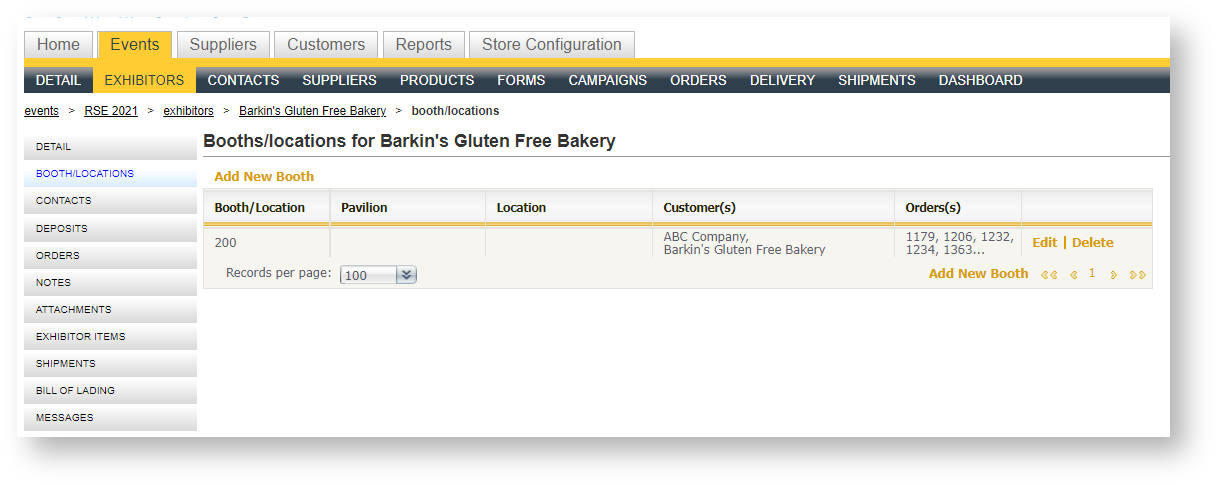
Access the exhibit booth grid from within an individual exhibitor record by clicking "Booths" in the left hand navigation menu for an individual exhibitor:
Add a Booth
To create an exhibitor booth:
- Click "Add New" in the lower right hand corner of the grid.
- Fill in the booth details as defined below.
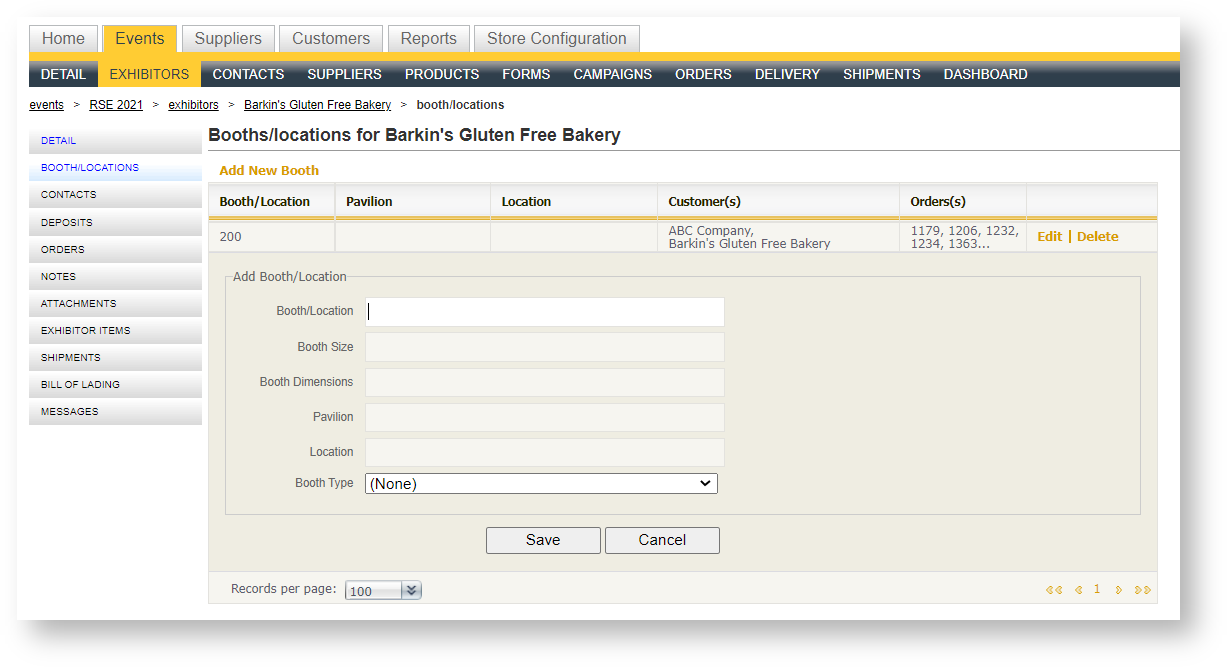
- Click Save.
| Field Name | Description |
|---|---|
| Booth Number |
Booth number (may contain alphanumeric characters). If a booth number is typed that already exists within the event, the user will be notified (see below) |
| Booth Size |
Size, in square feet/meters (depending on system setup) of the booth. Only numeric values accepted. |
| Booth Dimensions |
Description of the booth size in width and length (e.g., 20 x 20). Alphanumeric characters accepted. |
| Pavilion |
If the booth belongs to a named group of other booths, also known as a pavilion, enter it here. |
| Location |
The specific location in the exhibit hall (example, if the event is in Bayside A-D, the booth might be in Bayside A, Bayside B, Bayside C or Bayside D. |
| Booth Type | Acceptable values include: In-line, Island, Meeting Room, Peninsula |
Changing a Booth Number
If a booth number is changed and there are orders associated to that booth, the user will be prompted if he/she wants to change the booth numbers in those orders. Only open (Payment Pending or Confirmed) orders will be impacted; if an order is marked as "Closed", the booth number will not be changed.