Suppliers and their products are initially set up as part of the store management process. Suppliers may then be associated to an event which makes their products available for selection. An supplier marked as "exclusive" will automatically be associated to an event, and additional suppliers may be added manually based on which suppliers are participating in the event.
Associate Supplier(s) to an Event
The Suppliers menu option under an event displays all suppliers who are participating in the given event: 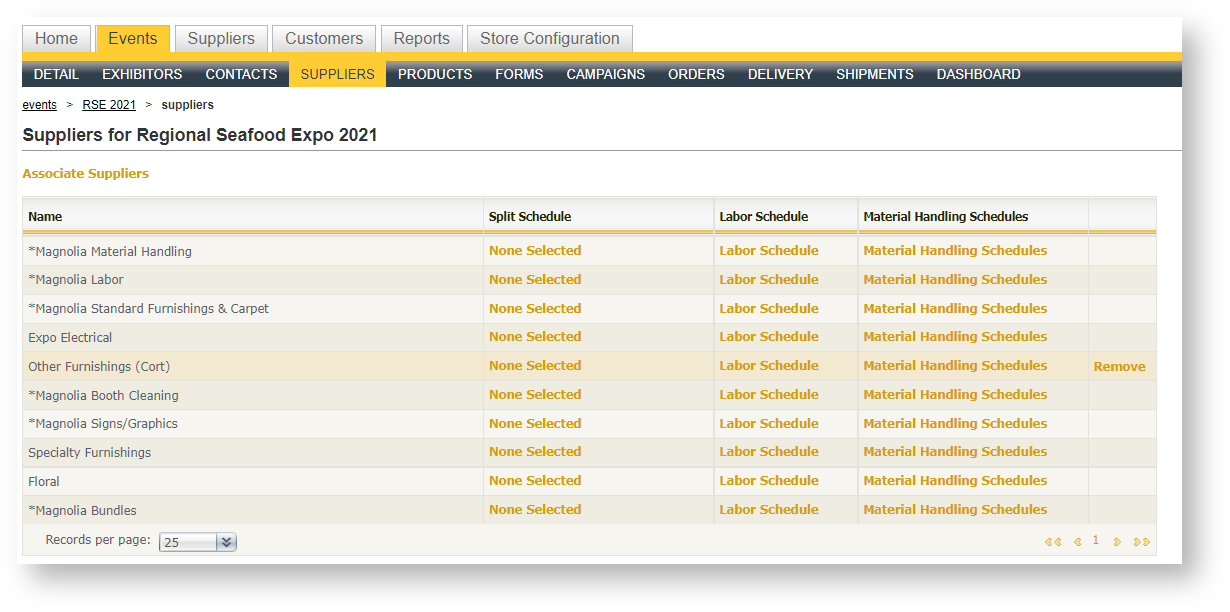
Any active supplier in the system marked as exclusive in the store will automatically appear under Suppliers for an Event. To associate additional suppliers:
- Click "Associate Suppliers" in the upper left corner above the Suppliers grid.
- Enter search criteria to search for the supplier by name. Hit <enter> or "Apply Criteria".
- Double click or click and hit the >> button to select the supplier(s).
- Click "Apply Selection" to associate the supplier(s) and close the Picklist.
When a supplier is associated, all products marked as "Automatically Publish in Admin" will be brought into the Event (viewable in the Products sub menu area). To learn how to set whether products are automatically associated when a supplier is added, see Products.
Remove a Supplier and all Its Products from an Event
To remove a supplier, simply navigate to Suppliers within the event and click "Remove" in the row of that supplier.
"Remove" does not appear if there are orders that contain products provided by that supplier. If there are orders but that supplier's products are no longer available in the event, an alternative is to remove whatever products are not already in orders. See the next section for instructions on how to do this.
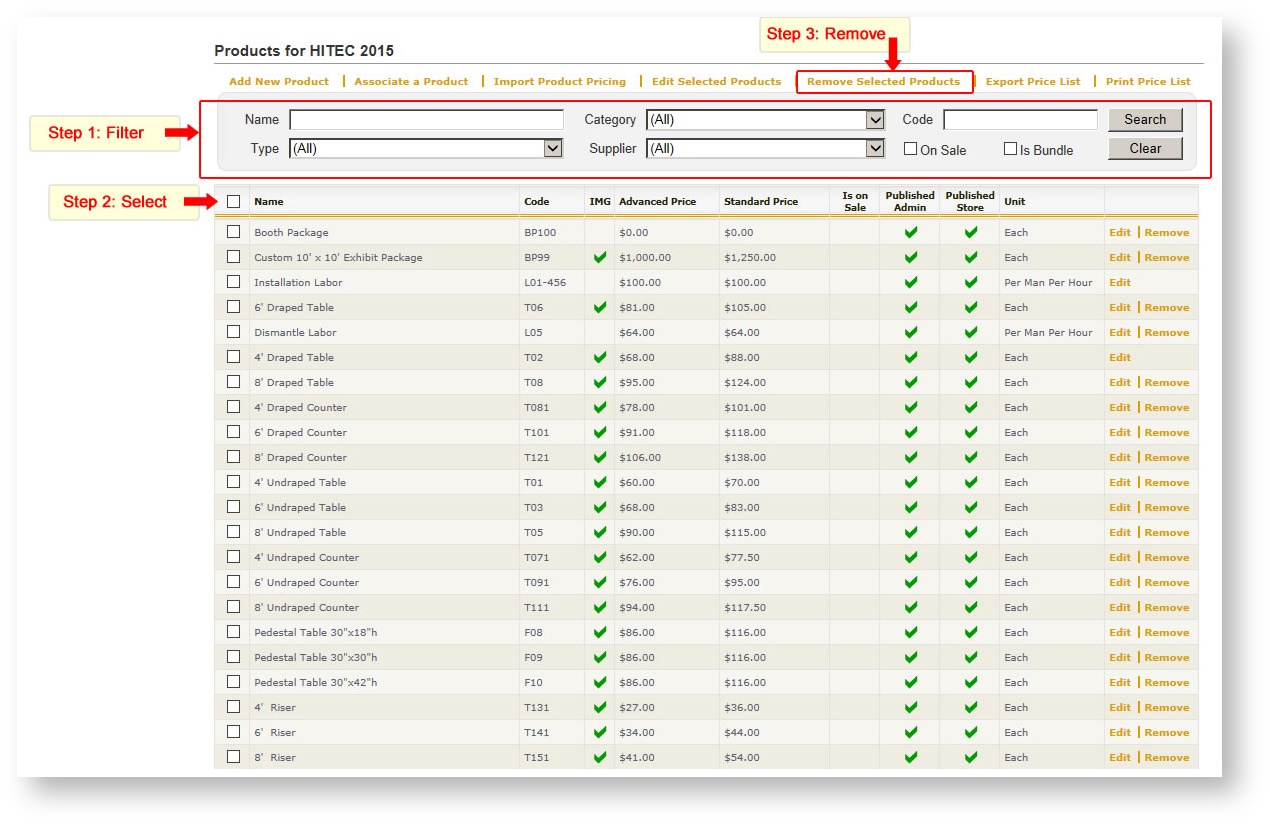
Remove Some (but not all) Products for a Supplier in an Event
There may be an occasion where you need some, but not all products in an event for a given supplier. Removing multiple products from an event is simple:
- Use the Search are above the Event\Products grid to filter any desired way to get just the products you want removed appearing in the grid.
- Click the check box in the upper left hand corner to select the products in the grid. A check mark appears in each product's check box.
- Click "Remove Selected Products" command above the Search criteria.
If there are more than 50 products to be removed, you will need to either repeat the process or make more than 50 rows show in the grid (in the lower left hand corner).