Adjust the Price of a Single of Product in an Event
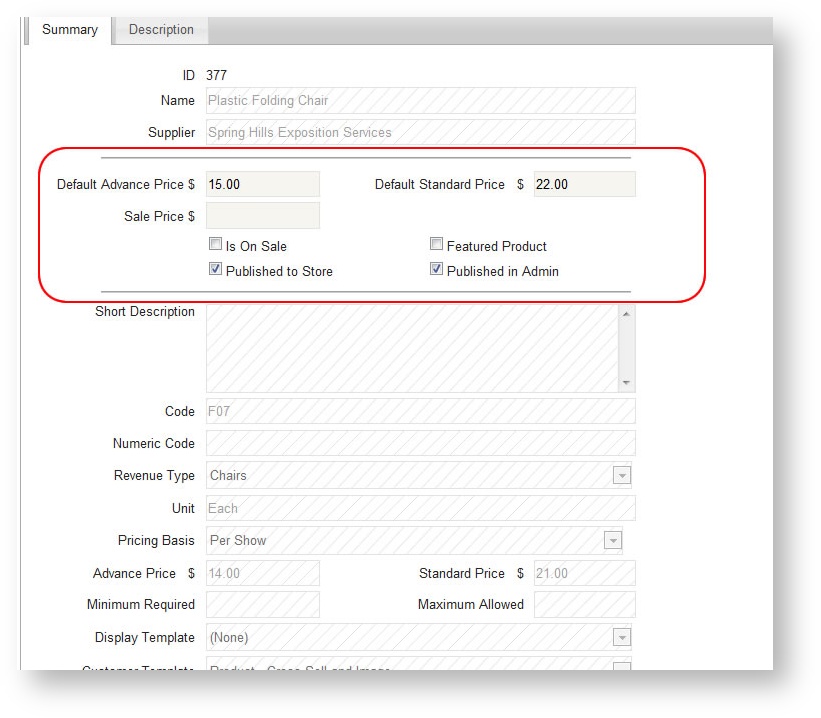
If you need to adjust the price of just one or a few products, the most efficient way to do this is to edit the price fields inside the product form:
- Open up the Products grid within the Event.
- Use the Search Criteria to filter and find the product you want to adjust.
- Click on the row of the product to open its form.
- The only fields you can edit from here are between the two horizontal lines (see image below circled in red). Make adjustments as necessary to the price.
Adjust the Price of Many Products in an Event
If there are many pricing adjustments to be made, it is easier to export the product pricing to an Excel spreadsheet, make any price adjustments, and then re-import the pricing:
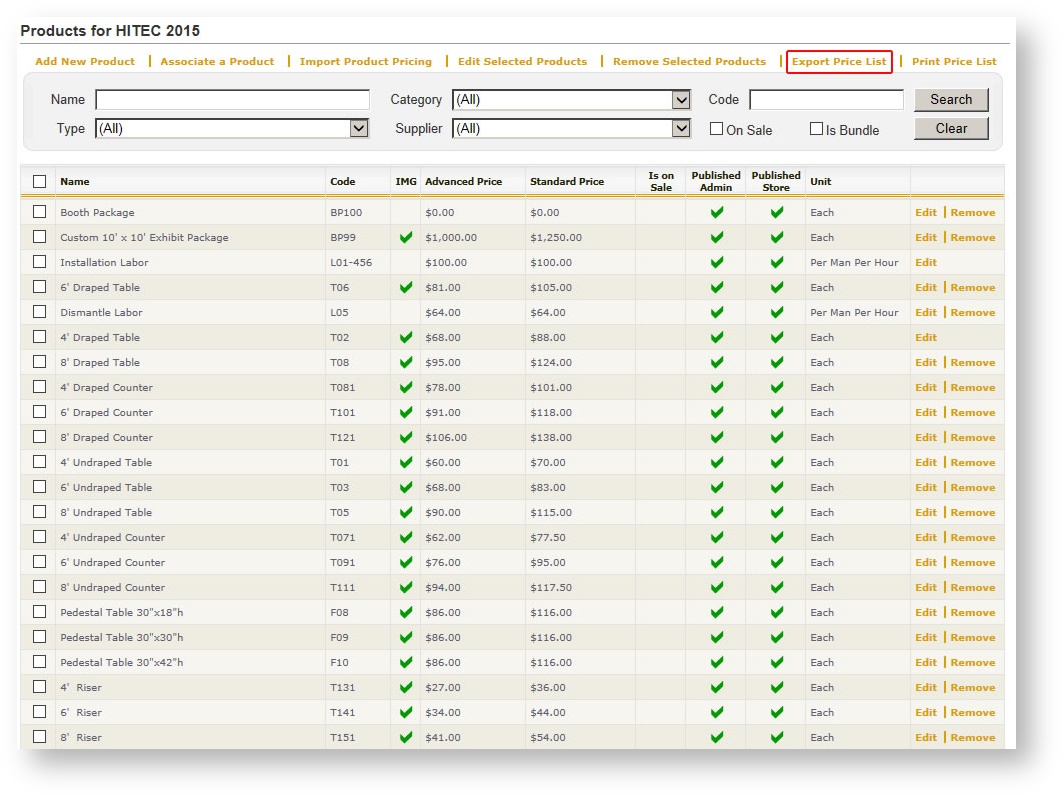
- From within the Products grid of the event, click "Export Price List":
- A report dialog launches with the pricing in a report format. Click the blue disk to export the products to Excel:
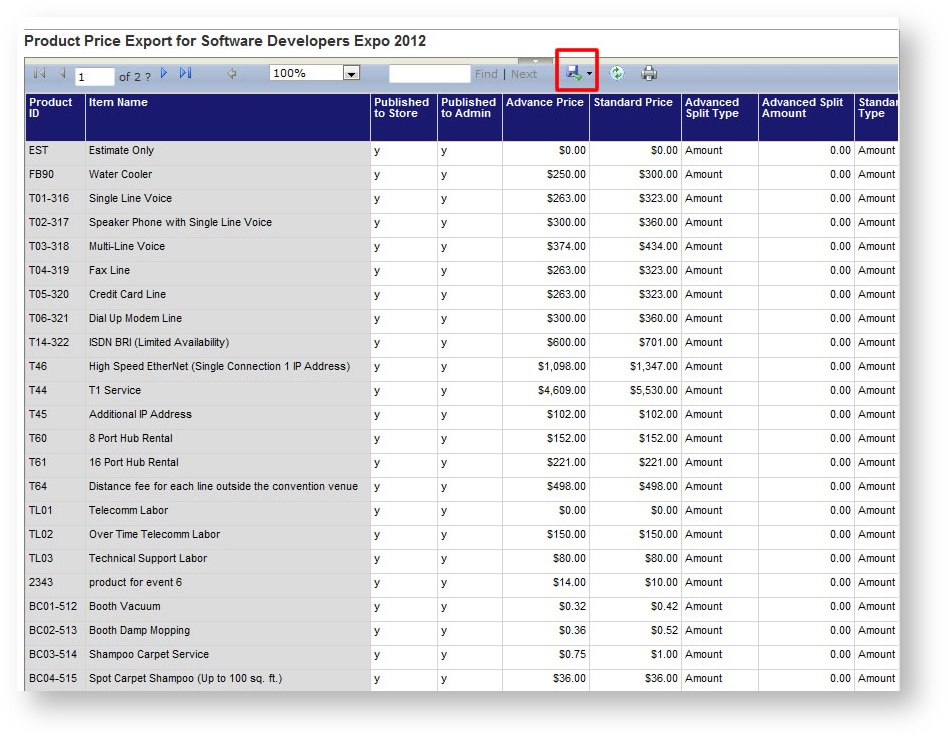
- Once in Excel, make any desired adjustments to the pricing as well as the columns that let you control whether the product is available on the Storefront and/or in Admin. Save the spreadsheet to a safe place.
- Back in Boomer, click Import Product Pricing above the search criteria in the Product grid under the event:
-

Browse and find the spreadsheet you just saved in Step # 4 above. Your prices are now updated.
Adjusting Pricing for Other Price Tiers (Such as Show Management)
You can use the same spreadsheet method as described above to adjust other price tiers you might have defined. This is particularly helpful if you want to adjust show management prices. To do this:
- Before importing your Event Price List back into Boomer, make a copy of the "Default" Worksheet by right clicking on the tab and choosing Move or Copy :
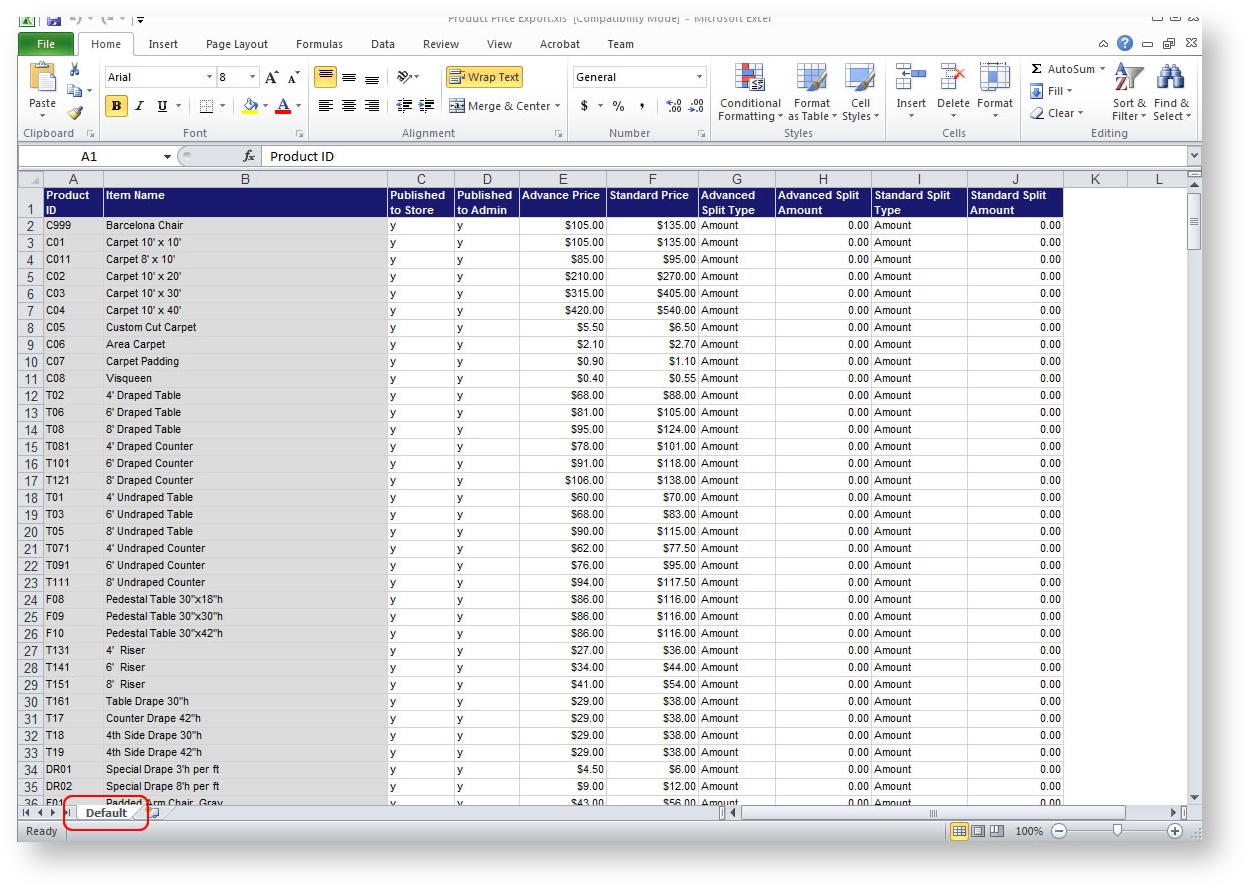
- After making a copy, rename the second worksheet tab to the price tier you want to alter (most likely "Show Organizer").
- Remove columns C and D (Published to Store, Published to Admin) as they are not relevant at the price tier level. Your second worksheet in Excel should look something similar to this:
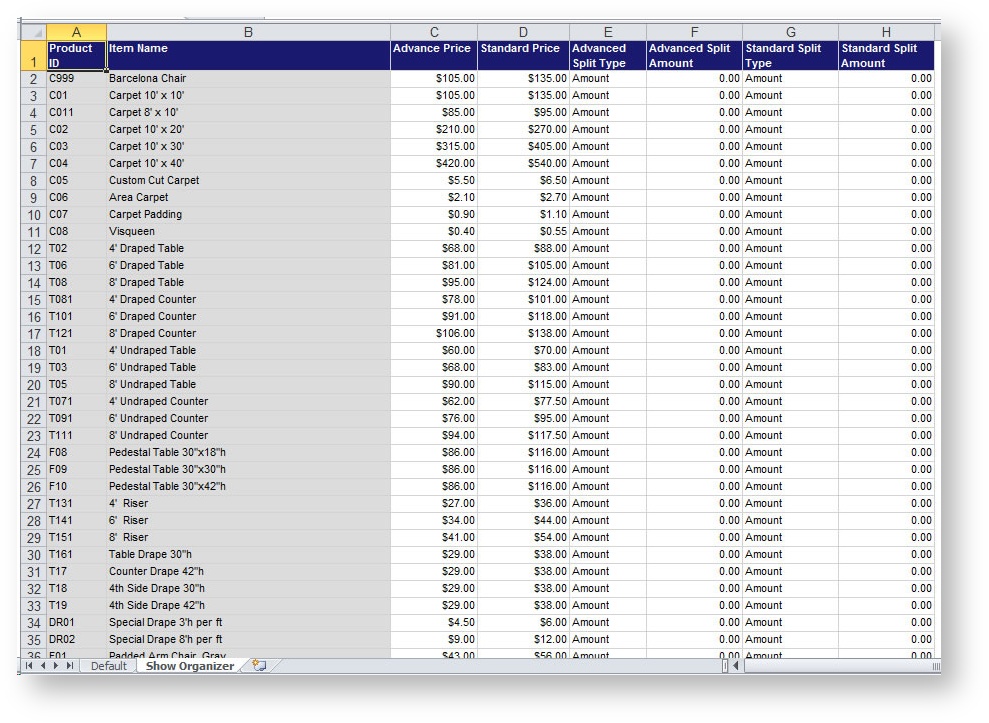
- Make any adjustments to the second worksheet and then save the spreadsheet. Import it as described in the previous section. Your default price as well as the second price tier will be updated.
Unlock Record Button
The only editable fields for a product within an event are the ones in between the two lines circled in red in the below image:
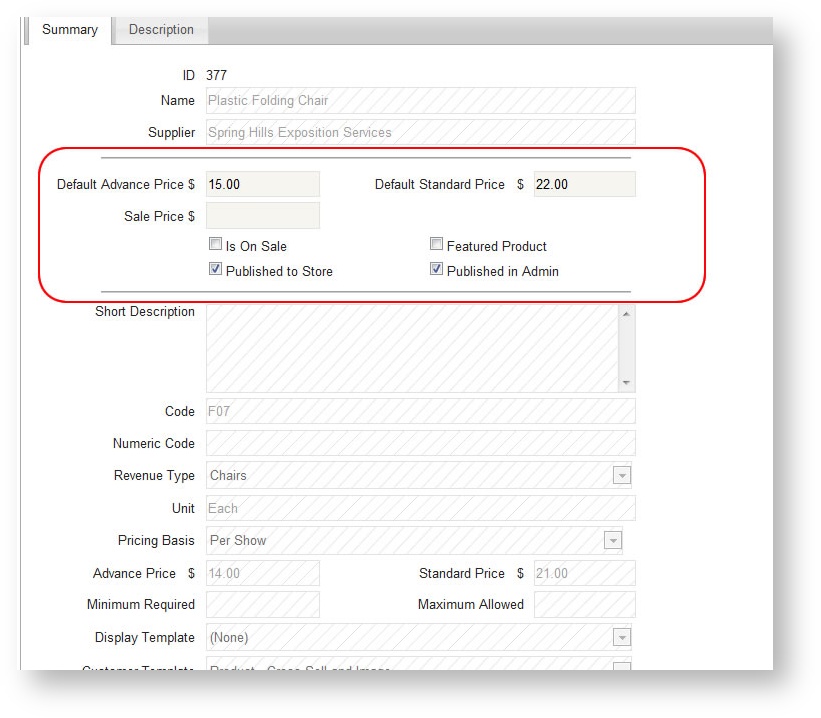
Any other field with hash marks through it means they are are not changeable at the event level. You can unlock the record in order to make changes to those fields by clicking the "Unlock Record" button at the top of the Product Detail form.
If you had to unlock the record in order to edit the field, your change will impact ALL events in which the product is being used
To unlock and edit a product across all events:
- Navigate to the product to be edited within the Products grid of the event.
- Click "Unlock Record".
- A warning message appears "You are about to unlock the master product record for editing, changes will affect this product in all events". Hit "OK".
- Make the desired changed.
- Hit "Save" or "Save Close".