Overview of the Delivery Grid
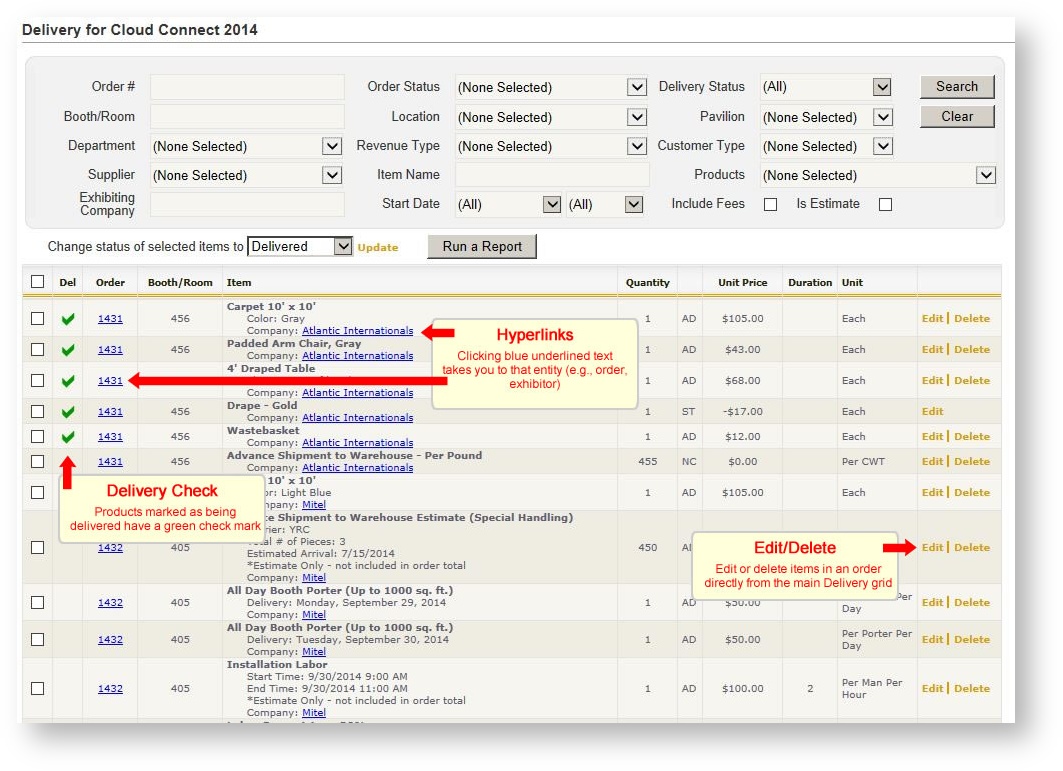
The Delivery grid presents all items that have been ordered across all orders. With its powerful filter capabilities, it allows the user to access items in orders that meet very specific criteria. While its name references its original intended purpose, which is to enable you to complete booth checks and mark products as being delivered to your customer, it has many other uses as well. A couple of examples include:
- Display all items still marked as "Is Estimate" (using the filter Is Estimate)
- Display all items ordered for show management only, and further filter by pavilion or location within those items
- Display all orders containing one or more products
Training Video
An example of a Delivery grid is shown below.
Accessing the Delivery Grid
- Open the Event.
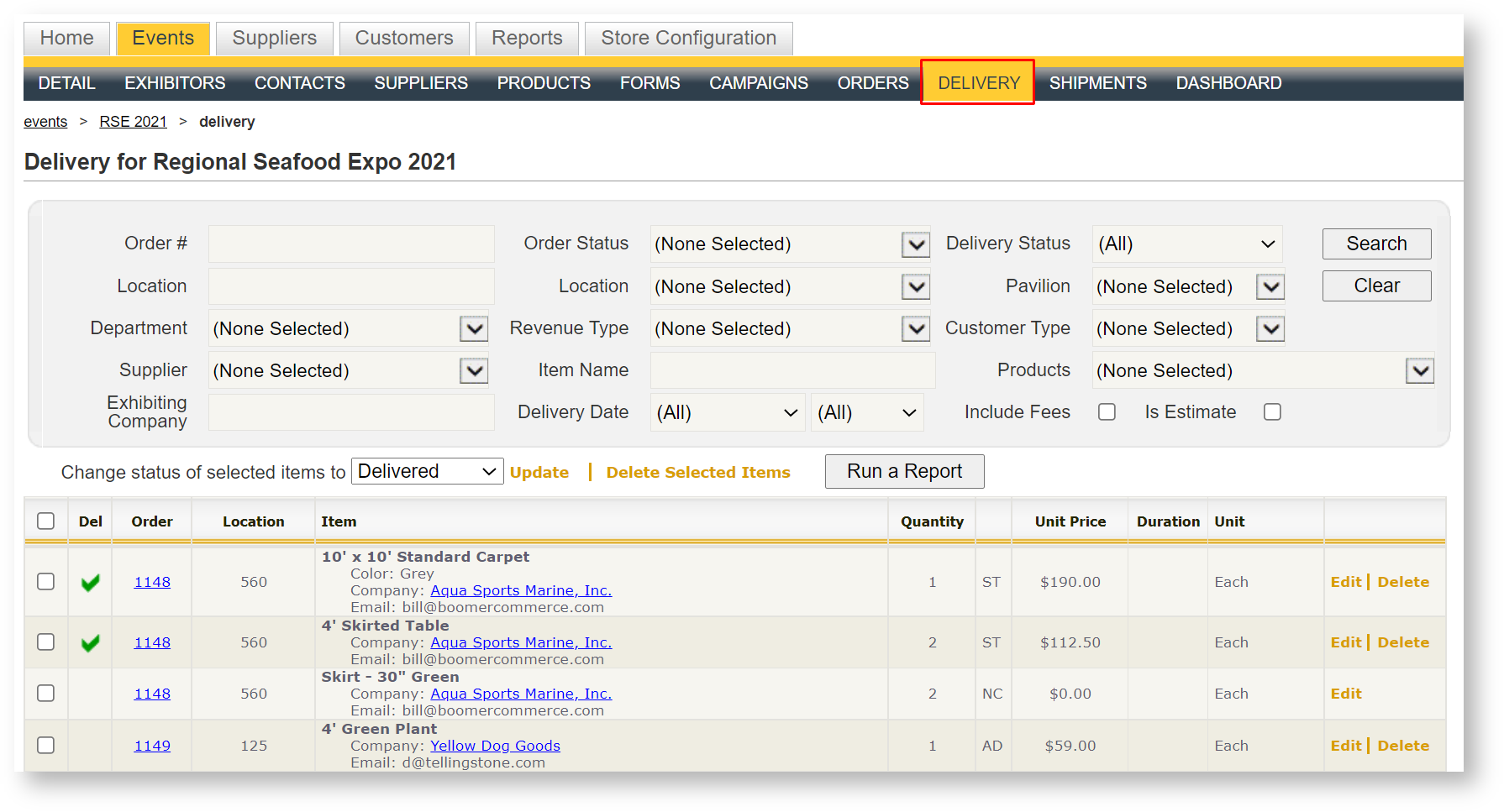
- Click on "Delivery" in the sub menu.
Using the Search Area
The following criteria may be used to search for items belonging to orders. Criteria may be combined to further narrow the search results:
| Field Name | Description |
|---|---|
| Order # | All items belonging to a single order |
| Booth # | All items belonging to a booth number, regardless of the order number (unless there is also a filter in the order number). |
| Department | Multi-select list which returns items belonging to those departments. |
| Supplier | Multi-select list which returns items belonging to a supplier (note: depending on a user's security level, this may not have an impact of the results displayed in the grid if the user is in a role where they can only see their own supplier's products) |
| Exhibiting Company | All items ordered for an exhibiting company, regardless of the order number (unless there is also a filter in the order number). |
| Order Status | Multi-select list which returns items in orders with one or more statuses. |
| Location | Multi-select list which returns items in orders with one or more locations. |
| Revenue Type | Multi-select list which returns items in orders with one or more revenue types. |
| Item Name | All items with one or more characters contained in its name |
| Start Date / Time | Filter on items with a specific delivery date and/or time |
| Delivery Status | Filter on items not yet delivered, items already delivered, or include all |
| Pavilion | Multi-select list which returns items in orders with one or more pavilions. |
| Customer Type | Multi-select list which returns items in orders with one or more customer types. |
| Products | Multi-select list which returns items in orders with one or more products. Note the available list of products in this field is determined by the department and/or revenue type filters also selected. |
| Include Fees | By default, fees connected to an order such as A/V Setup/Delivery fees, Floral Delivery fees, etc. do not appear in the Delivery grid. Check this option to display those fees. |
| Is Estimate | Filter on only items that are flagged as "estimated" products |
Marking Products Delivered
When products have been delivered, follow these steps to mark them as such:
-
Using the search criteria option defined above, filter the grid so that only the products to be marked as delivered are displayed.
-
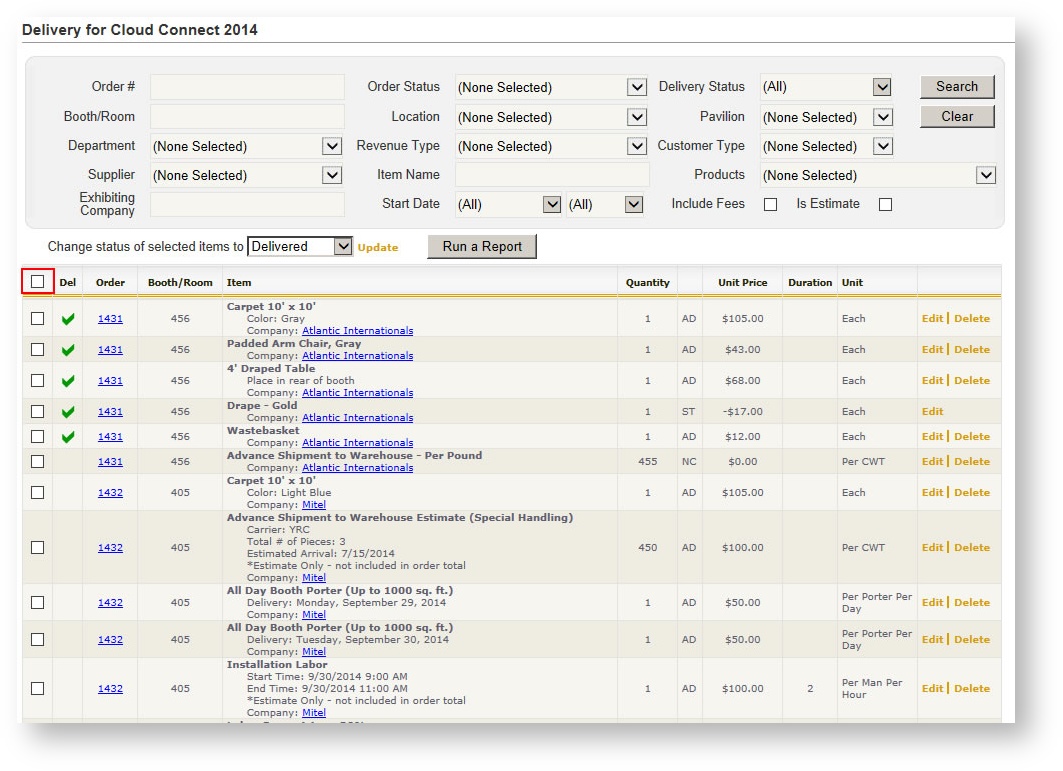
Click the check box in the upper left hand corner of the grid (see image below for the check box with the red outline). All items become checked.
-
Above the grid to the left, see the "Change status of selected items to" field. The default is Delivered.
-
Click "Update".
-
All selected items display a green check box in the "Delivered" column in the grid.