When you are ready, you can create or update exhibitor orders with information you have entered in Shipments. Updating orders adds a freight product to an order for the exhibitor and correctly calculates all freight charges and applicable fees.
Create/Update Orders
Update a Single Order
There are two ways to create/update a single order:
- Open the Shipment in detail mode and click "Update Orders" at the top of the Shipment; or
- Click on the the shipment's check box in the left hand column and then click "Update Orders" at the top of the Shipments grid.
Update Multiple Orders at Once
You can also update multiple orders simultaneously:
- Open the Shipments grid under the event.
- Optionally filter the Shipments grid down to just the Shipments for which you want to Update Orders. Another option is to simply click the check box in the left hand column of the Shipments grid on the shipments for which you want to generate orders.
- Click "Update Orders".
Estimated Products Are Removed
When Update Orders is performed on an order, any estimated product of the same revenue type as the product used in the shipment are removed from the order. This is logged in the order's history.
Shipments Cannot be Pushed to Cancelled Orders
If an exhibitor has an order but its status is Cancelled, the shipment will not update the Cancelled order; instead, it will create a new one. However, if the order was not cancelled at the time the shipment was connected to the order, the order continues to be updated.
Logic Used in Connecting a Shipment to an Order
Ideally if the exhibitor already has an order in the event, you would want the freight product to be added to the existing order rather than generating a new order. This is possible when the shipment matches on exhibitor, contact and booth. As long as those three components are the same between the shipment and an existing exhibitor's order, a freight product will be added to the existing order and connected back to the shipment. If those conditions are not met, or the exhibitor doesn't have an order at all, Boomer will create a new order and designate the shipment contact as the order's main contact.
If the customer has multiple orders, the following logic will be used to determine which order to update with the shipment charges:
Highest priority: The earliest order that has estimated freight items.
Next priority: If there is no order with an estimated freight item, then the earliest order that has a credit balance will be updated.
Last priority: If there is no order with an estimated freight item, and no order with a credit balance, the most recent order entered will be used.
Editing Shipment Information
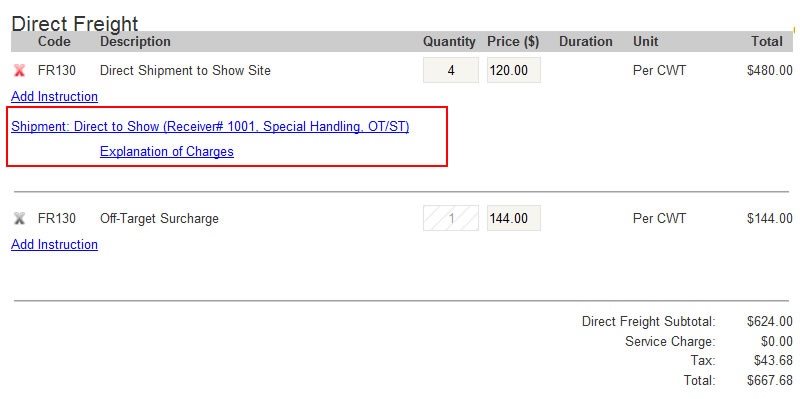
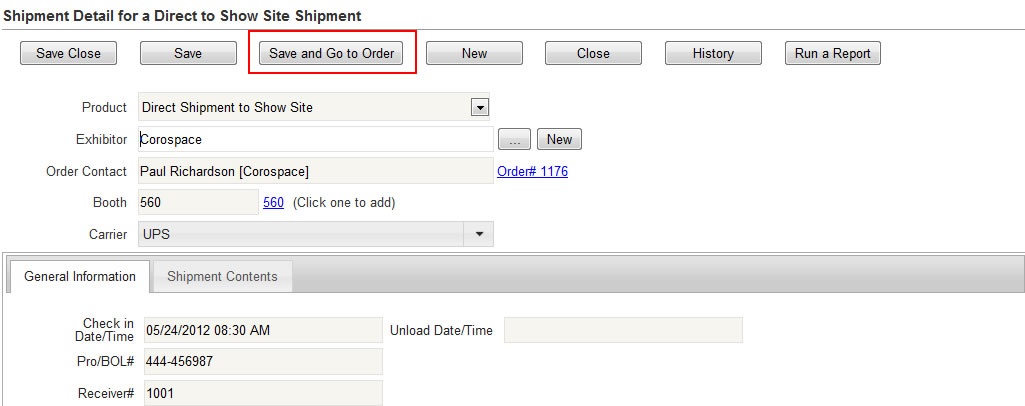
Once the shipment is linked to an order, any changes made to the shipment will automatically update the product in the order to which it is linked. It is important to always make changes in the shipment rather than in the product of the order. Think of the shipment information as just another attribute to the product in Boomer. To make changes, click on the shipment, make your changes, and then save. To make adjustments to the shipment from within the order:
- Find the Shipment in the Order Summary grid.
- Click on the link to the Shipment found in the product:
- Make edits to the shipment as necessary.
- Click "Save and Go to Order" button in the shipment:
The Shipment/Product Relationship
Once a relationship has been made between a shipment and an order, the freight product within that order maintains a relationship with the shipment to which it is linked. Changing the contents of the shipment, applying fees or other charges all impact the product and the order should be updated to reflect the most recent charges.
It is possible to override the quantity or price of the shipment product in the order. This capability is intentional. However, if you subsequently perform an "Update Orders" on that order, any manual overrides will be overwritten and the freight recalculated based on the shipment.
Disconnecting the Shipment from the Order
To disconnect a Shipment from an order, delete the linked product in the order by clicking the red "X" on the product in the order.