To download and print these instructions, open the following attachment:
Vendor Links provide a way to reference third party suppliers on the storefront for the event. A vendor link appears under the "Shop Vendor Partners" area:
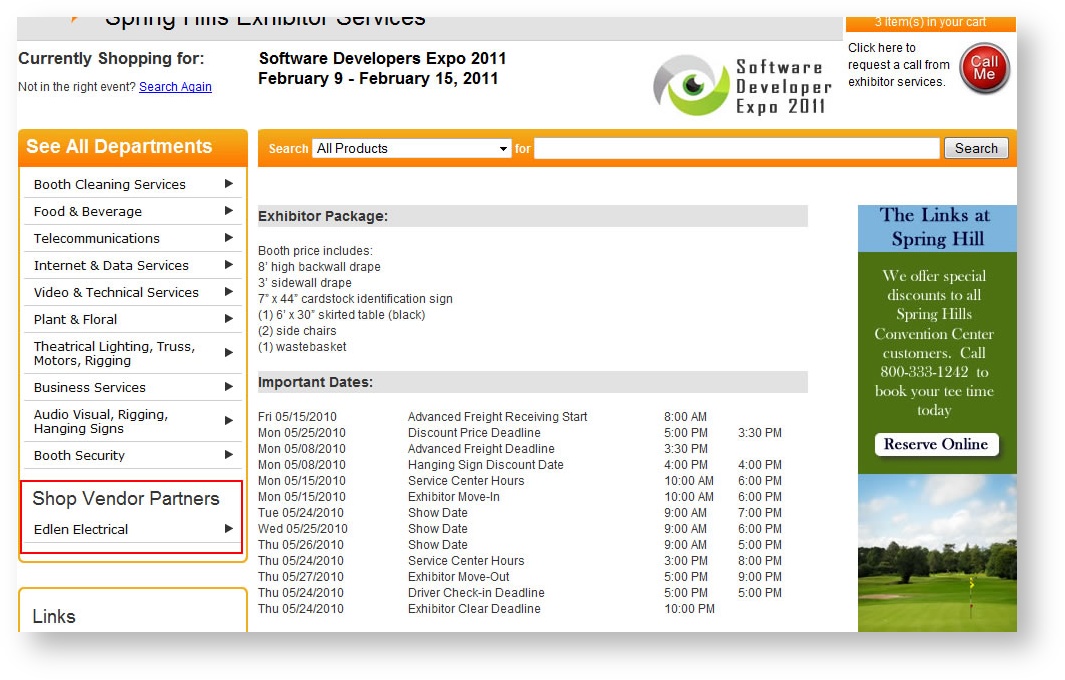
Creating a supplier and adding it as a vendor link has a few different steps, particularly if the supplier one that doesn't already exist. You will only need to do Steps 1 and 2 once:
Step 1: Create the Supplier
- Click on the main "Suppliers" tab.
- At the top of the Supplier grid, click "Add New".
- Fill in the supplier's name as well as any other details you know.
- Click "Save".
- Click on the "Description" tab of the Supplier you just created. Enter the text you want to appear on the Storefront for the supplier.
Step 2: Set Up the Vendor Link
- Click on the main "Store Configuration" tab.
- Click on the "Interfaces" sub menu option.
- Click "Add New" in the lower right hand corner of the grid.
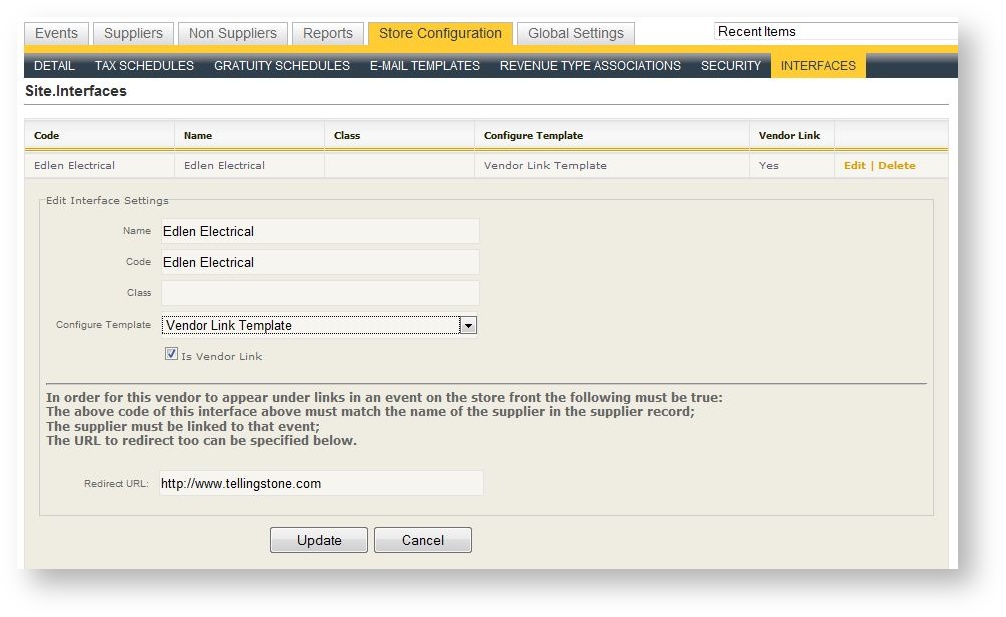
- Enter the supplier's name in both the Name and Code field. This must match the name you entered. for the supplier in Step 1 above exactly.
- You can leave Class blank. Choose Vendor Link Template in the Configure Template field.
- Check "Is Vendor Link".
- Click "Save".
- Hit "Edit" in the row you just created and look at the very bottom at the "Redirect URL" field. Enter the name of the web site you want the exhibitor to be redirected to when they click on the vendor's link.
- Click "Update".
Step 3: Associate the Supplier to the Event
- Open up the Event to which you want to associate the supplier.
- Click on "Suppliers" in the sub menu of the event.
- Click "Associate Suppliers".
- In the Picklist, uncheck the "Supplier Has Products" checkbox.
- Click "Apply Criteria" to obtain a list of all your suppliers.
- Find the Supplier for and select the Supplier you just added in Step 1 above and double click to move it to the right side of the picklist.
- Click "Apply Selection" The supplier is now associated to the event and will appear in the "Shop Vendor Partners" area on the storefront.
Step 4: Make Adjustments to the Supplier Description As Necessary
- You can now preview the supplier's link by logging into your storefront and opening up the event.
- Click on the supplier's link in the "Shop Vendor Partners" area.
- If you don't like the position or font of the description, simply go back to the Supplier in Admin and make adjustments to the description as desired.
If you want to add pictures such as the supplier's logo, contact Telling Stone for assistance in this step.