As many events continue to postpone, the below steps will help you to update your events in Boomer.
- Before changing your event dates,run a Booth Check Check list report so you know the original details of all items, particularly those that were date and/or time sensitive.
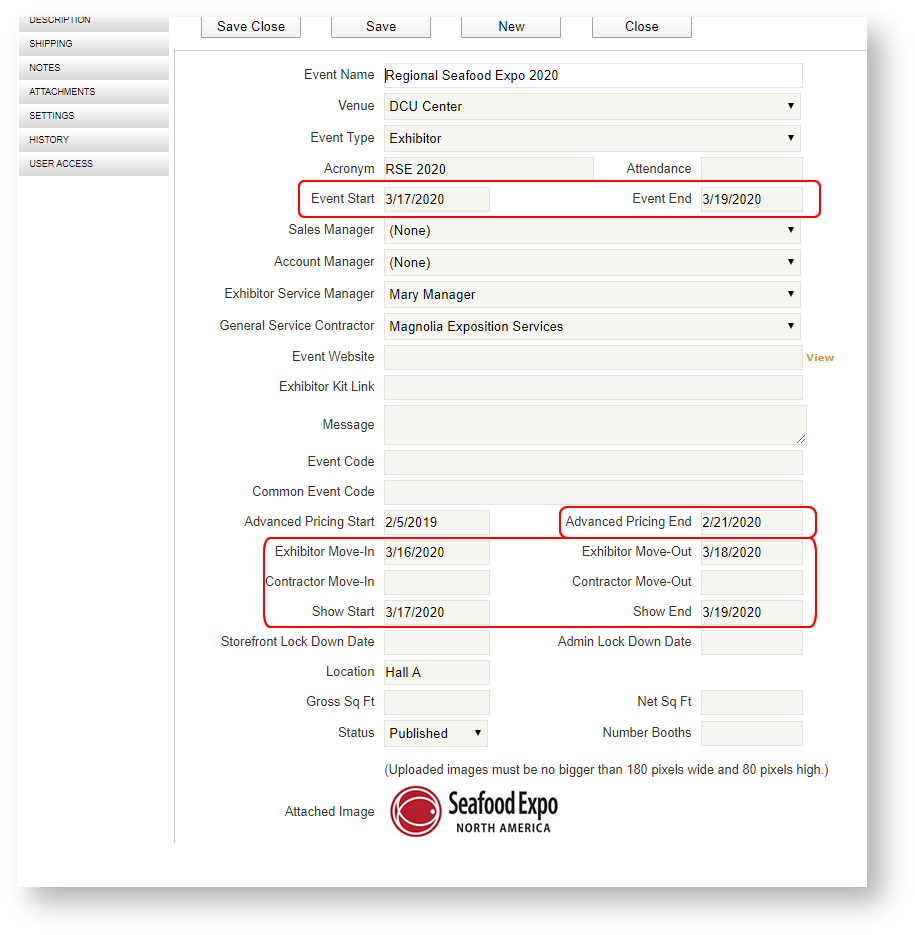
- Open the event and change the event start/end dates and any other dates that are moving and then save your changes:
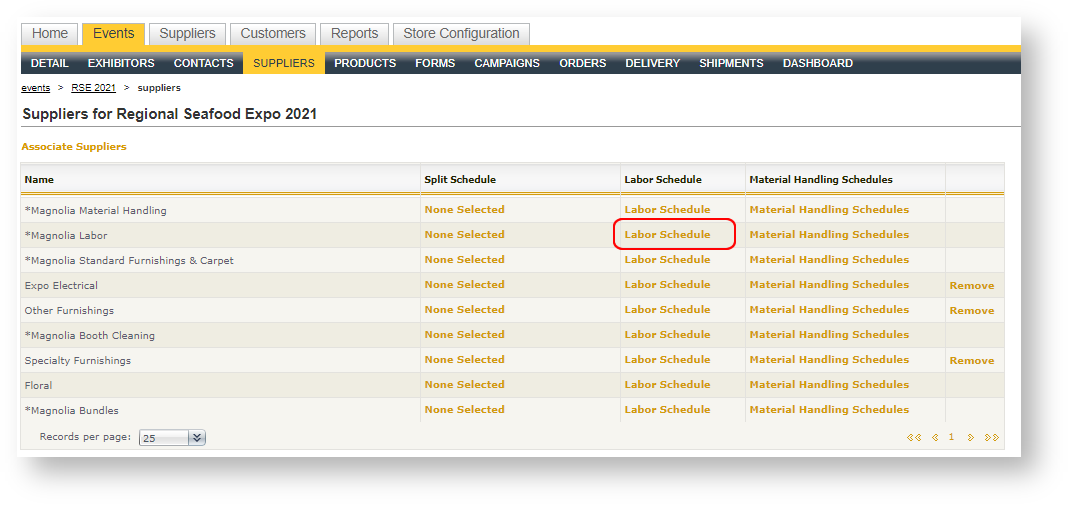
- Go to the Suppliers grid within the event. For any suppliers that have labor schedules, click "Labor Schedule" in that supplier's row:
- Click "Reset using Master Schedule" to shift all the dates of the labor hours to the new event dates:
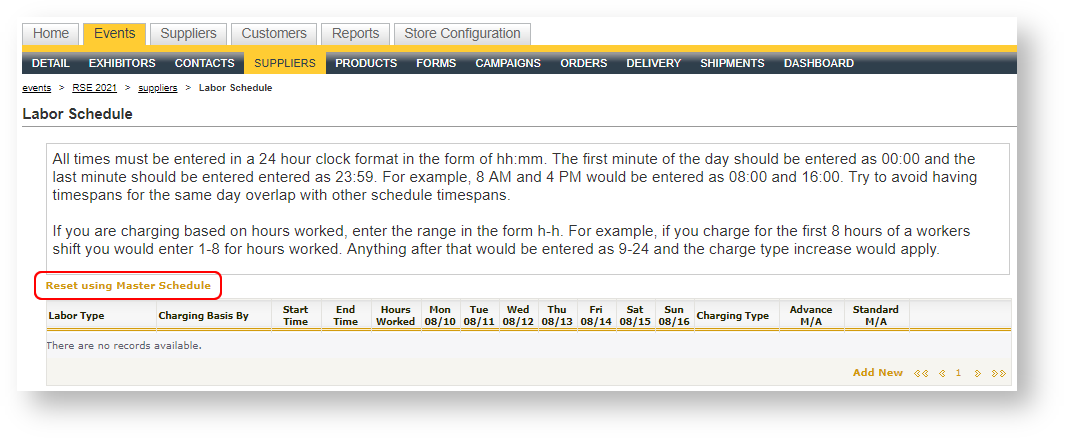
If you changed your default labor schedules when you set the event up, you will need to change them again after clicking the Reset option.
-
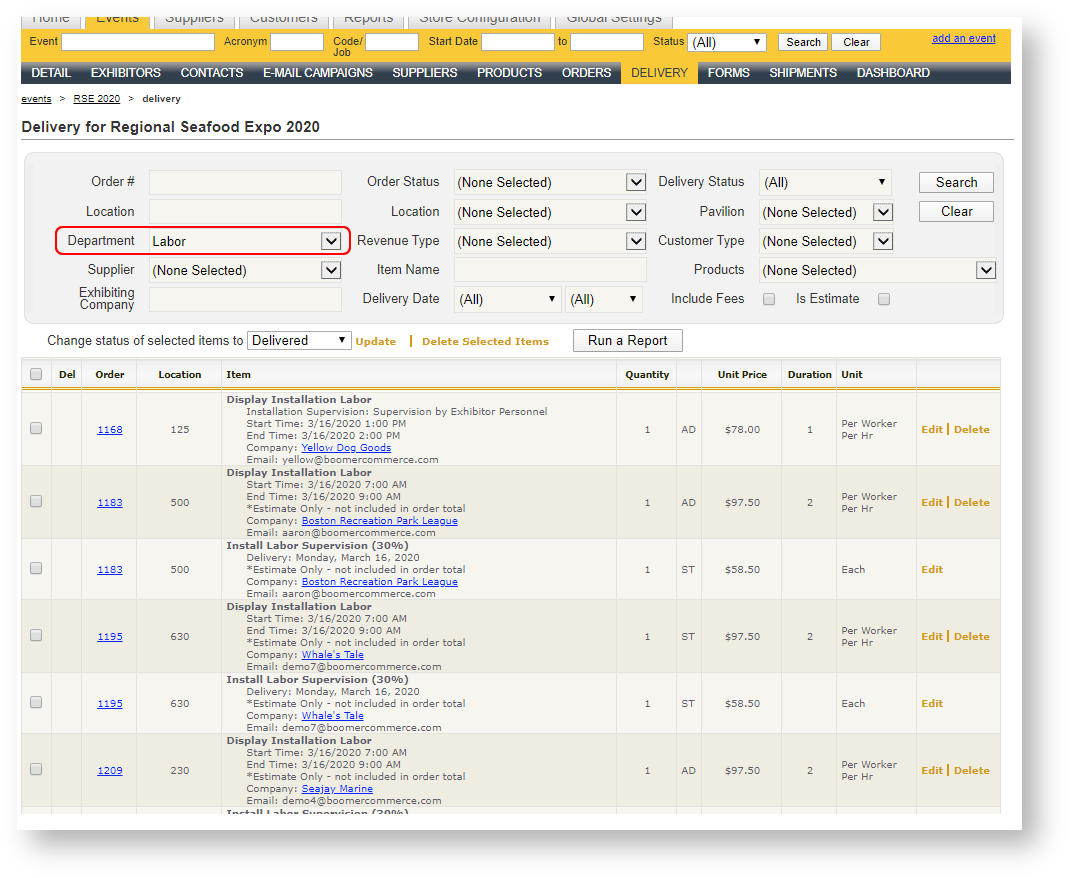
Go to the Delivery grid within the event. Filter as necessary at the top of the grid to obtain results of your date sensitive items such as labor. Note that the detailed rows in the grid still have the old labor dates.
In the below example, our Boomer store has a Department called Labor. Your departments and revenue types may be different. Filter on them accordingly.
- Using the Booth Check List you ran prior to changing your dates, click on the Order number to open the first order with the date sensitive item.
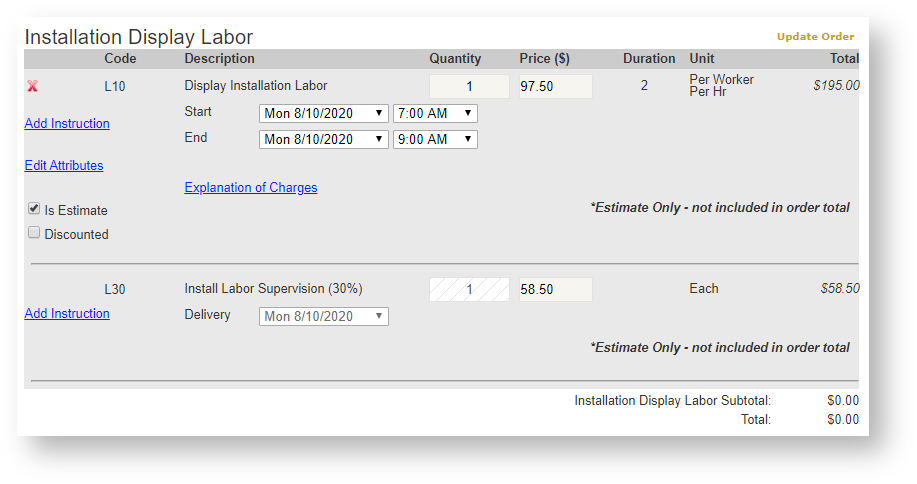
The dates will look like they have shifted, but they have not! This is due to the date drop downs only displaying the available dates based on the move-in/move-out dates.
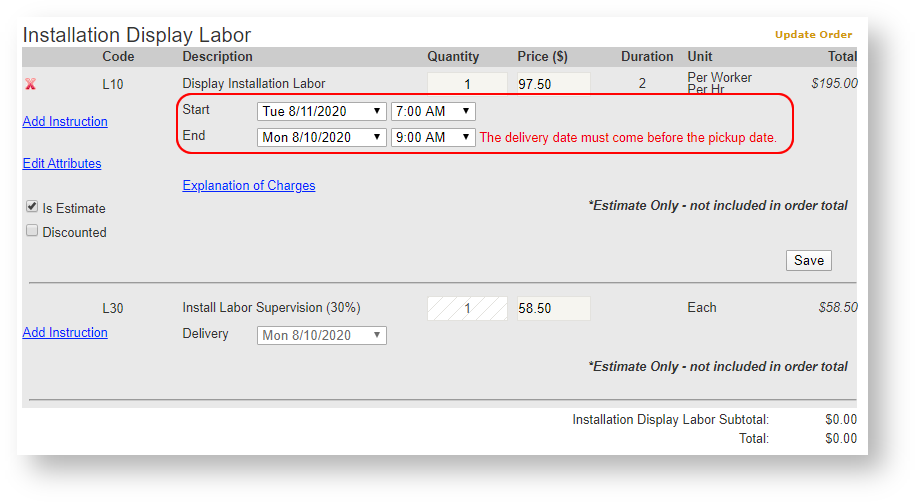
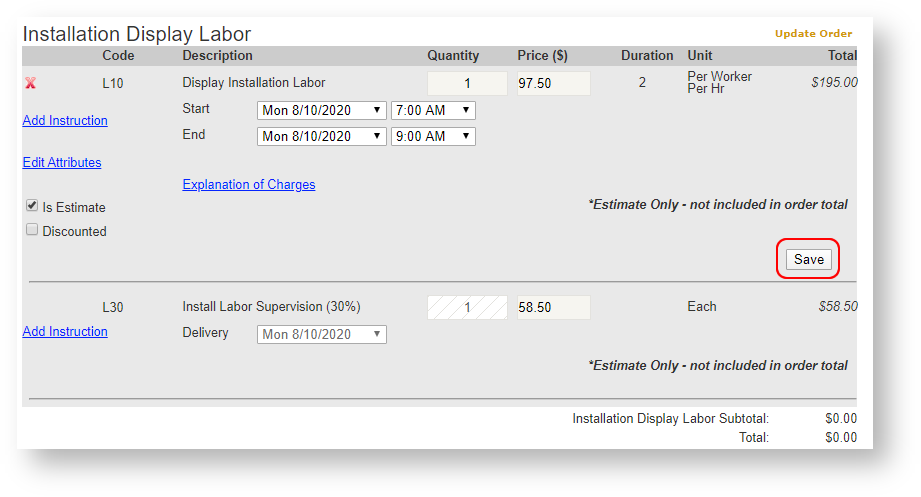
- You will need to choose some different start date other than what is displayed to force the item to update to the new labor schedule. You can then flip it back to the appropriate date and then save. This process is shown in the screen shots below:
- Click "Delivery" in the grid again to move on to the next order with a date sensitive item and repeat the process until all date sensitive items have been adjusted.