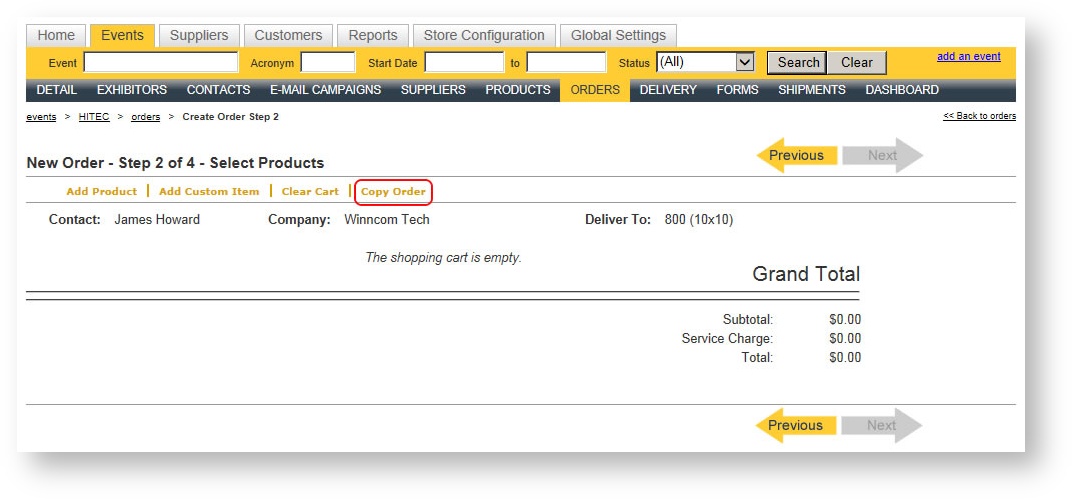
You can copy the contents of any existing order into the shopping cart of a contact, thus saving you substantial time. Copy Order appears as a command from within the contact's shopping cart or in Step 2 of creating an order:
To copy an order:
- Click "Copy Order" to launch an order picklist to find the order you want to copy from:
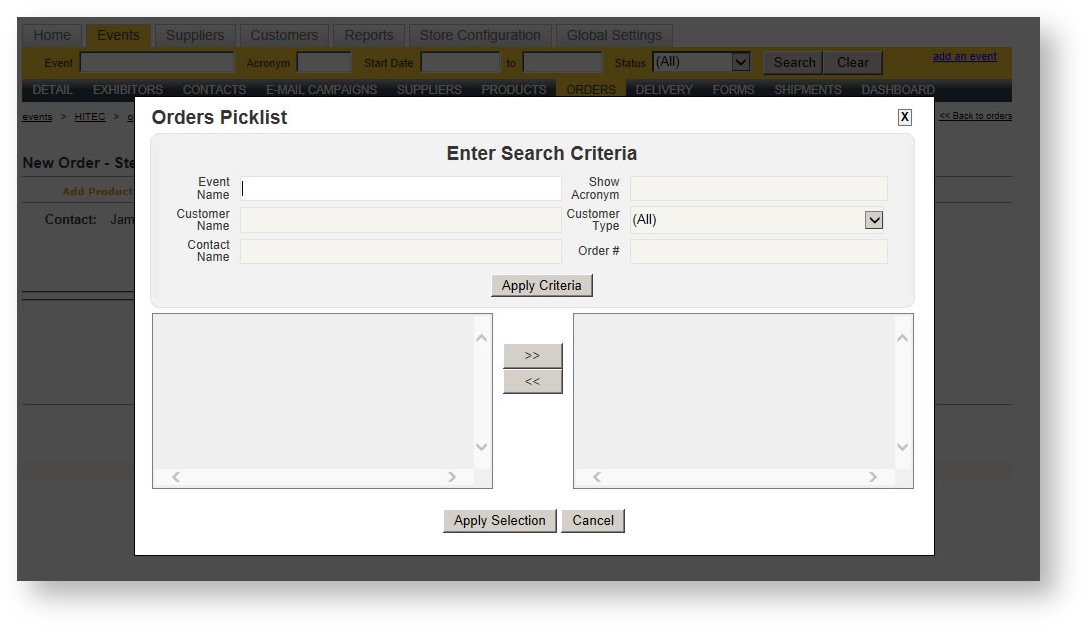
- Enter your search criteria to find the order. After hitting Apply Criteria, the result(s) appear on the left hand side of the picklist. The results display the originating order's #, the exhibiting company and the booth number/location in the originating order:
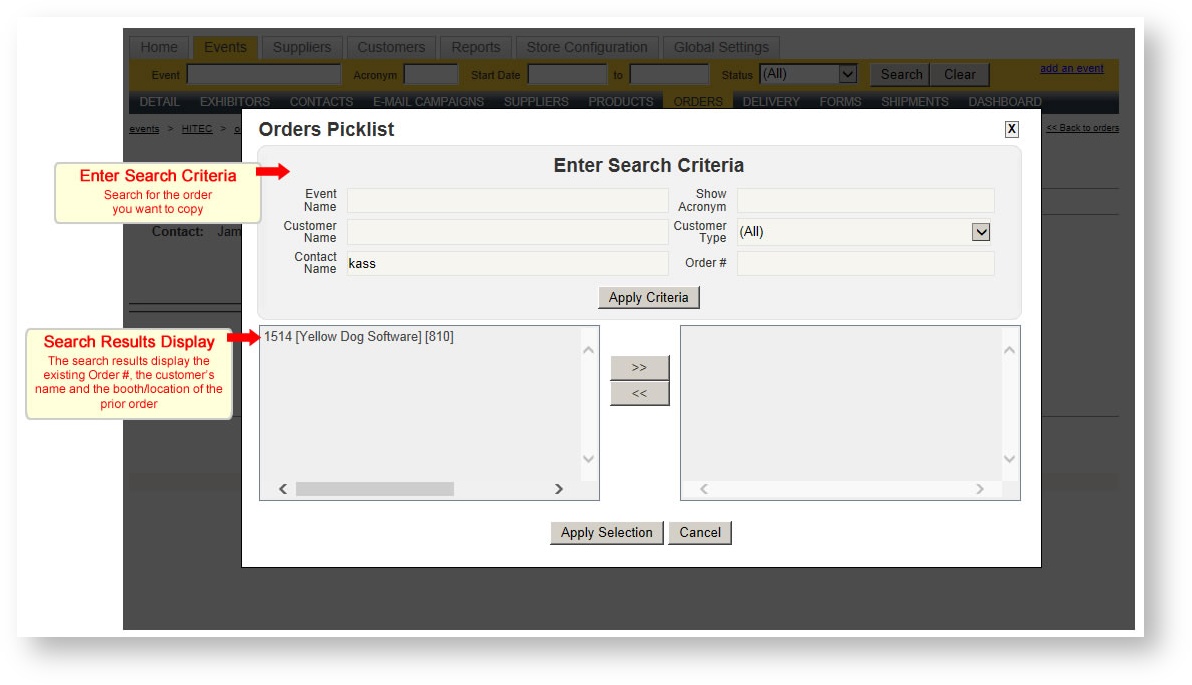
- Double click or click ">>" to move the desired order to copy to the right hand side.
- Hit Apply Selection.
- A dialog appears allowing you to select which specific elements of the order you want to copy. Check any options you want to include:
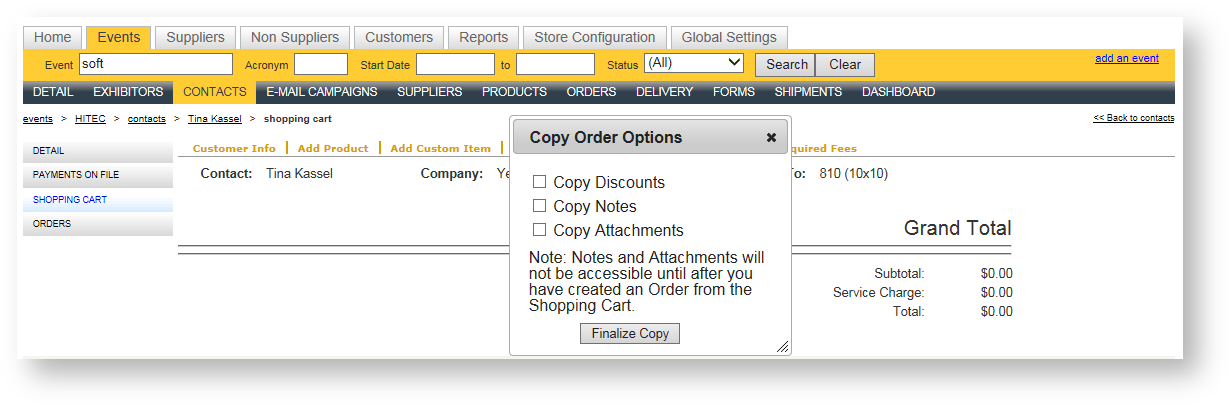
- Hit Finalize Copy. Your shopping cart now has the products from the original order.
Since pricing and product availability can vary on an event-by-event basis, it is important to note certain behavior during a copy:
- If a product is not available in the current event that was in the originating order's event, it will not be copied.
- If a product is marked as not being published in admin nor on the storefront in the new order's event, it will not be copied.
- If a product is marked as being published in admin only, it will not be copied if the copy is done by the customer on the storefront.
- A product's price will be updated to reflect whatever price is defined in your current event.
- Items in an order that represent shipment charges will not be copied.
- The shopping cart's revenue types will be re-calculated to reflect the event's venue taxes.