There are several different elements of an order that might need to be modified. For all modifications, the first step is to retrieve the order itself. Then, depending on what needs to be modified, select the option in the left navigation menu for the order.
Retrieve an existing order in three different ways:
- Go to Event\Contacts and retrieve a contact; then access the orders for that contact. See Exhibitor Contacts.
- Go to Event\Exhibitors and retrieve an exhibitor; then access the orders for that exhibitor. See Managing Exhibitors.
- Go to Event\Orders and use the search options to find the order. See Search for an Existing Order.
The following modifications are available for an order:
Don't forget to process payments or refunds after making changes that impact the order's balance. Make all the changes first and then process the payment once.
Customer Info
All fields in the Customer Info area may be modified except the contact and his/her e-mail address.
Order Items
***Add More Products PAGE***
**Add a Custom Item PAGE**
**Add an Instruction to a Product PAGE**
Delete an Item
To delete an item, click the red "X" located to the left of the product.
Be sure to issue a partial refund.
Change Price, Quantity or Delivery/Pickup Information
Price
A product's price may be overwritten within an individual order. Changing the price of the product in the order has no impact on that product anywhere else. To modify the price:
- Edit the Price.
- Click "Update Order" in the top menu above the products.
- Process the payment or refund.
Quantity
To change the quantity required of an product:
- Edit the Quantity.
- Click "Update Order" in the top menu above the products.
- Process the payment or refund.
Deliver Date/time and Pickup Date/time
These values will appear only if a product has been configured to prompt for them. To change the date/time of a product:
- Edit the Quantity.
- Click "Update Order" in the top menu above the products.
Order History
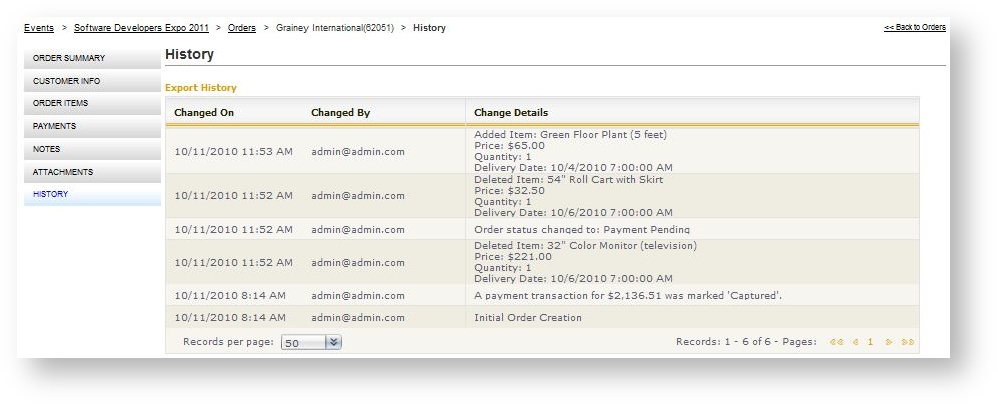
Order History logs all activity that has taken place with the order. When the order is initially created, a first entry records all the items in the order as well as quantity and price; Subsequent changes to the order are then recorded as they happen. The history includes payment processing details as well as products that are modified or removed. To access an order's history:
- Open the Order.
- Click "History" in the left navigation menu for the order.