Transaction History
Transaction History for an order will be documented under the Payments area of the Order Summary. When a credit card transaction is processed in Boomer, the data is sent down to your payment gateway (most likely authorize.net) for approval. Your payment gateway will then relay back to Boomer a message noting either a successful or failed capture, along with a response code. These messages can be found under Details:
A listing of authorize.net response codes can be found here: https://support.authorize.net/knowledgebase/Knowledgearticle/?code=000001280
Add a Credit Card Payment
To add a credit card payment:
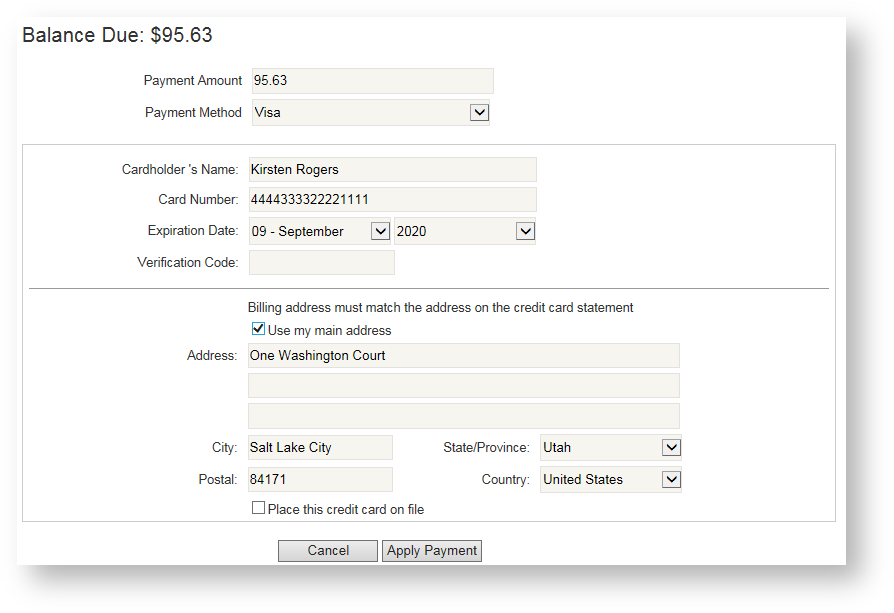
- Click "Add Payment" next to the balance due. All available payments appear in the Payment Method drop down, including any payments on file for the contact. Choose the appropriate credit card.
- To pay the full amount with this credit card, leave the payment amount to the default amount, which is the amount of the order. To pay only a portion of the balance due on this credit card, change the payment amount.
- Enter the cardholder's name, card number and expiration date. The verification code is optional but not required in Boomer Admin (it is, however, required if payment is processed from the storefront).
- Enter the billing address. To default the address to the contact's address, click "Use my main address".
- If the customer wants to save this card on file as part of their profile, click "Save this credit card as a payment on file"
- Click Apply Payment.
A complete payment entry looks as follows:
Once the payment has been applied, the payment transaction is displayed:
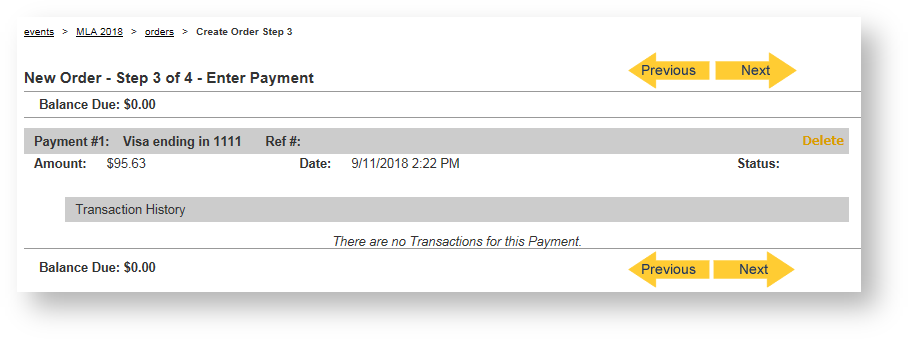
The payments have not yet been processed, so a "Delete" option in the payment is available if necessary. Once the user hits "Next", the payment will be processed through the payment gateway. If the balance is zero and all payments were successfully processed, the order's status will become Confirmed.