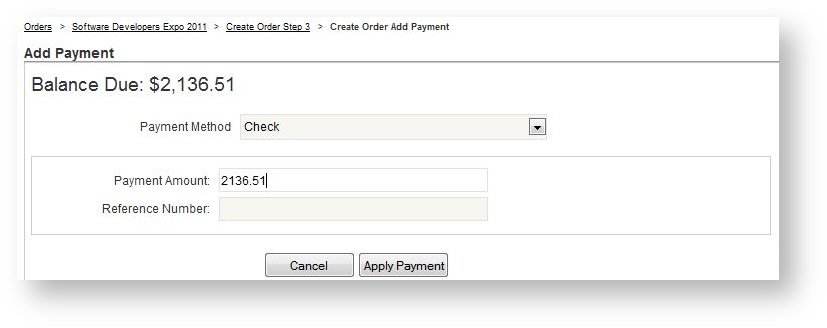
If a manual check has been configured as one of the available payment options, it will appear in the Payment Method drop down field. To pay with a manual check:
- Choose "Check" from the payment type drop down.
- Enter a reference number for the check if desired.
- Click "Apply Payment".
Since a check is processed manually, the payment status of the check payment must also be changed manually. The order's status will remain "Payment Pending" until the payment status of the check is marked as "Received". See below for further instructions.
Mark a Check as Received
Once a check is received, the status of the payment needs to be changed so that the order can be confirmed. To do this:
- Open the appropriate event.
- Retrieve the order from the Orders menu option.
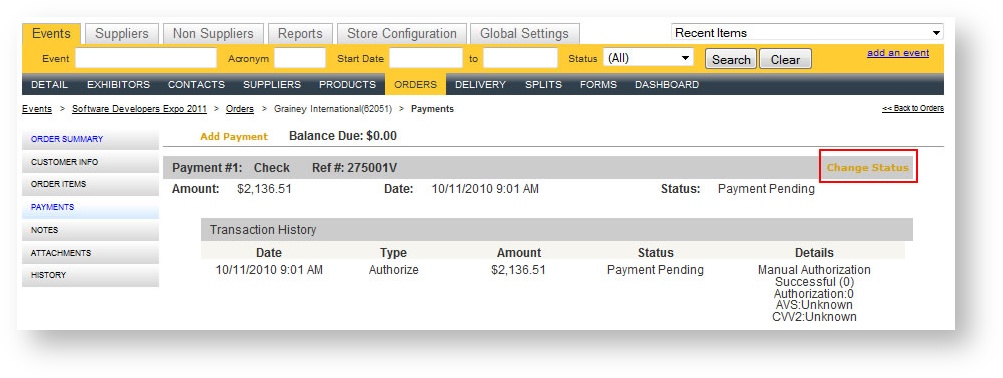
- Click "Payments" in the left navigation menu for the Order.
- Find the payment that represents the manual check.
- Click "Change Status" in the upper right corner of the payment.
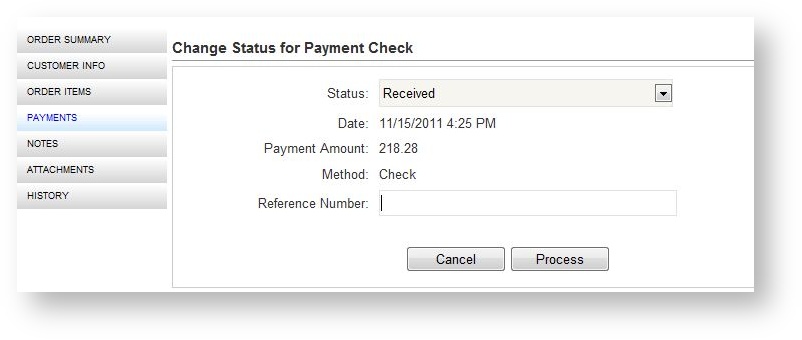
- The status dialog appears, with the status defaulting to "Received".
- If desired, enter the check number in the "Reference Number" field.
- Click "Process".
If the balance of the order is now zero and all manual checks have been settled, the order's status will change to "Confirmed".