Retrieve an existing order three different ways:
- Go to Event\Contacts and retrieve a contact; then access the orders for that contact. See Exhibitor Contacts.
- Go to Event\Exhibitors and retrieve an exhibitor; then access the orders for that exhibitor. See Exhibitors.
- Go to Event\Orders and use the search options to find the order. This method is documented below.
Using the Search Area
To reach the search area for existing orders:
1. Open the event record.
2. Click on the Orders sub menu.
3. As seen below the search area along with the list orders for the event is displayed.
There are nine searchable fields for event orders. Use one or more of these fields to enter criteria and then press the Search button. To clear all criteria values, click "Clear".
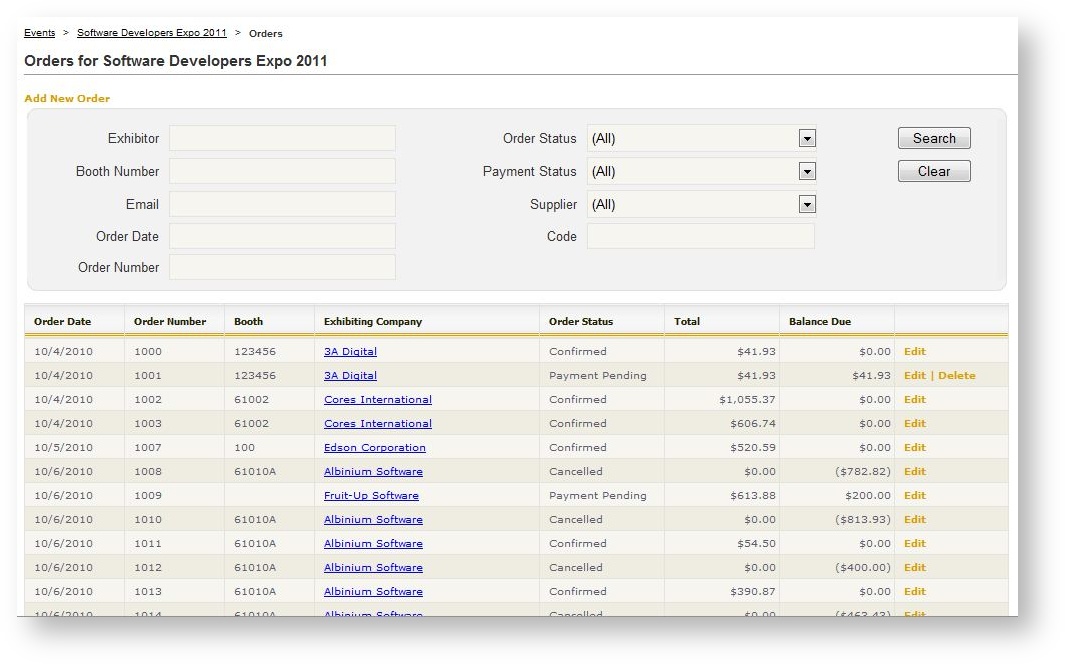
The available search criteria is as follows:
| Field Name | Description |
|---|---|
| Exhibitor | Type any part of a exhibiting company's name. This is a "contains" search so the text entered here does not need to be at the beginning of the company's name. |
| Booth Number | Enter a whole or partial booth number to filter on exhibitors who have booth numbers which contain the criteria. |
| Enter a whole or partial e-mail address to filter on a order contact's e-mail address. | |
| Order Date | Date on which the order was created. |
| Order Number | The number of the order (partial searches not accepted). |
| Order Status | Select from the drop down the desired order status. |
| Payment Status | Select from the drop down the desired payment status. |
| Supplier | To filter on orders containing only a specific supplier, select the supplier from the drop down. |
| Code | To filter on orders containing only a specific product, enter the product code. |