Introduction
Each product within an event has unique pricing. If you're reading this help topic, you are most likely familiar with how to adjust the default pricing of an event for a standard exhibitor. For show management, you can adjust pricing specifically for a customer type different from the default pricing you have established for an event. To understand the concept of price tiers, you may want to navigate to a product within an event. Open the product up in detail and click on Price Tiers down the left hand navigation menu:
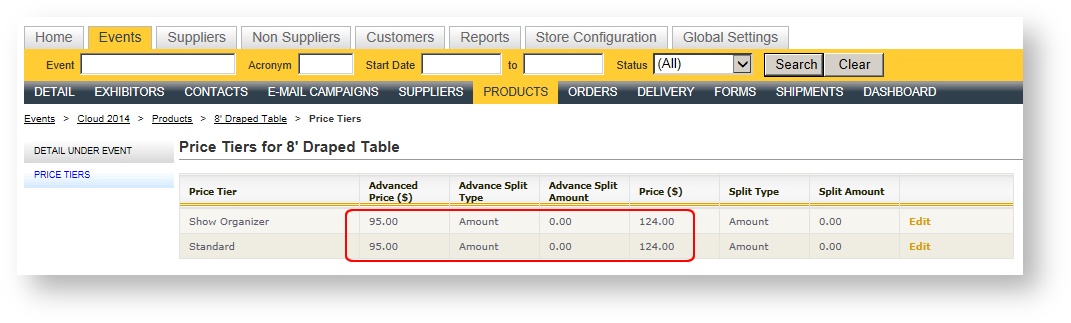
As seen in the image above, you can set different pricing for different price tiers. When creating an order for a given customer, Boomer will look to the price tier you've established for that customer and then apply those prices in the order. You will most likely want to adjust pricing for at least some of your products for show management. There are two ways to do this.
From the Products Grid
The first method is to go to the products grid and filter on the products that show management is being extended a discount. Let’s say, for example, show management receives 50% off your normal furnishing pricing for the event. Follow these steps for Method #1:
-
Open up the Event and click on the Products sub menu option.
-
Filter on the Furnishings category using the filter at the top of the grid (note your category may be named something different then in the sample database).
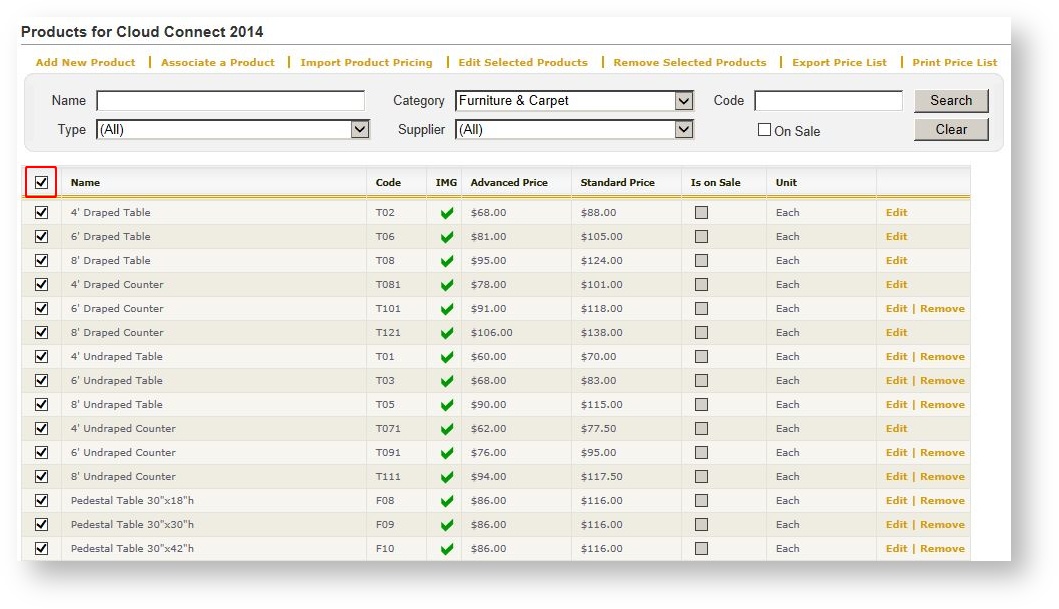
- Select all the Furnishings products you just filtered on by clicking the check box in the upper right hand corner of the grid:
-
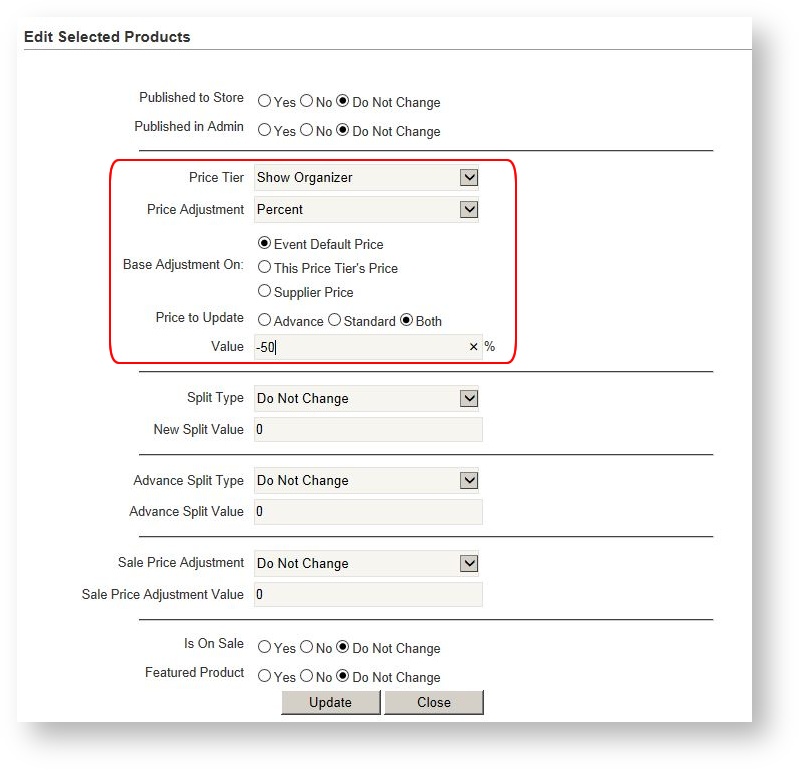
Choose "Edit Selected Products" above the Products Grid.
-
Choose "Show Organizer" in the Price Tier field.
-
Choose "Percent" in the Price Adjustment field.
-
Leave Base Adjustment on "Event Default Price".
-
Select the desired prices to update (Advance, Standard or Both).
-
Enter the value of the percentage (for a discounts, be sure to enter a negative percentage such as "-50%").
-
Click "Update". Your prices for the selected price tier are now altered accordingly.
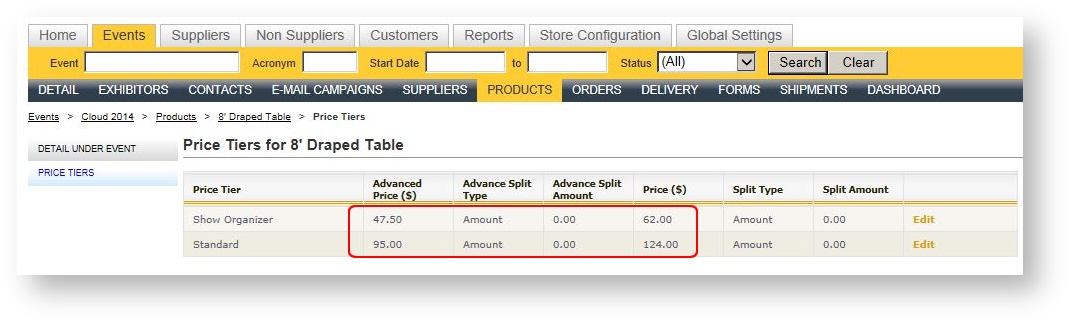
The Price Tiers option down the left hand navigation menu of the product now displays the discount:
Using the Product Export
If your discounts for show management are more complicated than a flat percentage discount, it may be easier to adjust the prices in Excel. This method is the same as when you adjust event pricing for standard exhibitors in Excel and re-import it. For details on how to use this method, see Edit Event Pricing.