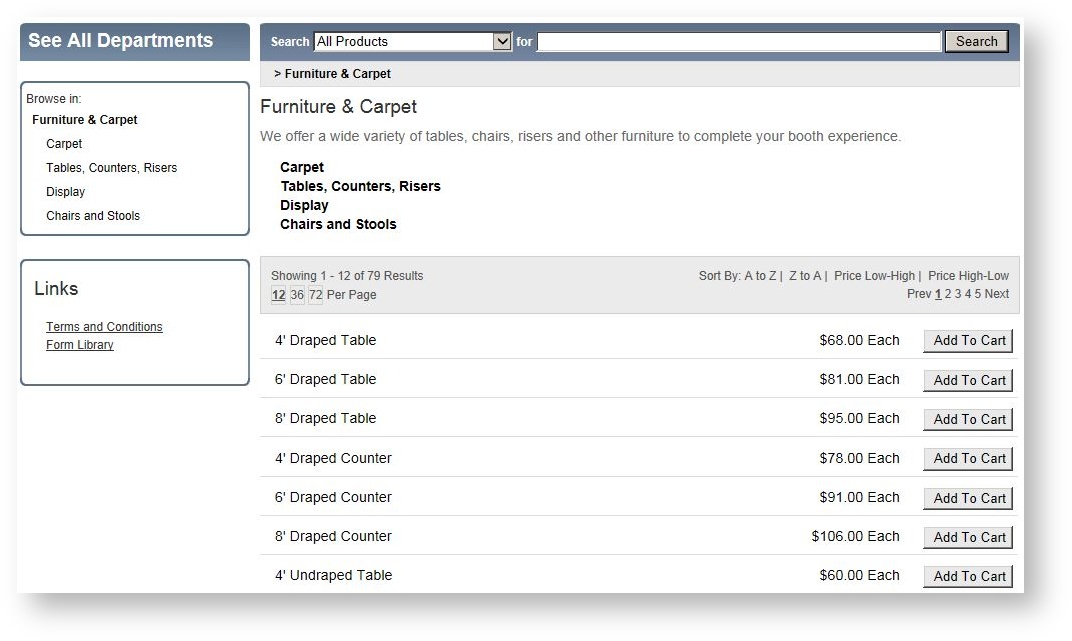
Navigation categories are at the heart of how the customer browses products on the Storefront. Navigation categories can be any number of “tree” levels, and products may have multiple navigation categories to make it easier to find products. There is one set of navigation categories per system.
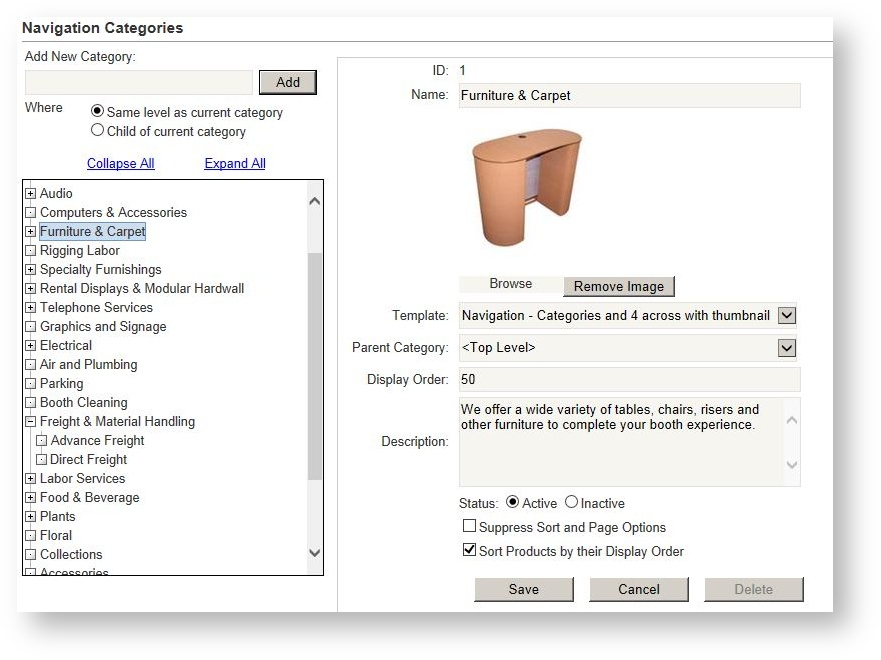
The screen where navigation categories are managed is comprised of two parts: 1) the outline that defines the categories themselves and the hierarchy; and the form representing the detail of a specific category:
The Outline
An outline on the left hand side is where nodes are added or removed. As the user clicks on existing nodes, the form on the right displays the information relevant to that category.
Add a Category
To add a category, type in the field within the “Add” section. The radio button below the text box defines whether the category will be added at the same level or as a child of the current category. After adding a new category, the radio button remains on the option the user last selected. For instance, if the last category added was defined as a “Child of current category”, it remains there until the user changes it again or until the user navigates off the page.
If there are no categories at all defined, the first category added is at the top level.
Delete a Category
To delete a category, the user clicks on the category’s node in the outline. The navigation category appears in the form on the right hand side. The user clicks the “Delete” button. A confirmation dialog appears with the message, “Are you sure you want to Delete this Category?” Any child categories will also be deleted.” Default button to No. Deleting a navigation category also removes it from any products associated to it.
The Form
Each navigation category is defined with the following fields:
| Field Name | Description |
|---|---|
|
Name |
The category name that will appear on the Storefront
|
| Image |
If there are no products defined at the navigation category level, the navigation category description and image appears instead. See the image below for an example. |
| Template |
Your Telling Stone customer support representative will determine the best template to use for your navigation category. See this topic for two very different examples of how the template impacts how the products are displayed. |
|
Parent Category |
By default, a category's parent is determined based on where focus was at the time the user clicked "Add" in the outline. However, the parent category may be changed by selecting one from this drop down field. |
|
Display Order |
The order in which the navigation category appears within its level in the outline. |
|
Display Type |
Choose Categories to display only the current category's image and description as well as any child categories only; choose Products to display only products that have been defined for that category; and choose Both to first list category information as well as any products in the category. |
|
Description |
As with the image, if there are no products defined at this navigation category level, the navigation category description and image appears instead. See the image blow for an example. |
| Status |
Active/Inactive. To hide a navigation category and not use it in the Storefront, make it inactive. |
| Suppress Sort and Page Options | Determines whether the sort and page options appear at the top and bottom of the list of products |
| Sort Products by their Display Order | Ensures the products listed within the navigation category use the product's display order to determine the order in which the products are listed. |
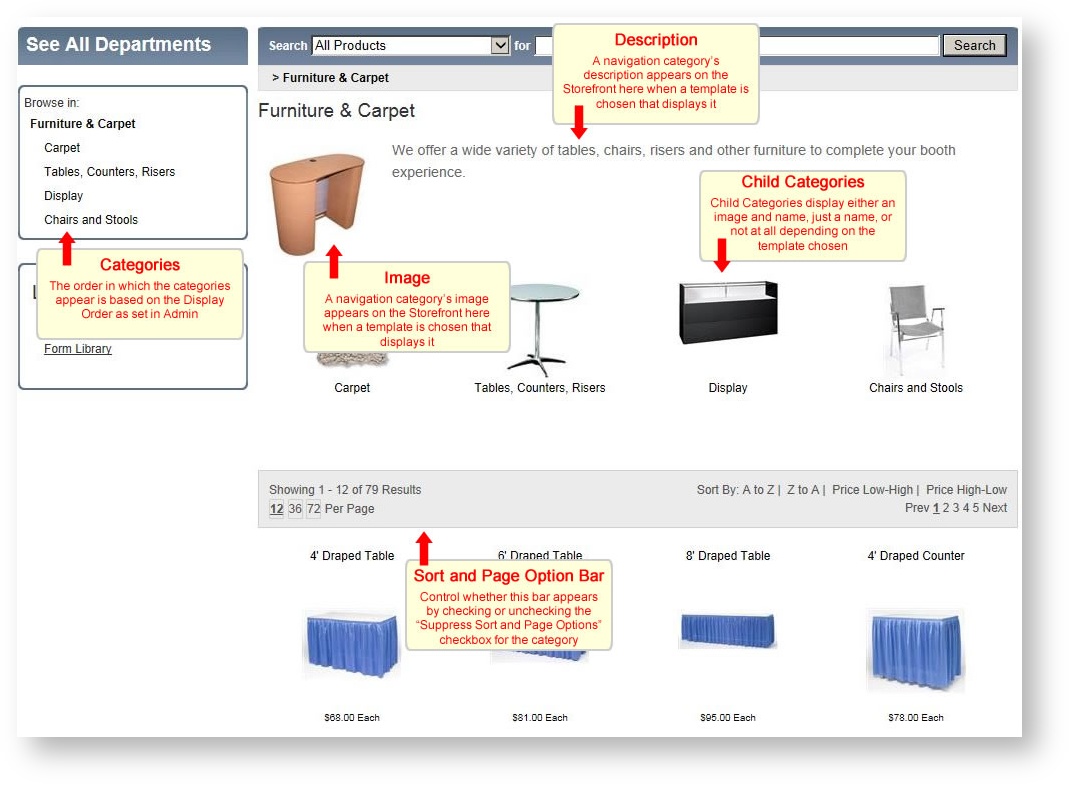
The end result of the navigation category set up appears similar to the following example:
Category Display on the Storefront
A category's display greatly impacts how a category and its products appear on the storefront. You can see the different options by switching the display in Admin and then going to the storefront and clicking Refresh. The same category displayed in the image above can be changed to the below image by simply changing the display of the category: