When an order is submitted, the user has the opportunity to select a payment type. The available payment types are dependent on the payment methods that have been configured under Payment Configuration. As detailed below, part of configuring a payment method is indicating whether it will be processed through a gateway or whether it will be processed manually.
Payment Gateways
A payment gateway is likely to be configured with the assistance of your Telling Stone representative. Each payment method (defined below) is then assigned a gateway through which the payment will be processed.
Payment Methods
Payment methods are the values that appear in the drop down field when a user applies a payment in an order:
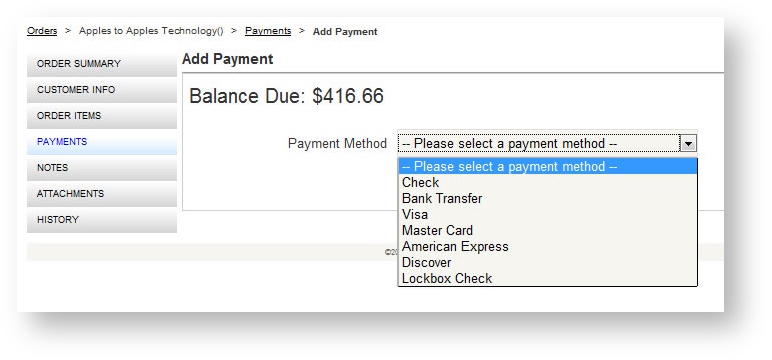
They are configured as associated to a payment gateway.
Add New Method
To add a new payment method:
- From within Payment Configuration under the Global Settings menu, click on Payment Methods in the left vertical navigation menu.
- Click "Add New" in the lower right hand corner of the grid.
- Complete the new payment method using the field definitions below as guidance.
- Click Save.
| Field Name | Description |
|---|---|
| Name |
Name that appears when the user chooses a payment method |
| Description |
Description and/or instructions for the payment methods. For example, when Wire Transfer is chosen, instructions on how to send the Wire Transfer could be shown. If you are interested in adding a description for one or more payment methods, please contact Support. |
|
User Template |
Determines what fields will appear for the user to fill in: Choose User Template Check if setting up a check payment method. The user will be prompted with a Reference # only. Choose User Template Credit Card if setting up a credit card payment method. The user will be prompted for a cardholder's name, card number, expiration date and billing address Choose Master Account if you have worked with Telling Stone to integrate with your property management system to support a master account payment method. |
| Payment Gateway | Choose the gateway that was configured in the Payment Gateway area, above. |
| Active Store | Determines whether this payment method is available to the customer on the Storefront. |
| Active Admin |
Determines whether this payment method is available to a Boomer Admin user on the back end. |
| Credit Card |
Indicates whether it is a credit card payment method. |
Delete a Payment Method
A payment method may be deleted only if it has not been selected as payment for an order. To delete a payment method:
- From within Payment Configuration under the Global Settings menu, click on Payment Methods in the left vertical navigation menu.
- Find the payment method to delete in the grid and click the corresponding "Delete" in the row.
Activate the Deposit Withdrawal Payment Method
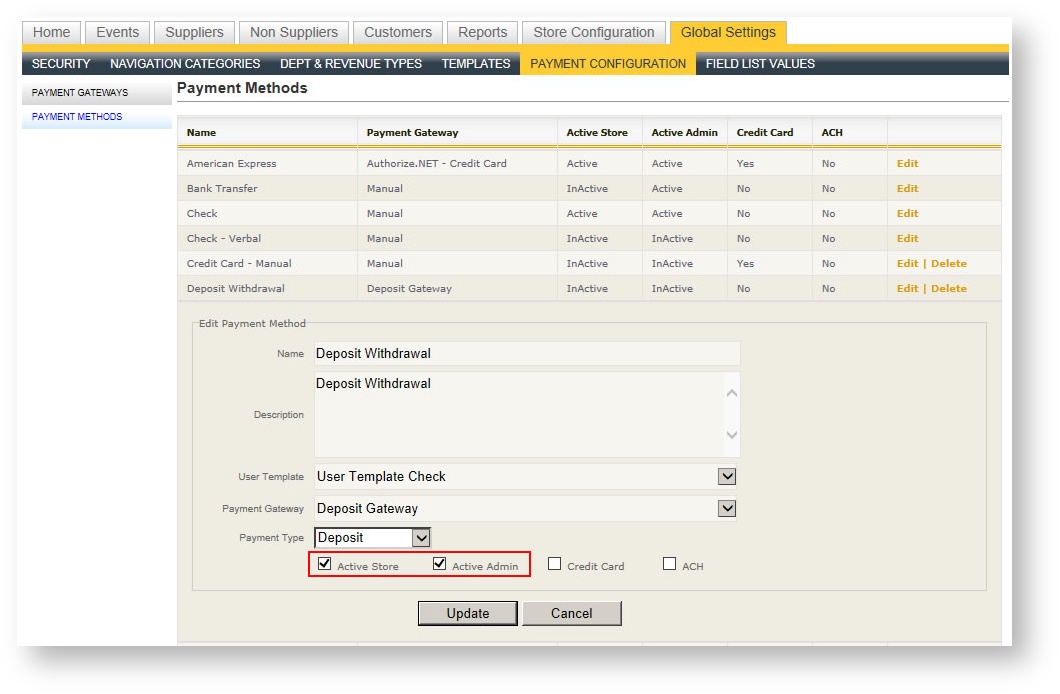
If you plan to use Deposits in Boomer (see Deposits) you will want to activate the Deposit Withdrawal Payment Method. By default, it is marked as inactive. To activate this payment method:
- Click on the Global Settings tab.
- Find "Deposit Withdrawal" in the grid and click Edit.
- Check Active Store and/or Active Admin depending on which type of user(s) you want to be able to apply a payment against a deposit.
- Click "Update".
You need sufficient security rights to access the Global Settings tab. If you do not see it, you do not have sufficient rights.