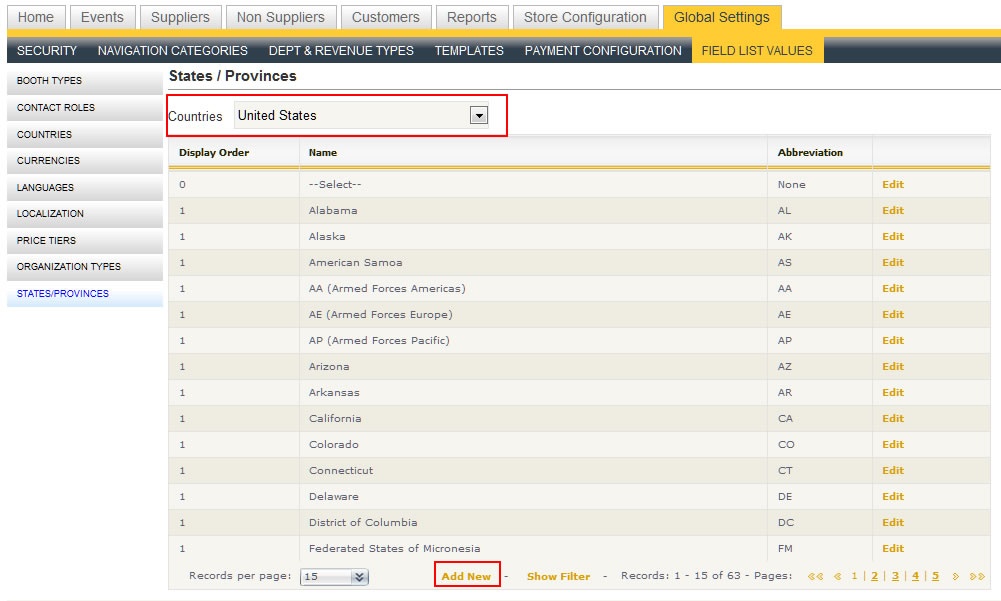
Boomer comes preloaded with the most commonly used countries and states. However, you can add additional countries and states depending on where your customers originate. To add countries and states, the logged in user must have access to your store's Global Settings.
Add a Country
- Click on the main "Global Settings" tab.
- Choose Field List Values
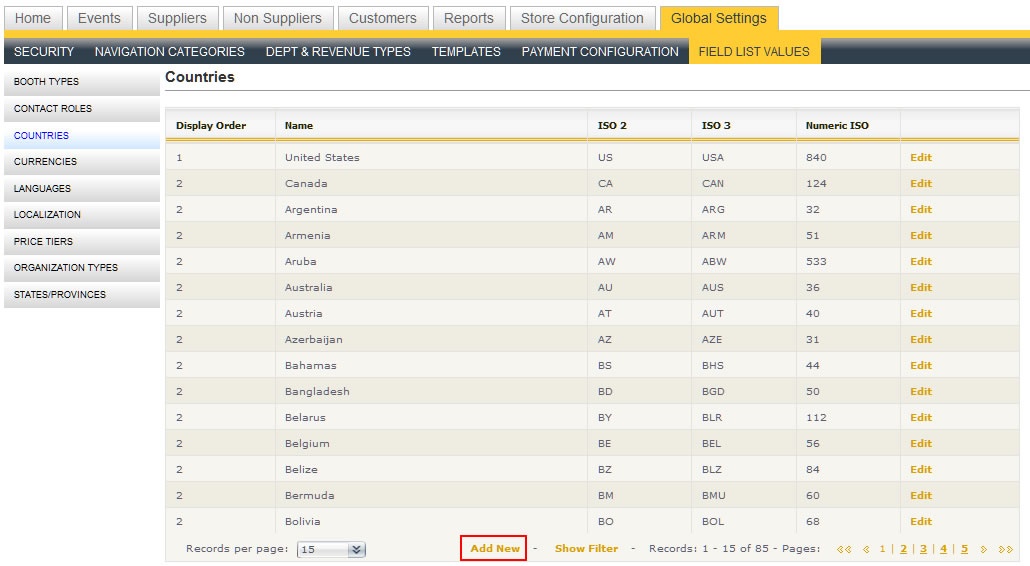
- In the left hand navigation menu, choose "Countries".
- At the bottom of the grid, click "Add New". Boomer prompts you to enter five fields, described below.
| Field Name | Description |
|---|---|
| Display Order | The order in which the country will appear in the drop down list. Leaving it as 2 will automatically put it in alphabetical order. |
| Name | The country's name that will appear in the drop down. |
| ISO 2 |
A international standard used worldwide to refer to the country. |
| ISO 3 | A international standard used worldwide to refer to the country. |
| Numeric ISO | A international standard used worldwide to refer to the country. |
To view the ISO standards you should use in the above fields, see this resource: UPDATELINK http://userpage.chemie.fu-berlin.de/diverse/doc/ISO_3166.html
Add a State
- Click on the main "Global Settings" tab.
- Choose Field List Values.
- In the left hand navigation menu, choose "States/Provinces".
- In the drop down at the top, select the country for which you want to add a state.
- At the bottom of the grid, click "Add New". Boomer prompts you to enter three fields, described below.
| Field Name | Description |
|---|---|
| Display Order | The order in which the state appears in the drop down. Leave 1 to list the state in alphabetical order. |
| Name | Name of the state that will appear in the drop down box for the user. |
| Abbreviation |
The standard abbreviation used for the state. |