E-Mail Triggers determine when an email will be automatically generated. Triggers are tied to email templates and when the trigger fires off, the selected email template is sent. Some basic email triggers that are pre-configured include:
New Login - Admin User
This trigger sends an email to a new user's email address when an Admin user creates a supplier contact and click "Create Login".
Password Reset - Admin User
This trigger sends a new temporary password to an existing Admin user when the "Forgot Password" link is clicked on the Admin login page or when an Admin user clicks "Reset Password" in the Contacts grid under a supplier.
Password Reset - Customer
This trigger sends a new temporary password to an existing customer when the customer clicks "Forgot Password" on the storefront home page or an Admin user clicks "Reset Password" from the Contacts grid within an event.
The above triggers are just three examples of the possibilities of triggers.
Configuring a Trigger
To create an email trigger:
- Click on the main Store Configuration tab.
- Click "Templates & Triggers" in the sub menu.
- Click "E-Mail Triggers" down the left hand navigation menu.
- Click "Add New" in the lower right hand corner of the grid.
- Fill in the fields of your e-mail trigger definition using the field definitions below.
- Click "Save".
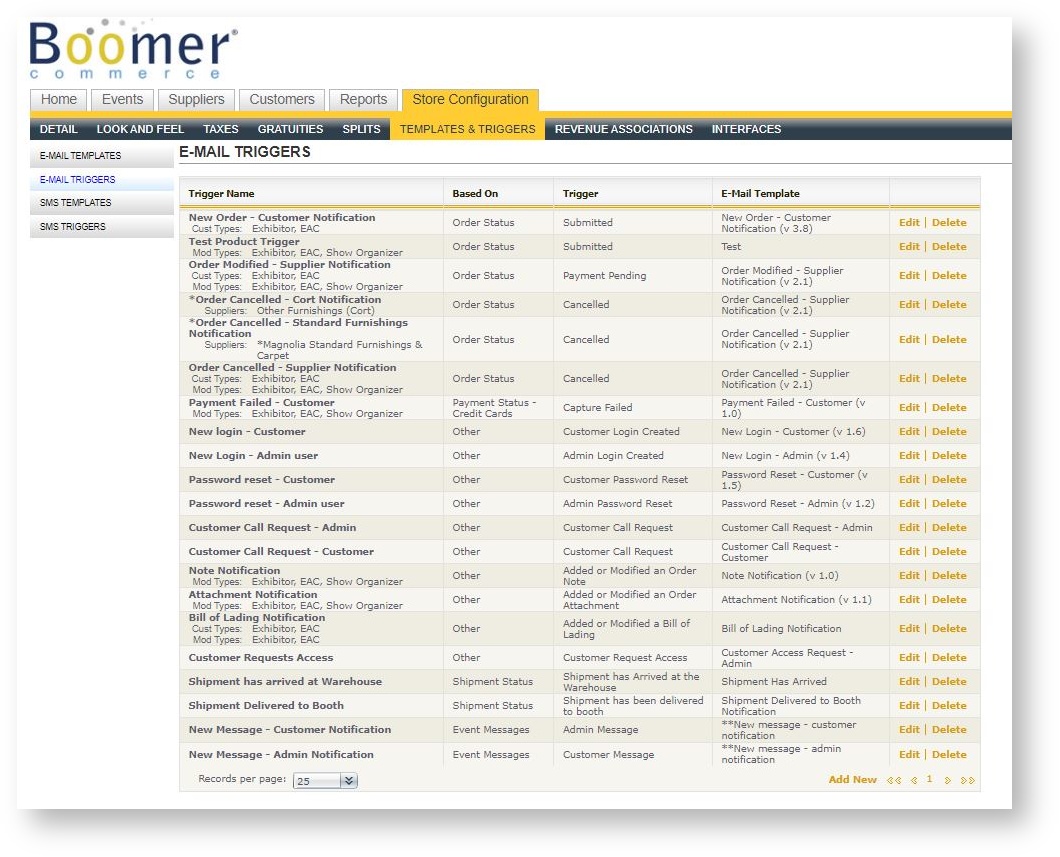
To define when the e-mail will be sent automatically, create a trigger record.
| Field Name | Description |
|---|---|
| Trigger Name |
Name of the trigger for reference only. |
|
Based On |
Determines what event will fire off the trigger. Options include: Order Status |
| Trigger |
Depending on the above event selected, the trigger values will vary. For instance, when Order Status is selected above, a list of all order statuses will appear. See the table below for the available values based on the "Based On" selection. |
|
E-Mail Template |
Determines which template will be used when the trigger criteria is met. |
| Customer Org Type(s) |
Determines which organization types will be relevant for this trigger. For example, if you are setting up a New Order Confirmation trigger to be fired off and the trigger event should only happen when a standard exhibitor has a new order, the Standard org type should be selected but no Show Organizer. |
| Modified By Org Type(s) |
Determines which customer types are included to fire off the trigger where a modified user is involved, such as in the case of an order. |
| Supplier(s) |
The trigger is sent only when it involves the supplier defined in this field. "None Selected" means it will be sent regardless of the supplier.triggers.PNG |

Based On Values and the Available Trigger Values
| Field Name | Description |
|---|---|
| Order Status | Submitted Submitted - Payment Pending Submitted - Confirmed Payment Pending Confirmed Cancelled Closed |
| Payment Status - Manual |
Unprocessed Payment Pending Received Refunded Cancelled |
| Payment Status - Credit Cards |
Unprocessed Authorization Pending Authorized Authorization Failed Capture Pending Captured Capture Failed Refund Pending Refunded Refund Failed Cancelled |
| Other |
Customer Login Created Admin Login Created Customer Password Reset Admin Password Reset Customer Password Lockout Admin Password Lockout Customer Call Request |
| Payment Status - ACH |
Unprocessed Authorization Pending Authorized Authorization Failed Capture Pending Captured Capture Failed Refund Pending Refunded Refund Failed Cancelled |
| Shipment Status |
Shipment has Arrived at the Warehouse Inbound Driver Has Checked In Inbound Driver has been dispatched Inbound Driver is at dock Inbound driver has been unloaded Shipment has been delivered to booth Empties have been placed in booth Outbound driver has checked in Outbound driver has been dispatched Outbound driver is at dock Outbound driver has been loaded |