Security roles determine what a user's rights and privileges are. Security roles are assigned to a user during the login creation process. Several popular profiles have been defined as system security roles and are not editable; however, any system security role can be copied and modified to suit the desired security effect for one or more users.
To access the security roles defined in your store:
- Click on the Store Configuration tab.
- Click on Security in the menu.
Each of the security roles defined in your store appear in the Security Roles drop down. A security role definition lists each major entity and the rights assigned to it:
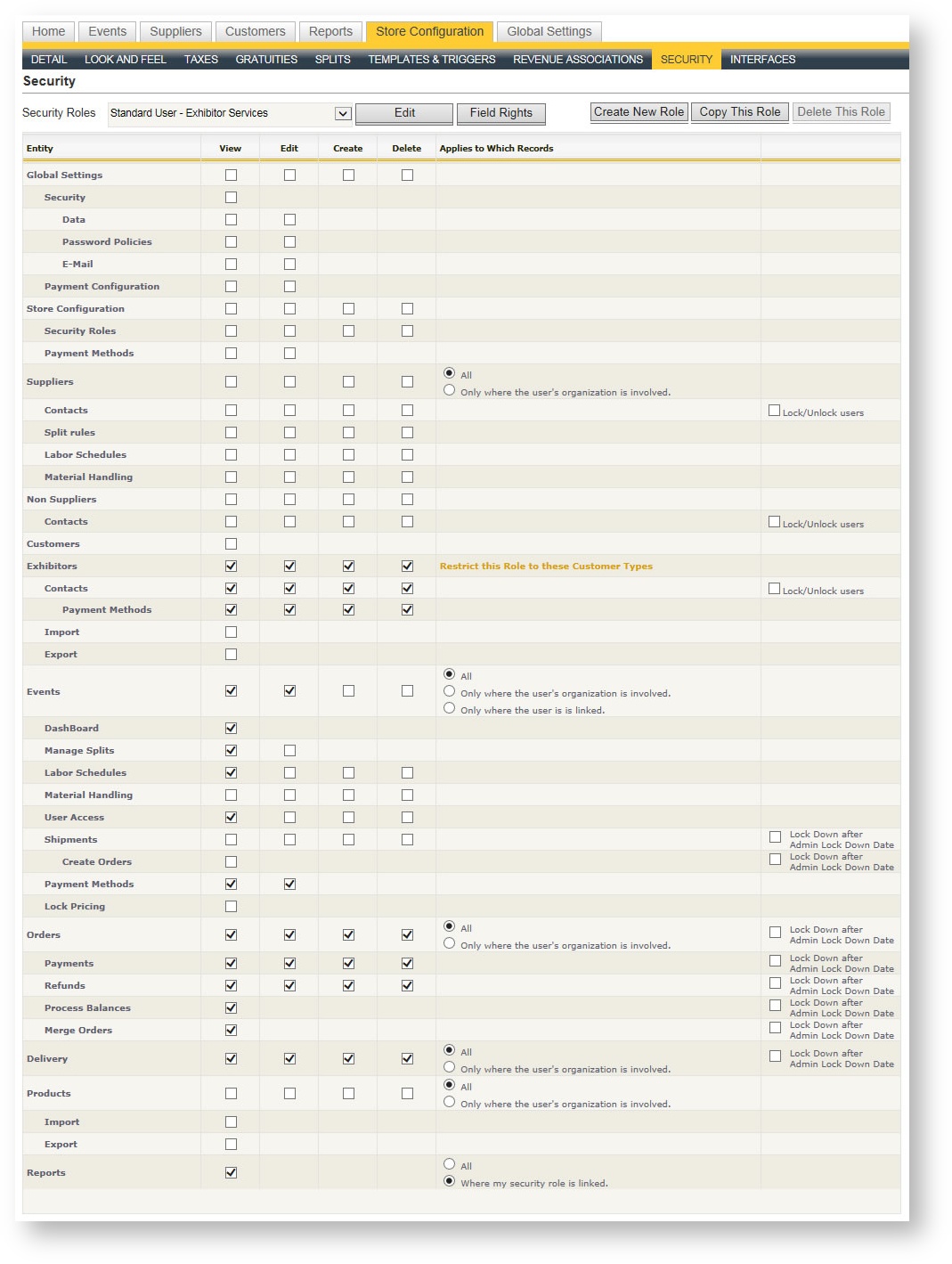
For each role, each major entity's access is defined by selecting or deselecting the check box under the appropriate column. In addition to determining a security role's ability to view, edit, create and delete each of the major entities, there are several other configuration options within the role's definition.
The security roles that end with "(System)" are system security roles and may not be modified. If you want to make a security role similar to a System role, simply make a copy first.
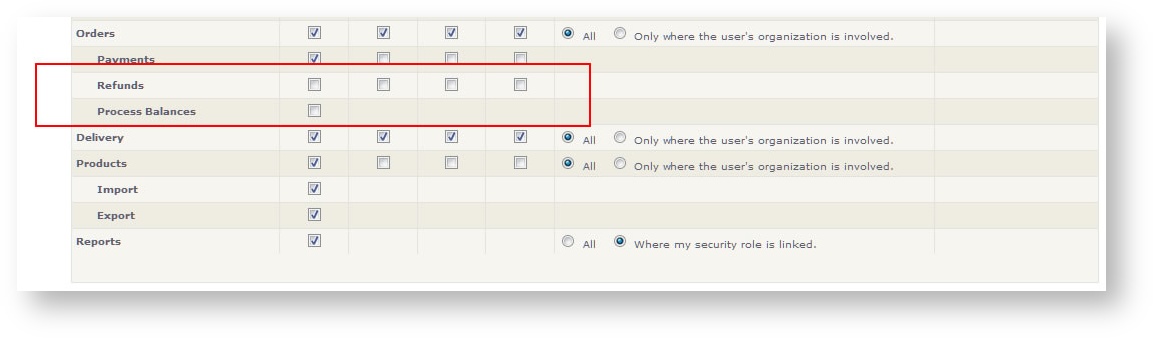
Take special note of two specific settings under orders. You can control whether a user assigned to a security role can issue refunds and/or process all outstanding balances in orders for an event.
Applies to Which Records
There may be a situation where a user should be granted the access to view, edit, create or delete a given entity record, but only where they have some involvement in the product list, event or order. That situation would most likely be that the user is an employee of a third party supplier, who needs access to manage products and orders, but only for their own organization. Here is an example of the default supplier security role.
For each security role with the radio button, the supplier contact will be able to perform the actions checked in each of the columns, but only where their organization is involved. In other words, they can:
- View supplier records and the contacts, but only where their organization is involved (in other words, they'll only see their own).
- View events, but only where their organization is involved (only events to which their supplier is connected. See Suppliers and Products In an Event for more information on connecting a supplier to an event).
- View orders, but only where their organization is involved (meaning only orders that have products being supplied by their organization).
- Manage delivery for items, but only where their organization is involved (meaning they can only view and mark products delivered that they are responsible for delivering).
- Add and maintain products, but only where their organization is involved (meaning they can only edit product details and pricing for products connected to their organization as a supplier.
Lock/Unlock Users
This security option determines whether users in this role can unlock or lock another user's login. The scenario would likely be that a user has attempted to login but has exceeded the number of allowable attempts (see Global Security\Password Policies for more information on this functionality). This security role also controls whether users in the security role can "Create Login" or "Reset Password" for contacts.
Lock Down After Admin Lock Down Date
This security option determines whether users given this security role can perform this function after the "Admin Lock Down Date" date that has been defined in the event.
Payment Security Options
Of particular interest to you might be how you can control who can process multiple balances for orders and who can process refunds. These are controllable in the security group with these settings under the Orders area:
Copy a Security Role
To copy a security role:
- Choose the security role you want to copy in the drop down list.
- Click the "Copy This Role" button in the upper right hand corner just above the security grid.
- A new security role with the word "Copy" appears in the drop down. Hit the Edit button to adjust the name.
- Make changes as desired to the security settings.
Delete a Security Role
To delete a security role:
- Choose the security role you want to delete in the drop down list.
- Click the "Delete This Role" button in the upper right hand corner just above the security grid.
You will need to reassign any users that had the role you just deleted with a new role
Applying Security based on a Role in an Event
You an define a security role (and therefore those associated with it) access to only certain events. To do this, set the "Events" security role to "Only where the user is linked":
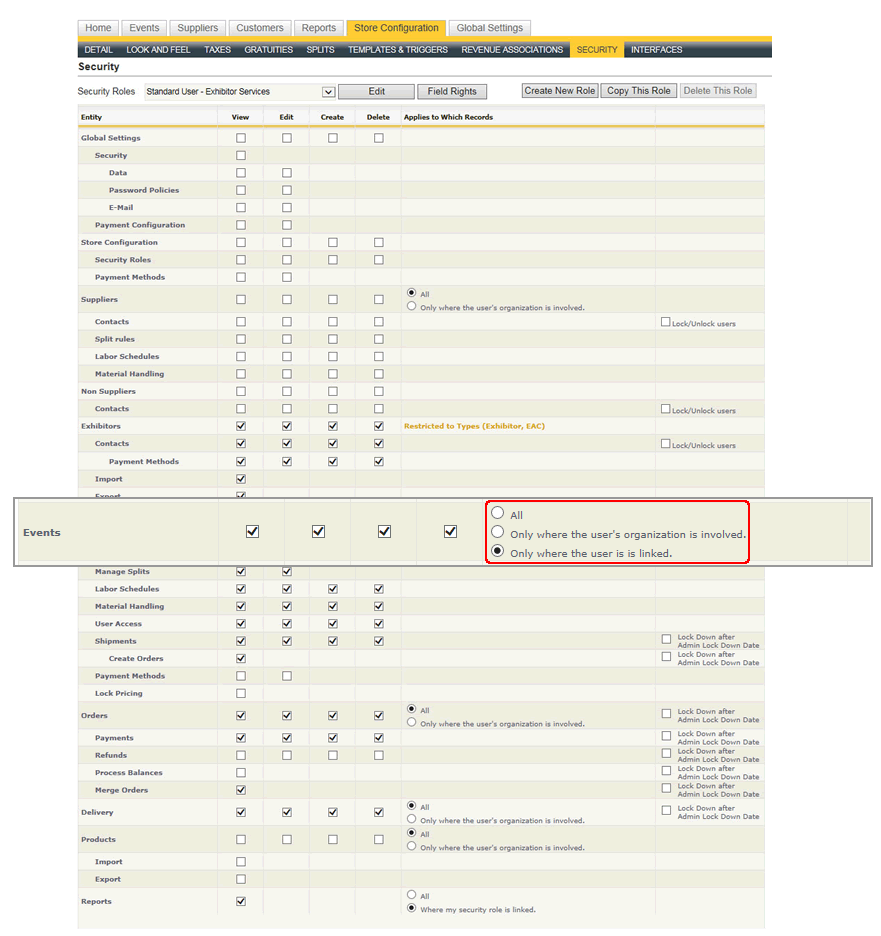
When a user belongs to a role with the Events security setting set this way, that user will only see the events to which they are connected in the events grid as well as in the list of available reports when an event is run.
A user is considered linked to an event if he/she is a manager in one of the manager fields on the event detail form, or if they were manually added via the User Access grid. For more information on User Access in an event, see User Access.
Applying Security Based on Customer Type
As explained under the Exhibitors (Customers) area, a given company can be defined with a "Type". The default type list includes Exhibitor, EAC and Show Organizer, though you may have been configured with more or different types. This security setting allows you to restrict a user's visibility by assigning them to a security role where that role has been restricted to see only certain customer types.
To define which customer type(s) a security role can see, click "Restricted to Types" in the Exhibitors role of the security roles's definition:
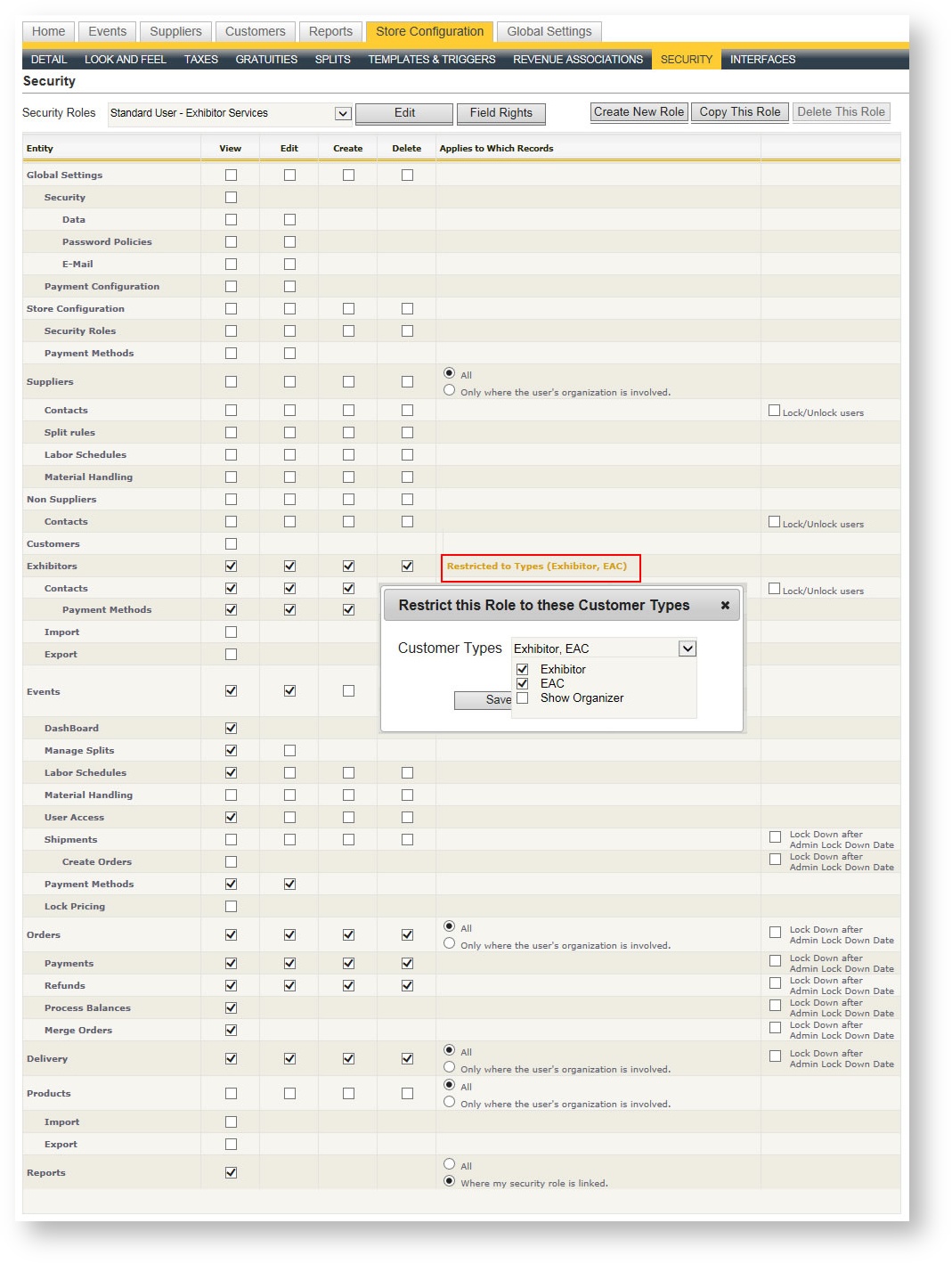
A dialog box pops up with a drop down field allowing you to definite which Customer Type(s) this security role can see. Check or uncheck customer type(s) to refine the visibility by customer type.
Applying Field Level Security
You can define field level security for certain entities that control whether a user can view and/or edit fields. This feature is typically used for fields not required as part of your business process that will confuse users. Hiding the fields simplifies the form and presents only the fields you want.
Field level security is accessed via the "Field Rights" button within the security role:
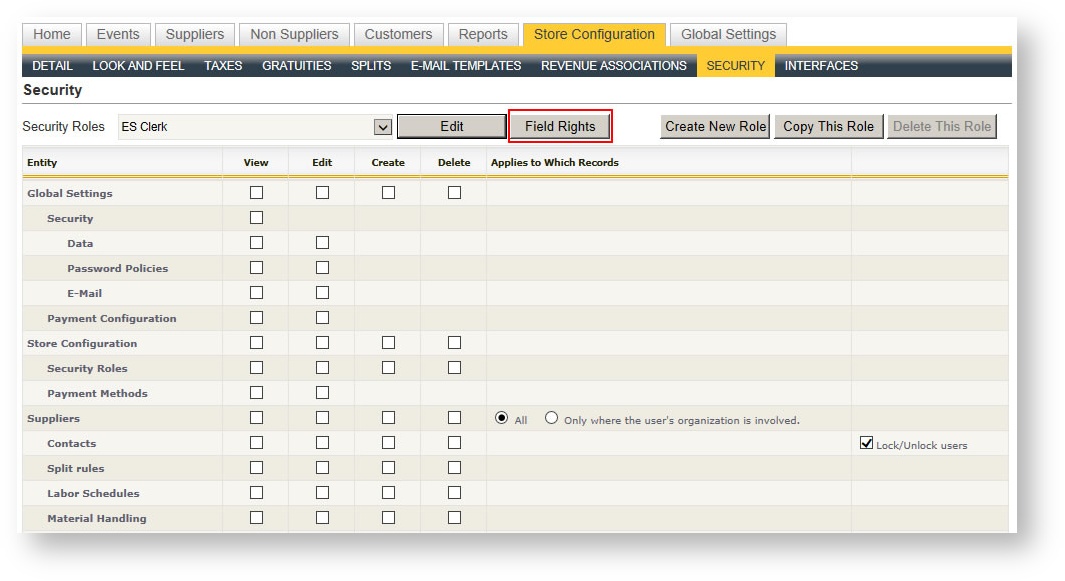
You can define field visibility and editability for two entities as outlined below.
Event Detail Form
The following fields are available for field level control on the event detail form:
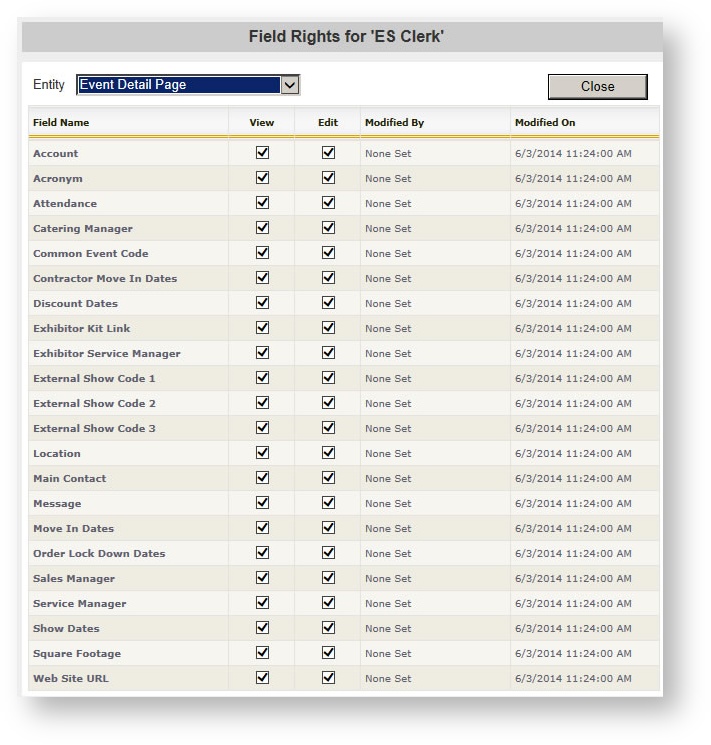
Customer Info in an Order
The following fields are available for field level control on the customer info form in an order:
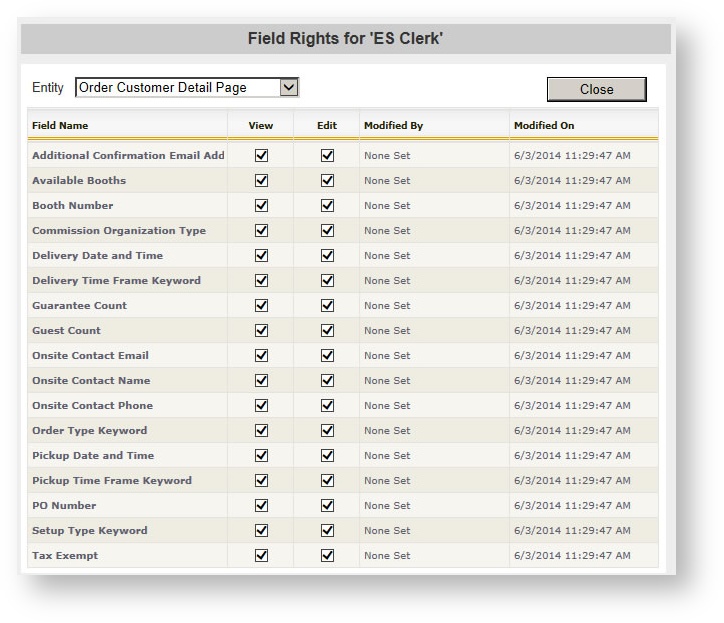
Since your customer also sees Customer Info, be sure to update the "Customer (System)" security role as well as any Admin security role so your customer doesn't see unwanted fields either.