If you need to set up a product you don't have in your system, it is far easier to copy a similar product in order to make a new product. You can copy products within the same supplier or from one supplier to another.
To copy a product:
- Open the Supplier and navigating to the Products menu option.
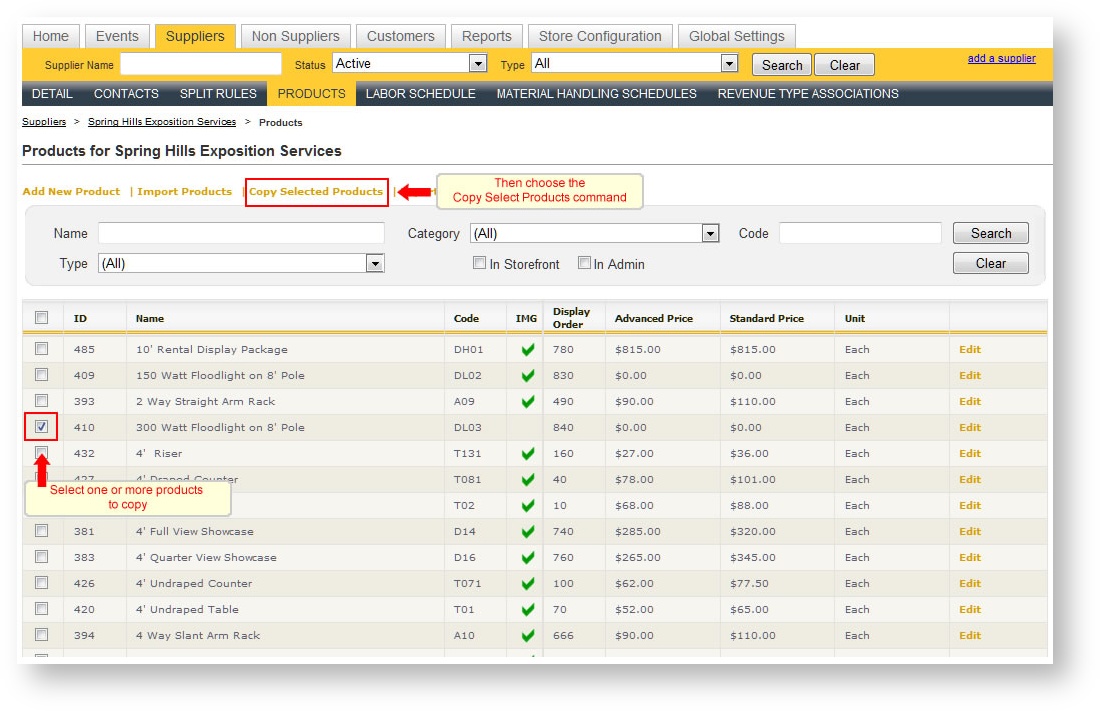
- Use the check box(es) column in the Products grid to select one or more products you want to copy.
- Click "Copy Selected Products" above the grid:
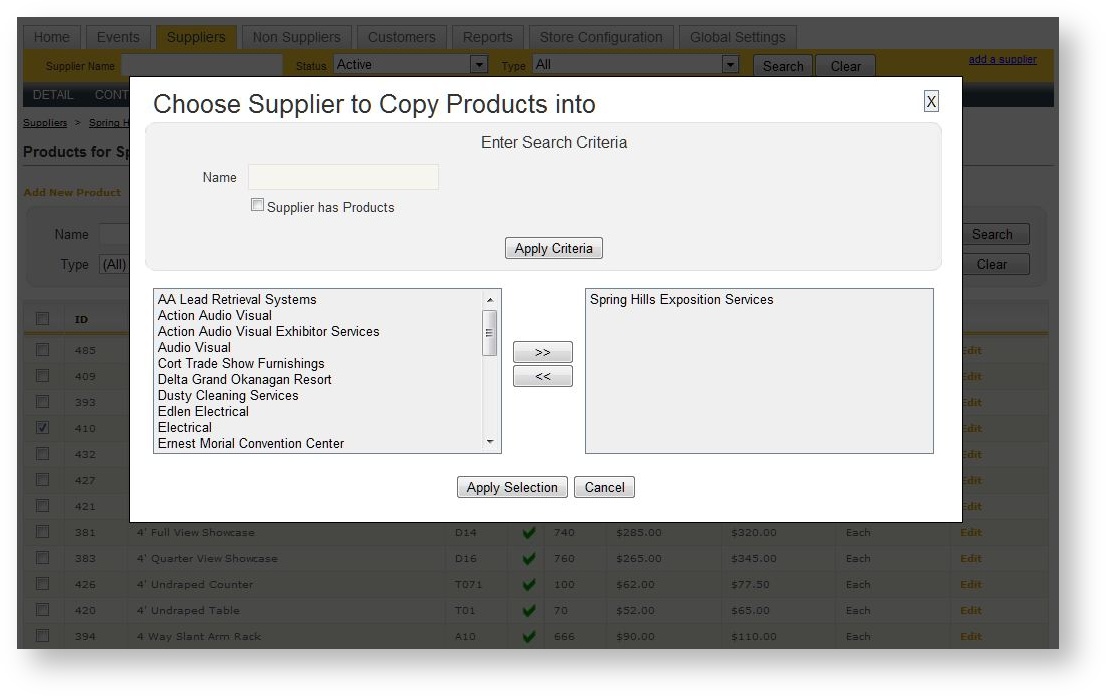
- A dialog pops up allowing you to choose a supplier into which the product should be copied. The default is the supplier you are currently in:
- Once you click "Apply Selection" in the Picklist, a new copy of the product appears in the grid with the word "Copy" at the end:
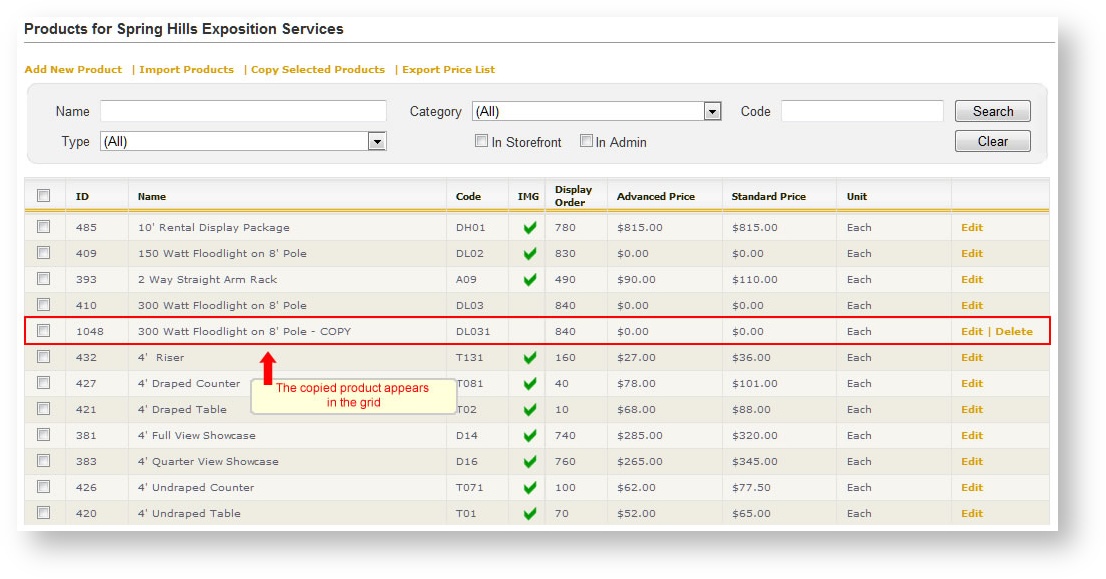
The new product is an exact duplicate of the original product with one exception; Since the product code must be unique, a "1" has been placed at the end of the product code. You may change this to any code you would like to as long as it is unique within Boomer (you will get an error if you try to reuse a product code from another product).
- Click on the row in the grid of the copied product to make any desired changes.
Be sure to update the product's description and images to reflect your new product's detail. Click on the Description tab of the product detail to alter the description and click on "Images" down the left hand navigation menu to replace the image.