If you decide to increase your overall product prices and what you want to default in when you create new events, you can adjust product pricing at the supplier level by importing a revised product list.
You cannot import product pricing in the format of what you import at the event level. The spreadsheet format is completely different and will not work
Any event level pricing you have not explicitly set will be updated to the new pricing you enter at the supplier level. If you have events you want to keep the old pricing, follow the instructions for locking event pricing here before editing your supplier level pricing.
- Go to the main Reports tab and choose Product Export. If you do not see this report, you may not have the necessary security rights.
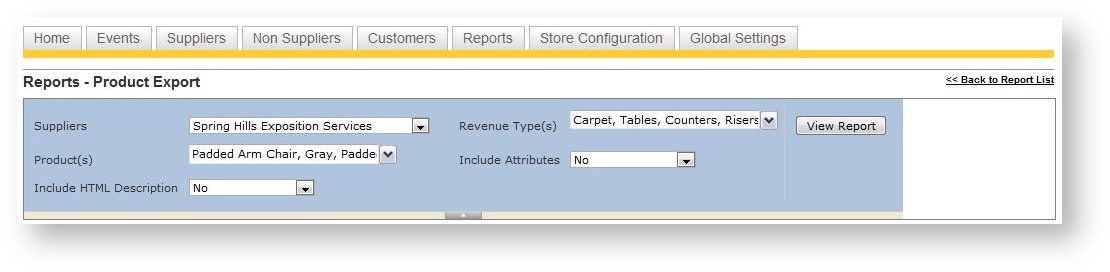
- Choose the desired supplier, revenue types and products you want to change. Leave the "Include Attributes" and "Include HTML Description" as No.
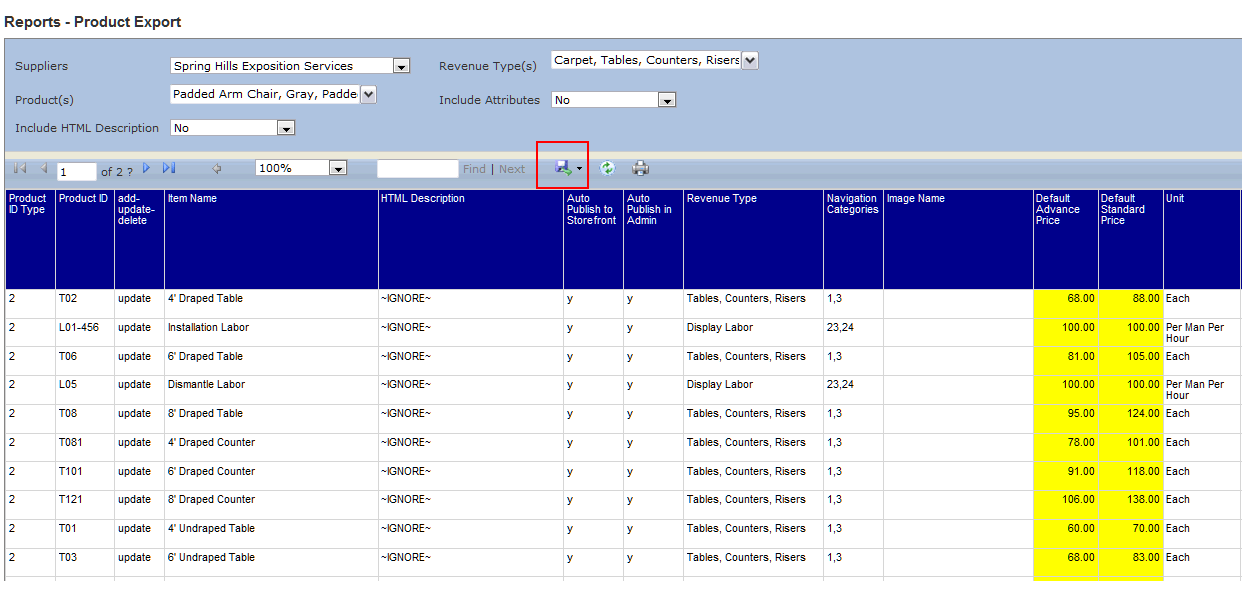
- Once the report results appear, click the blue disk in the parameter area to export the list to Excel:
-
Once in Excel, notice the pricing columns (which are the most popular columns to modify) are highlighted in yellow. Edit the pricing as desired, being carefully not to not alter or remove any other columns.
Do not change the Product Code as that is the unique identifier to Boomer of each product.
- Save the Excel file.
- Go back to the Supplier Products grid.
- At the top of the grid, click "Import Products".
- Browse for the Excel file you just saved containing the new pricing.
- Click the "Import" button.
Once completed, your products will now reflect your new desired pricing.