Multi-Factor Authentication (MFA) is a security measure that requires the user to provide two or more credentials in order to authenticate their identity. PCI now requires multi-factor authentication in order to log in to Boomer. The password you have always used to log in is the first way, and now you'll need to also enter a six-digit number that you'll receive via email or text (you choose).
These roles with the following privileges trigger MFA:
- Global Settings (View, setting any role below this setting will make this one be View)
- Store Configuration
- Security Roles (view)
- Payment Methods (view)
- Suppliers
- Contacts (edit)
- Non Suppliers
- Contacts (edit)
Here is what to expect when logging in:
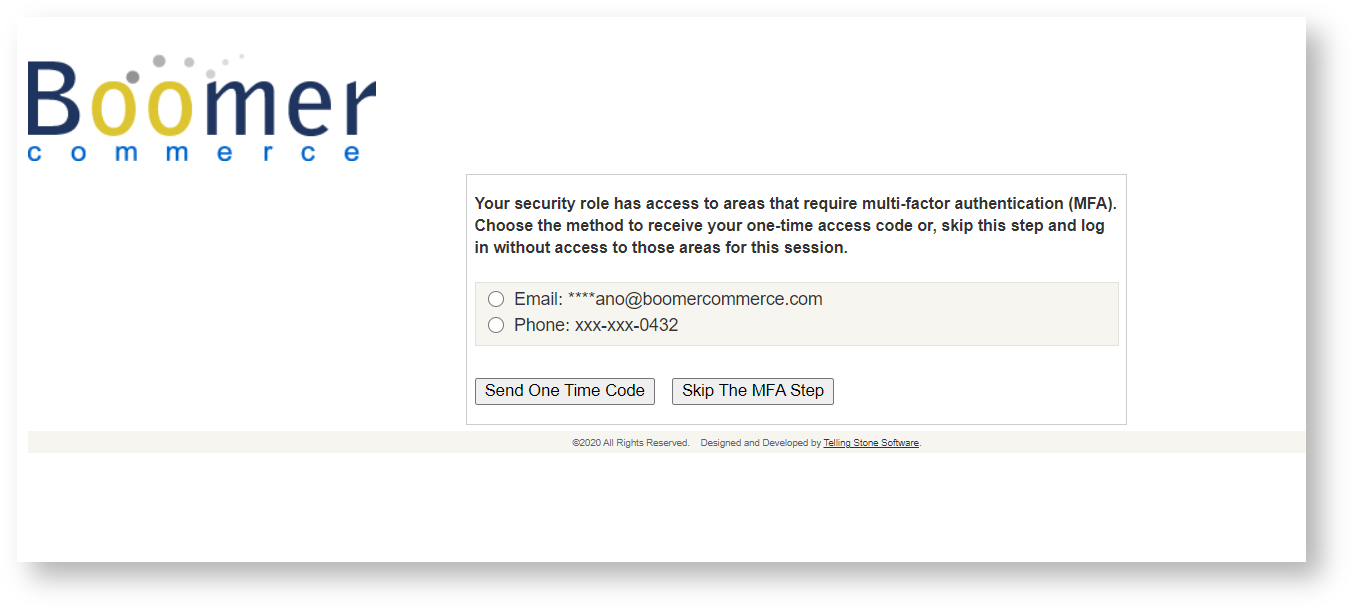
Skip MFA
To skip MFA, click Skip the MFA Step. This will allow for a quick login, but the security level will be different during this session. The user will not be able to edit contacts under a supplier and view will be the only option. Under Store Configuration, they will not have access to manage security roles and will not see the global settings tab. If those features are needed to be accessed, the user will need to log out and log in with MFA.
Add a Cellphone Number to MFA
If you don't have a mobile number option you can reach out to your site admin. If you are an Admin, the steps below show how to create a new Admin User and Login where you can add a mobile number.
- Click on Suppliers.
- Navigate to the supplier that hold your contacts.
- Click on Contacts.
- Find your contact and click edit in the row.
- Add mobile number in the mobile field.
- Hit update.