-
When you want to make adjustments to your product list at the supplier level so that the change is permanent when you create new events, you can run the Product Export report. The most popular purpose for this is to modify pricing year over year. The report results display in a grid format. When exported to Excel, it provides the exact format needed to import back into Boomer at the Supplier level.
You will not be able to take an event level price list and import that into the supplier level. You will have to run this report instead so a format is generated that can be imported at the supplier level.
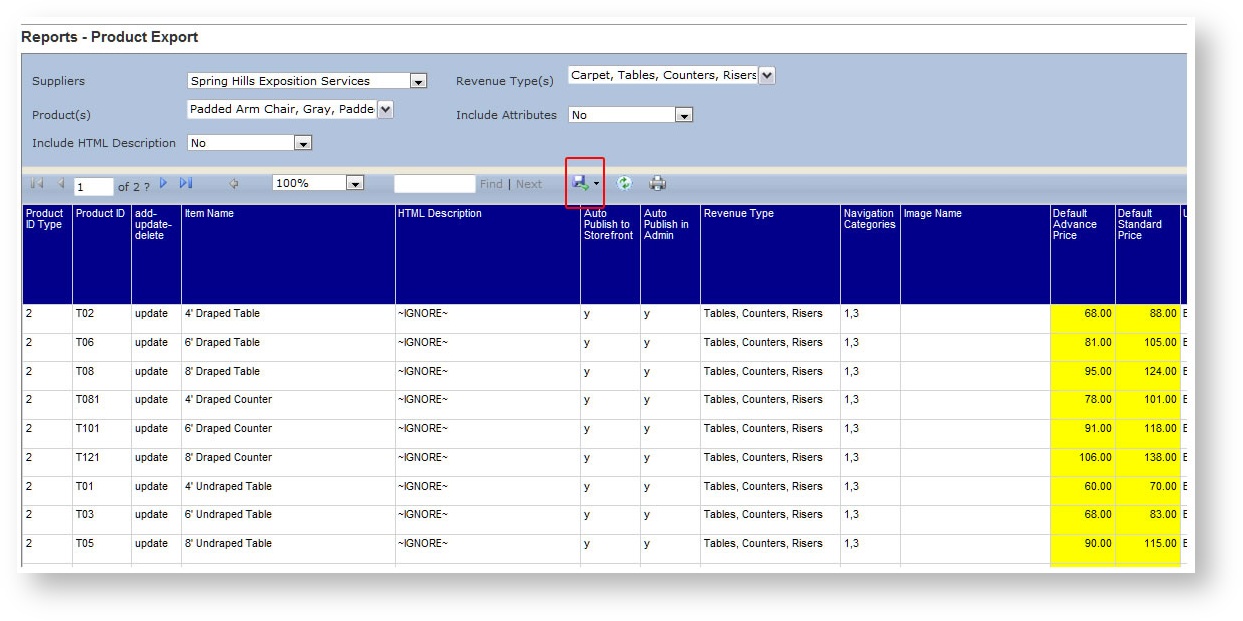
Fields
| Field Name | Available Values | Default |
|---|---|---|
| Supplier |
All suppliers defined in the system. |
None |
|
Revenue Type(s) |
All revenue types in the system. |
All |
|
Product(s) |
All products defined for the Revenue Types selected. | All |
| Include Attributes | Yes No (Print the attributes and any values that have been configured for the product). |
No |
| Include HTML Description | No Yes |
No |
| Format | Boomer Simple (not re-importable!). Floor Plan Products Only. |
Boomer |
Once the report generates, export it to Excel by clicking the blue disk icon in the parameter area:
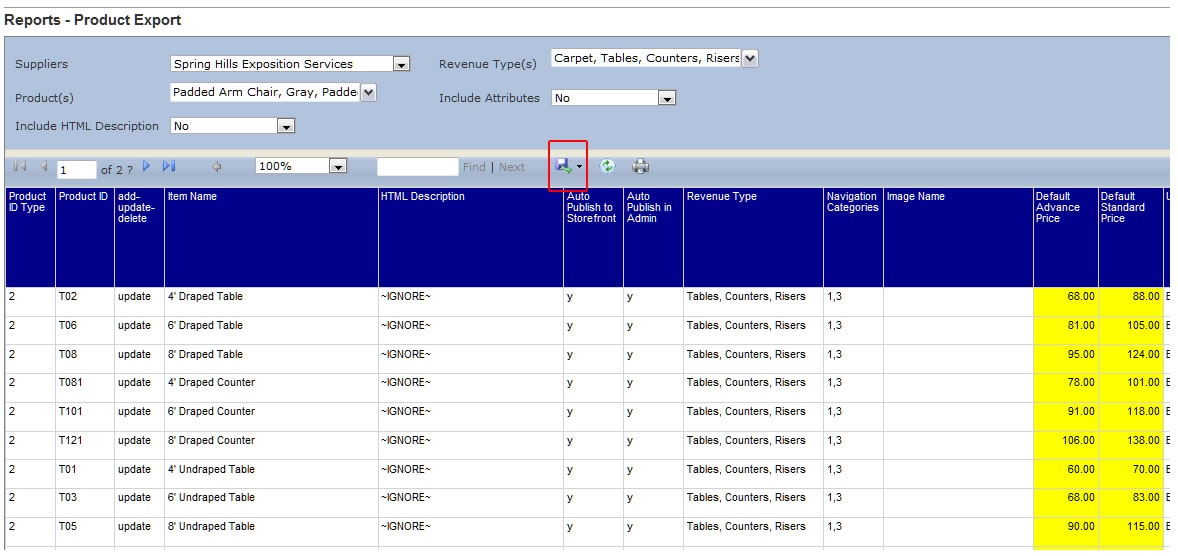
Once in Excel, edit the product columns as necessary, being carefully not to change the Product ID (that is the unique number Boomer will use to match during the re-import). The Default Advance Price and Default Standard Price columns are highlighted since those are the most popular columns that need adjustment at the supplier level. For instructions on how to re-import, see Importing Products.