Admin Portal
Logins and Access
- PCI now requires multi-factor authentication (MFA) in order to log in to Boomer if your security access involves certain store administrative rights. MFA involves using two different methods of validating user credentials. The password you have always used to log in is the first way, and now you'll need to also enter a six-digit code that you'll receive via email or text (you choose).
- These roles with the following privileges trigger MFA:
- Global Settings (View, setting any role below this setting will make this one be View)
- Store Configuration
- Security Roles (view)
- Payment Methods (view)
- Suppliers
- Contacts (edit)
- Non Suppliers
- Contacts (edit)
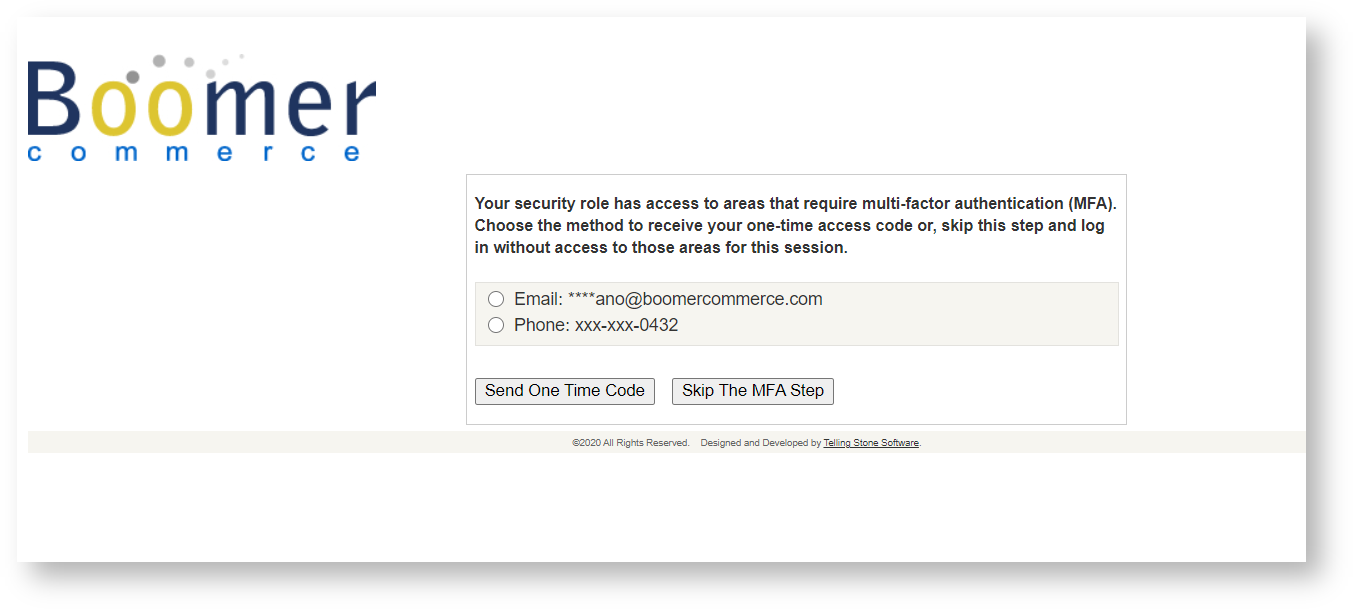
- See the screen shot below for what to expect when logging in:
Skip MFA
To skip MFA, click Skip the MFA Step. This will allow for a quick login, but the security level will be different during this session. The user will not be able to edit contacts under a supplier and view will be the only option. Under Store Configuration, they will not have access to manage security roles and will not see the global settings tab. If those features are needed to be accessed, the user will need to log out and log in with MFA.
Add a Cellphone Number to MFA
If you are interested in adding a mobile phone number in order to receive the six-digit code, you may add it to your contact record under your admin supplier.
Admin users:
- Click on Suppliers
- Navigate to the supplier that hold your contacts
- Click on Contacts
- Find your contact and click edit in the row
- Add mobile number in the mobile field
- Hit update
For a MFA video overview, see:
Admin users who no longer require access to Boomer may be flagged as “Inactive”. This removes them from the list of Contacts under the supplier by default so they stay out of your way in the course of managing users. You can access the inactive list by using the appropriate filter at the top of the Contacts grid. See this video for step-by-step instructions:
Events Grid
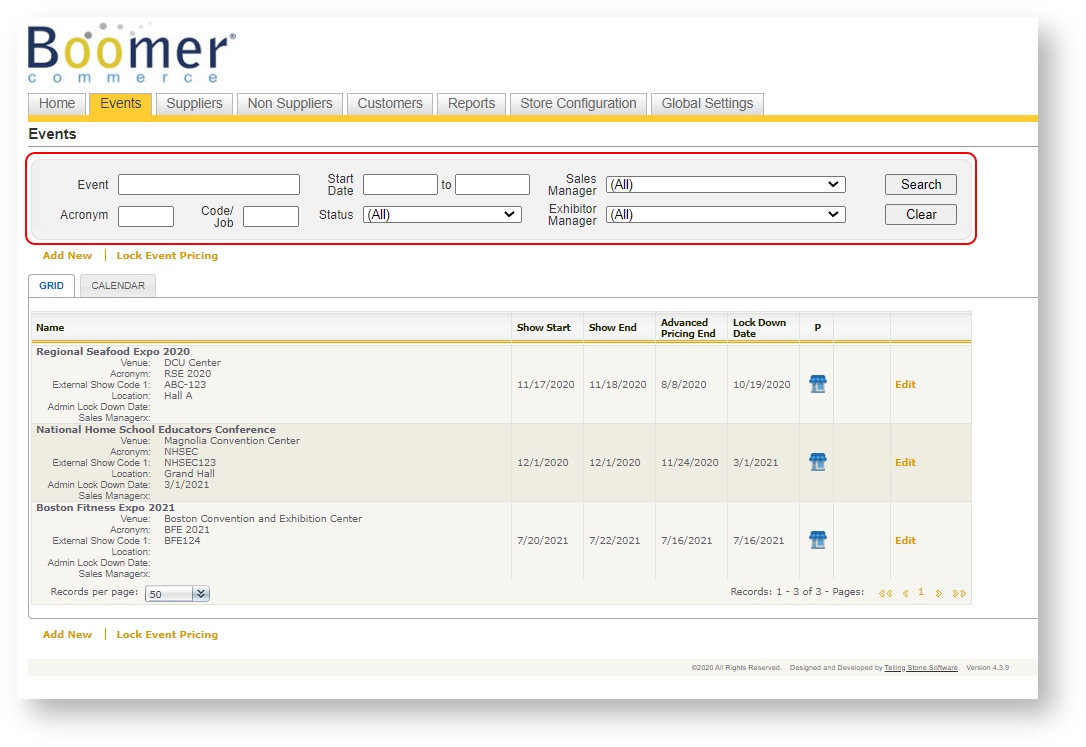
- Sales Manager has been added to each event’s row in the Events grid.
- The search area has been moved down to above the grid and the sales manager sorting feature was added.
Exhibitor Import
- The exhibitor import no longer allows a user to import an invalid email address. Some examples include multiple emails within a single column, or text that does not include a domain suffix, such as .com or .net. You will need to be sure you clean up your spreadsheet prior to importing!
- The import was timing out for extremely large exhibitor list spreadsheets. This has been improved.
Bill of Lading
- An exhibitor may now add more than one bill of lading.
- A new configuration option determines whether the step “tell us where the freight should be sent” populates or stays blank when creating a new bill of lading.
- New field for entering the declared value for insurance has been added.
- In Step 3, a new radio button allows the user to select either the Preferred Show Carrier or Other Carrier. When Other Carrier is chosen, the user will be required to enter a carrier name and mode of service.
- An indicator on the storefront lets the customer know the bill of lading was saved successfully upon clicking Save.
Email Campaigns
- When selecting "No Orders" as criteria for sending an email campaign, the definition of "No Orders" has been changed to mean that the exhibiting company, not the contact's company, has no orders. This is a detail that is most important when third parties/EACs are involved.
Reports
New Reports
-
Payment Export Report. Provides an exportable version of payments between two transaction dates.
- Processed Payments Summary. Provides a summary view of payments processed between two dates. The summary includes monthly and yearly totals, and then displays a separate summary by customer type and payment method.
New reports are not always available by default. If you are interested in exposing one of the new reports available, please email support@tellingstone.com.
Changes to Existing Reports
-
Billing List.
The External Show Code 1 (or Job Number) is now displayed on the report.
-
Exhibitor Notes & Attachments.
There are now icons to indicate whether a record is a note or attachment.
-
Processed Payments.
Optionally group by Customer Type. Also, the count of payments has been added.
-
Product Use.
Optionally group by event and then supplier.
-
Shopping Cart Contents Across Events.
This now has a grand total as well as the ability to group by revenue type.
-
Supplier List.
A new parameter allows you to include revenue type association rows in the supplier list. This is particularly useful to see which venues have revenue type association rows (i.e., taxes) defined and which ones do not.
-
Customer Summary.
The Total column has been broken out to display both Sub Total and Tax.
-
Accounts Payable/Accounts Receivable.
Optionally group by Customer.
-
Work Orders (from the Reports menu).
Optionally group items by Supplier. If you are interested in having this capability on your work order report, reach out to support@tellingstone.com for help in setting this up.
BoomerScan
For those customers who have purchased the add-on product BoomerScan for freight scanning, there is now an option to scan direct freight shipments in addition to small packages and advance freight shipments.
Storefront
- Cross sell products are now listed in product display order rather than alphabetically.
- Under “My Account”, Communication Preferences have been added to allow a storefront user to choose either email or text as the preferred method of communication.