It is important to set up taxes for a venue before creating orders in an event that uses that venue. Otherwise, the orders won't calculate any taxes. You only need to do this if the event is taking place at a venue you've never used in Boomer before.
Step 1: Set up the Tax Schedule
- Click on the "Store Configuration" tab.
- Click on "Tax Schedules" in the blue menu bar.
- You will see whatever tax schedules have already been set up on the left hand side. If you click on an existing tax schedule, you will see that the details of the tax schedule show up in the grid on the right hand side. To enter a new tax schedule, click "Add New".
- Name the tax and give it a display order. The display order is simply the order in which it will appear in the Tax Schedule grid here.
- Click "Save".
- Now create the tax type. Click on the tax schedule on the left hand side. The right hand side grid changes and will be blank. Click "Add New".
- Name the tax and assign the tax percentage, display order, effective start and effective end dates. Click "Save".
Step 2: Create the New Venue
- Click on the "Supplier" tab.
- Click "Add New" directly above the grid.
- Fill in the Venue information. Click "Save".
Be sure to check the "Is a Venue" check box near the bottom of the Supplier form.
- Options for the venue supplier now appear in the dark blue menu bar. Click "Revenue Type Associations".
- For each of your revenue types that require the tax, add the association to the tax schedule. Click "Add New" to add a revenue type association to the tax schedule.
- Choose the Revenue Type in the drop down. You may leave GL Code and Bin Code blank unless instructed by Telling Stone. Choose the tax schedule you just set up in Step 1 above. Click "Save".
- Repeat #6 for each applicable revenue type to the tax schedule.
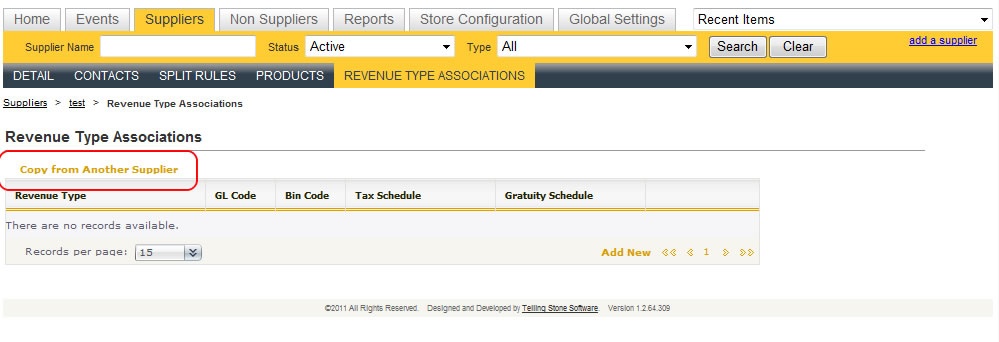
If the taxes for the new venue are identical or similar to another venue you have already set up, you can copy the revenue types and tax schedules from the existing one. If there are no revenue type associations made yet, you will see "Copy from Another Supplier" above the grid.
Step 3: Use the Venue in the Event
- Go to the "Events" tab. Click "Add New" to create a new event.
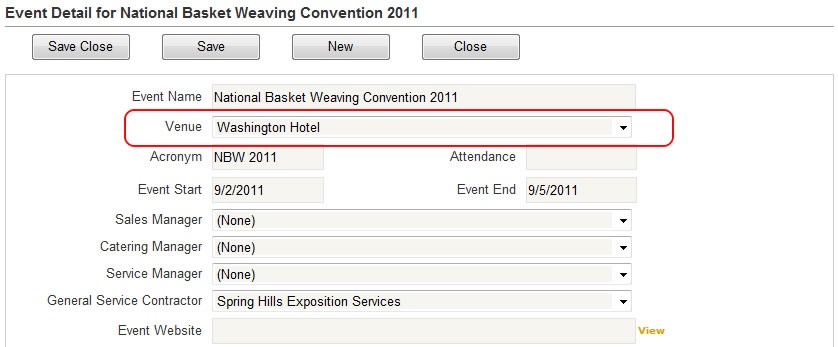
- In the Venue field, choose the Venue you just created. Now any orders you create will have the appropriate taxes applied.