There may be times when you want to set up a booth package for a specific show. There may be specific offerings you are giving exhibitors just for the event, or there may be limitations on the color choices available. You can easily adjust a package at the event level to customize it to suit your needs.
If the package isn’t yet a product in your system, your first step will be to set it up at the supplier level. See Boomer Bundles (Packages) for more information.
When you're ready to make the package available in the event, follow these steps:
- Make sure the supplier to which your package/bundle is connected is associated to the event:
- Open the event.
- Click on Suppliers in the dark blue menu bar.
- Look to see that the supplier containing your package is associated. If not, click "Associate a Supplier" to connect the supplier to the event.
- Flag the product as being published to Storefront and Admin if it isn't already:
- Open the event.
- Click on the Products tab and search for the package(s).
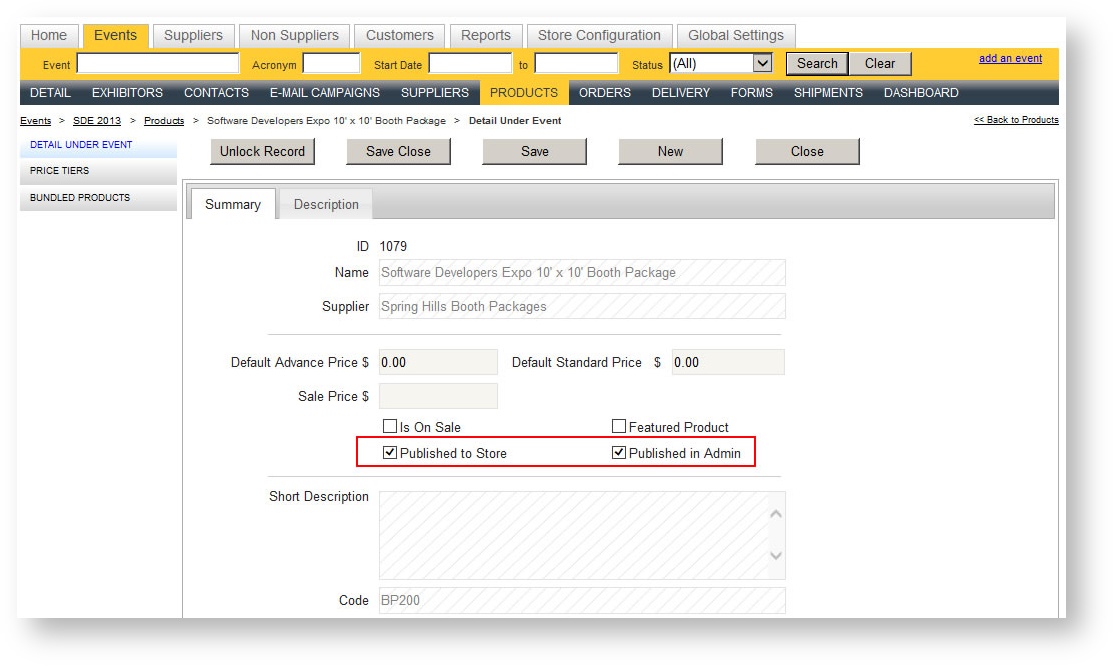
- Open the product in detail and check "Published to Store" and "Published to Admin":
- Adjust the product if there are limitations on color choices:
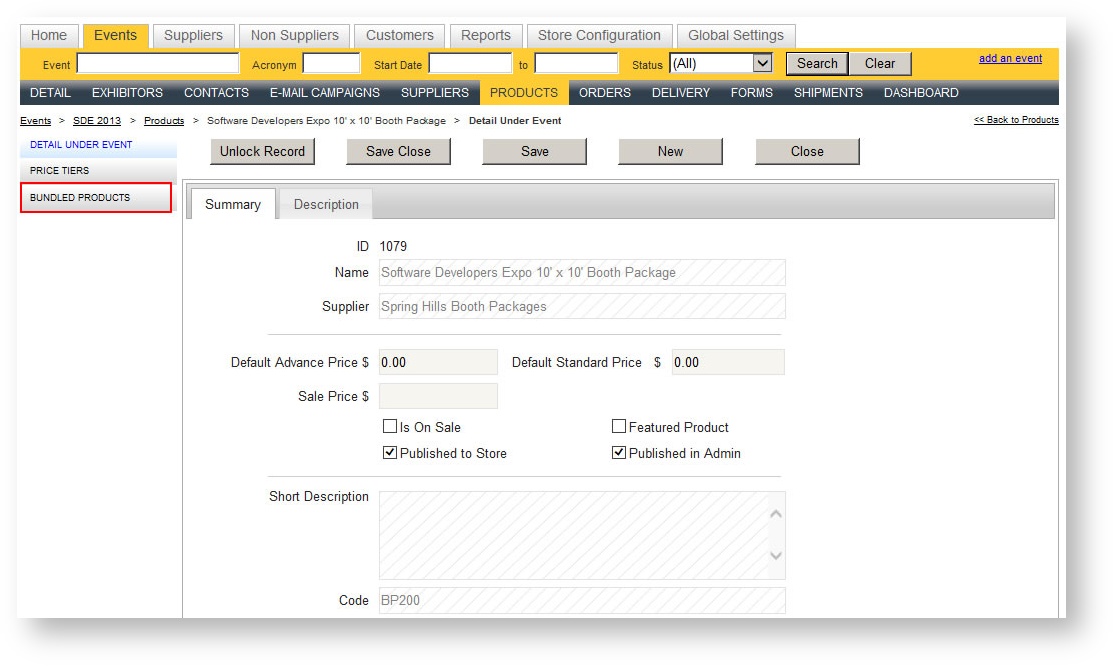
- Click "Bundled Products" in the left hand navigation menu:
- Click on the product whose attribute needs to be adjusted.
- Click on the
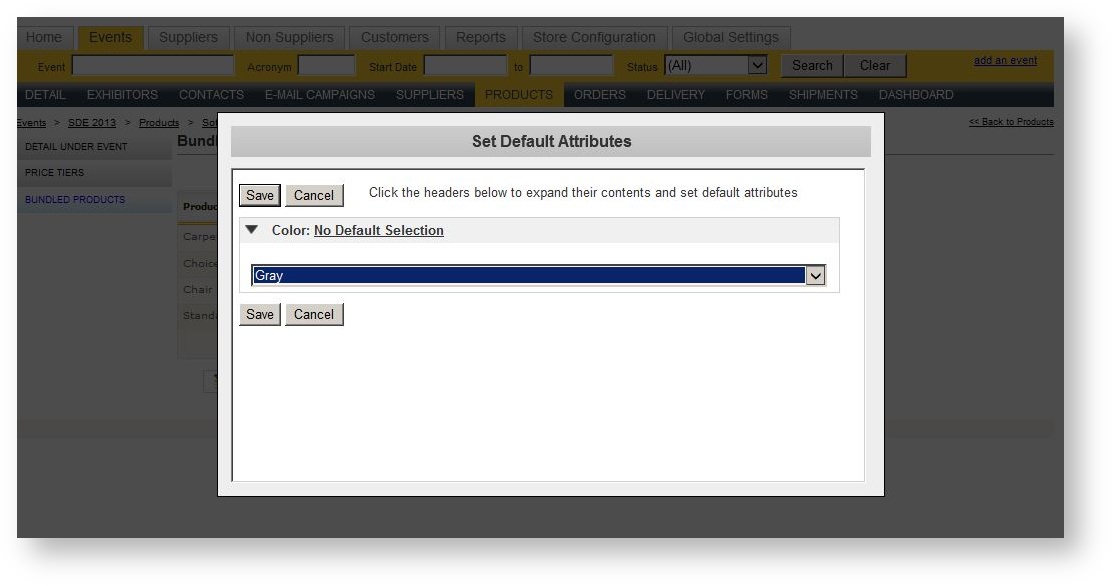
 icon to adjust the attribute. A dialog appears.
 - Click the attribute arrow down and select the desired attribute value:
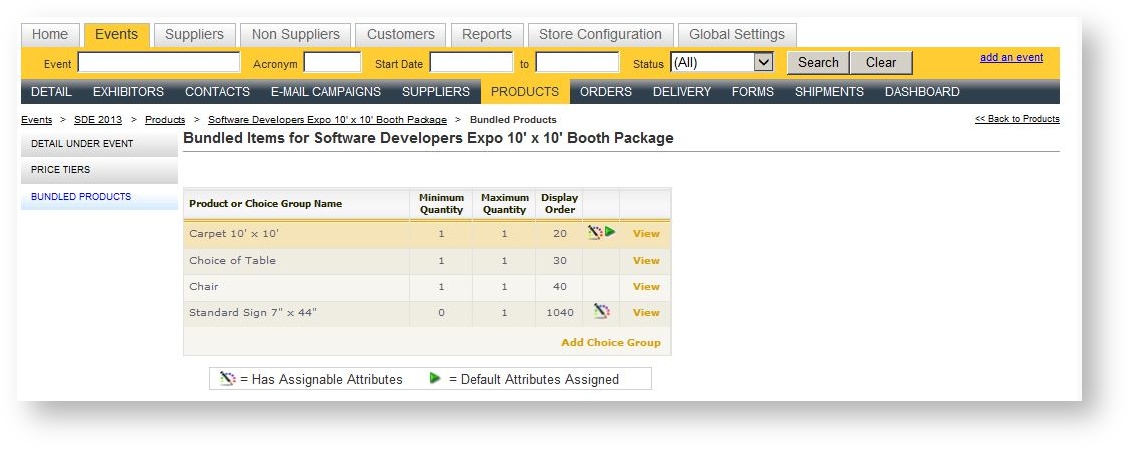
- Click "Save". The product just adjusted in the bundle now has an additional icon. As the legend indicates, the green side arrow means the product has a default attribute assigned which cannot be changed.
- Click "Bundled Products" in the left hand navigation menu: