Exclusive suppliers most likely have a commission structure that determines how revenue for their products are split. These structures, called split rules, are configured when the supplier is set up. These rules may be adjusted for an individual event as needed. Changes to split rules within an individual event do not affect the rules defined for the supplier overall. For more information on defining these default splits, see Setting Up Split Rules under the Store Manager Guide.
Adjust a Split for a Single Product
To adjust splits for an individual event:
- Go to the Splits menu option within the event.
- Choose the appropriate supplier from the drop down field above the splits grid.
- Highlight the price tier in the left hand box for which the adjustment should be made.
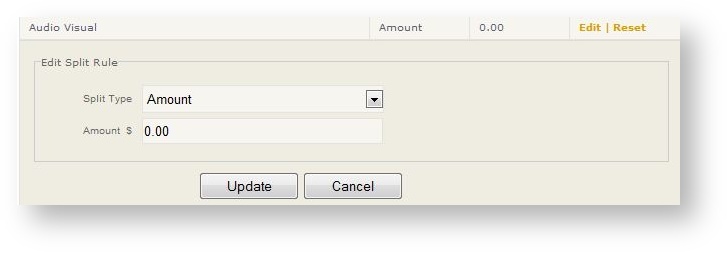
- Find the appropriate revenue type and click "Edit". The Edit Split Rule dialog appears:
- Select the Split Type. Options include Amount and Percent.
- Enter the numeric value corresponding to the split type defined in #5.
- Click Update.
Adjusting Splits for Many Products or a Product Category
If you need to adjust splits within an event for several products, it is best to edit multiple products at once. See Suppliers and Products In an Event for more information.