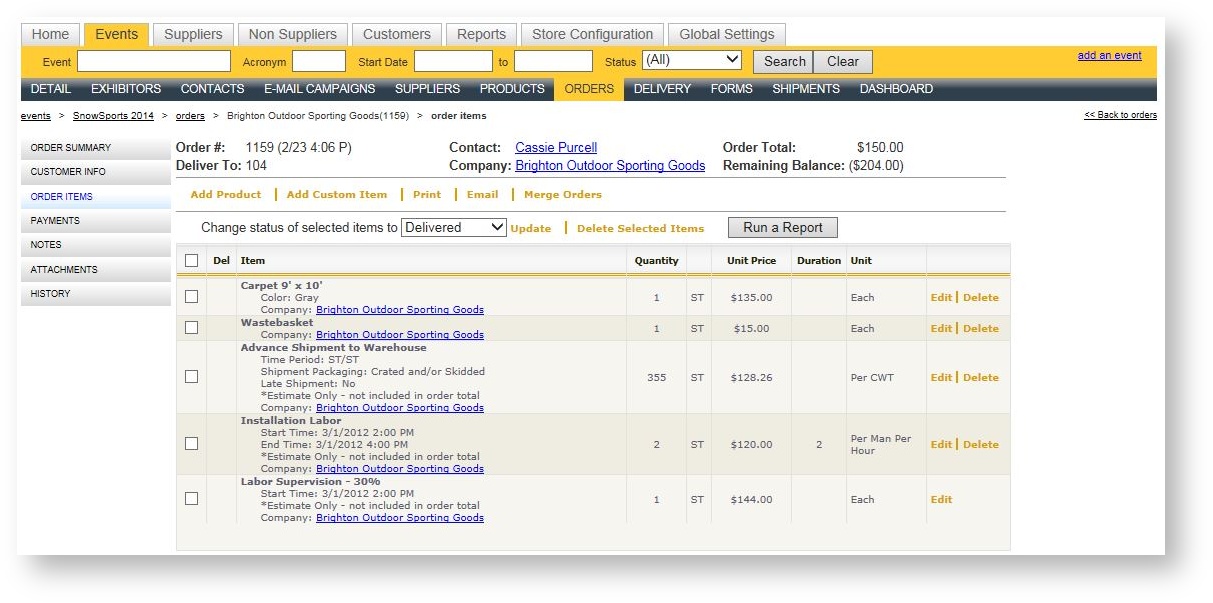
The Order Items grid is a powerful place to manage the details of your order. It provides a grid-view of all the items in the order. From here, you can delete, edit attributes, quantities, unit prices or add instructions:
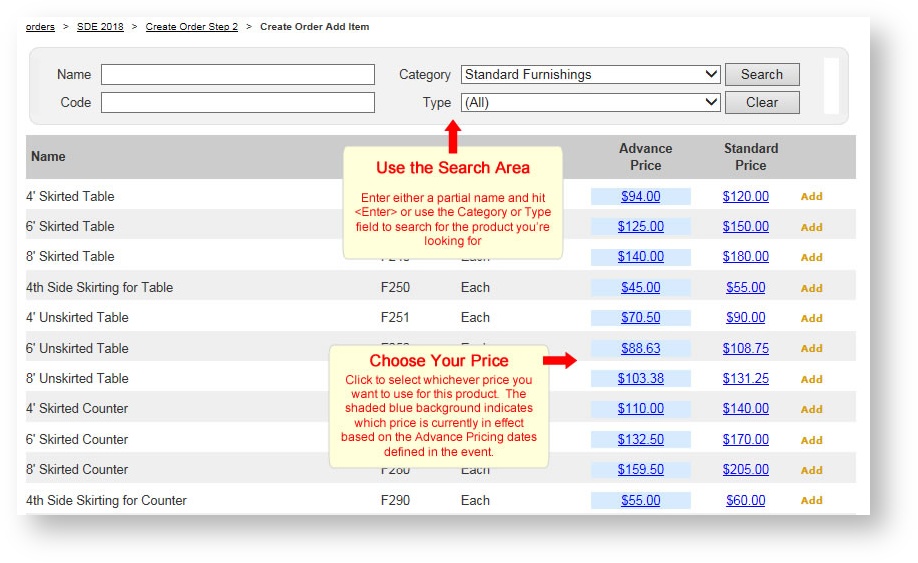
The Product's detail page appears allowing you to adjust the quantity and/or provide any values for product attributes:
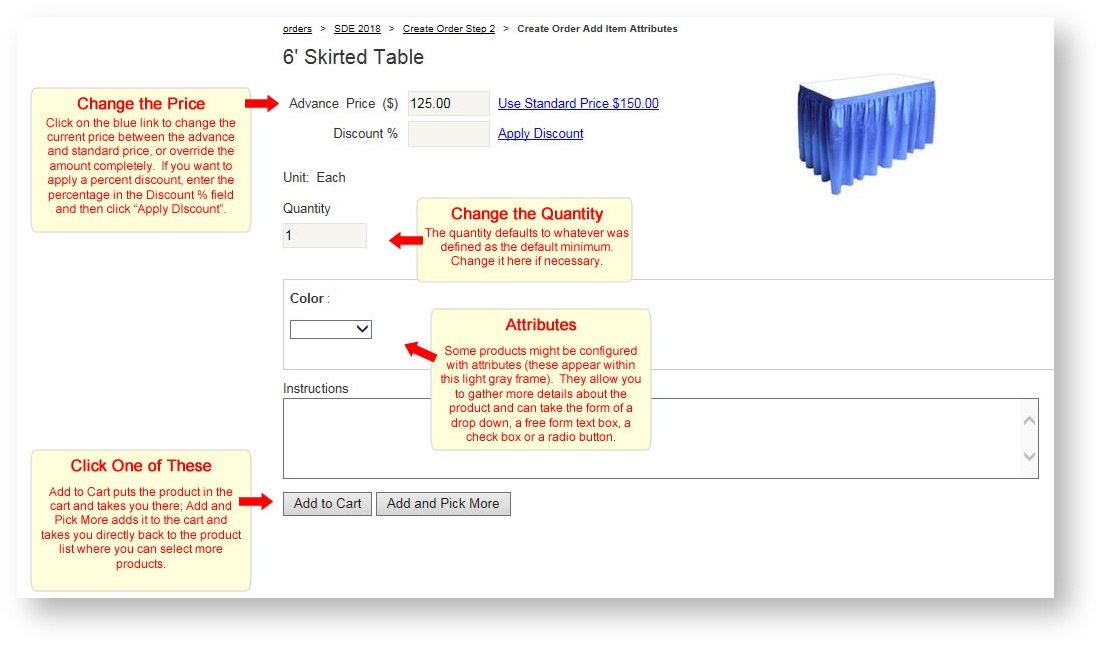
Click "Add to Cart" if you are done shopping and want to see all items in the shopping cart. Click "Add and Pick More" as a quick way to select additional products and skip viewing the shopping cart.
The "Add Product" button is not visible in a cancelled order.
Be sure to process a payment if necessary.
Add a Custom Item
Be sure to process a payment if necessary.
Print/E-mail
You can print and/or e-mail certain templates that have been set-up in your system. Examples include an invoice or an order confirmation. These provide the same functionality as the buttons with the same name on the Order Summary page.
Merge Orders
***INCLUDE MERGE ORDERS PAGE*****
Delete Selected Items
You can remove many items from an order simultaneously by using the Delete Selected Items option:
- Check the box next to the items you want to delete (i.e., remove) from the order.
- Click "Delete Selected Items".
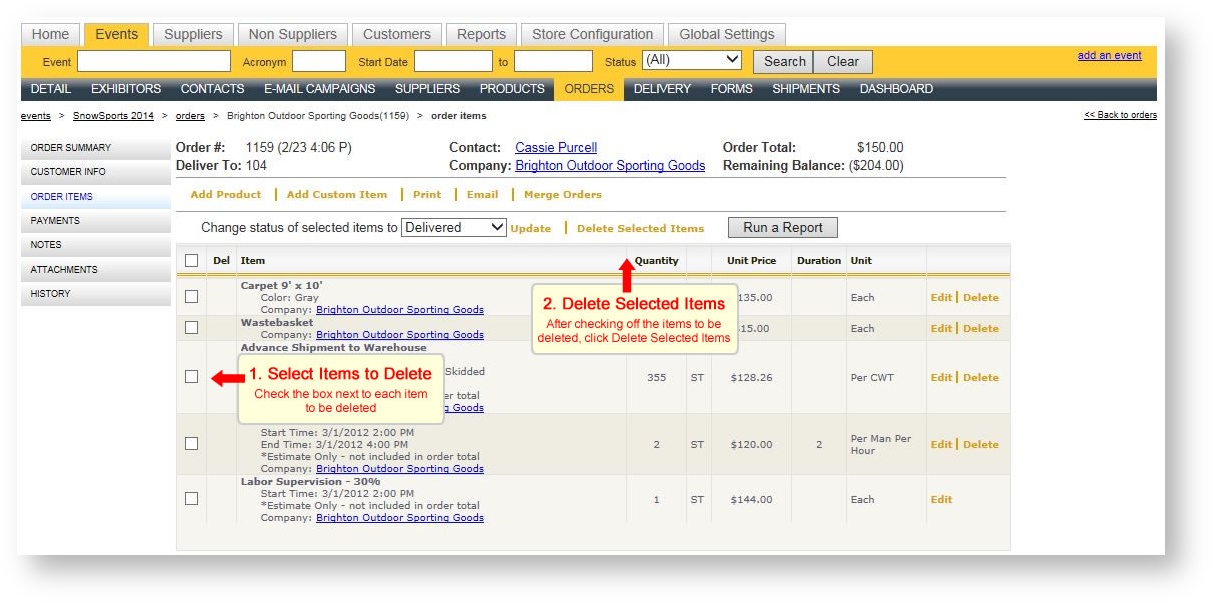
An item may not be able to be deleted if it is a child item of another item (for example, a skirt for a table or an item in a package). If that is the case, you will receive a dialog indicating it could not be removed.
Run a Report
Clicking the "Run a Report" button launches a selection dialog where you can choose to run any one of the following:
- Labor Order
- Labor Order - No Materials Section
- Work Order
- Work Order - Show Organizer
- Work Order Missing Items
In all cases, you should first select which items you want to appear on the appropriate report by using the check box to the left of the item:
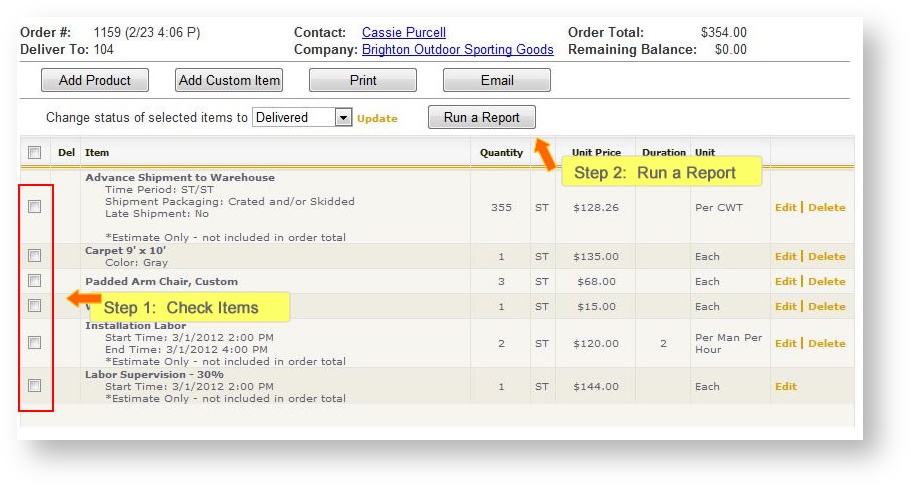
For samples of these reports click on these links below:
Labor Order (Labor Order - No Material Section is the same except no material grid prints)
Work Order (Work Order Missing Items is simply titled that instead of "Work Order" but is the same format)