Payments for orders with outstanding balances may be processed in batch. This command can have a heavy hand since you are charging all outstanding balances to the cards on file connected to the order.
This option may be controlled with a security role setting. You can give this access to only certain users by adjusting a security role setting. For more information, see Store Security.
To access this option, open the event and go to the Orders grid:
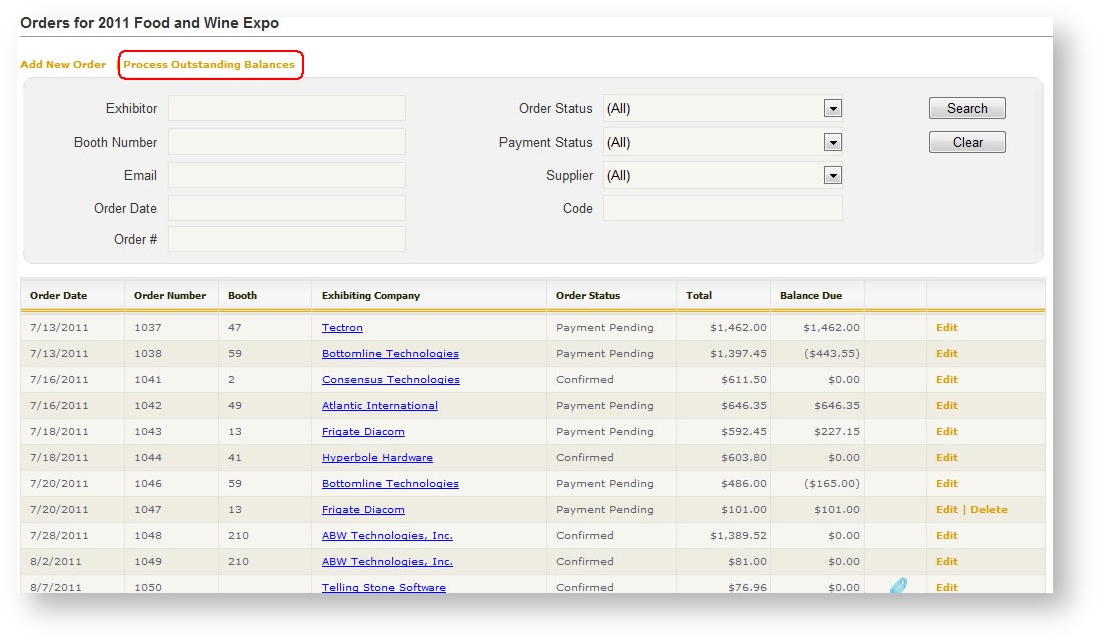
The grid displays all orders with outstanding balances. The balance due appears in the right most column.
This option process only balances due; if a customer is owed a refund, you should process the refund individually. For information on how to process a refund, see Process a Whole or Partial Refund.
To process the payments, click the "Process Outstanding Balances" option at the top of the grid. A new dialog opens:
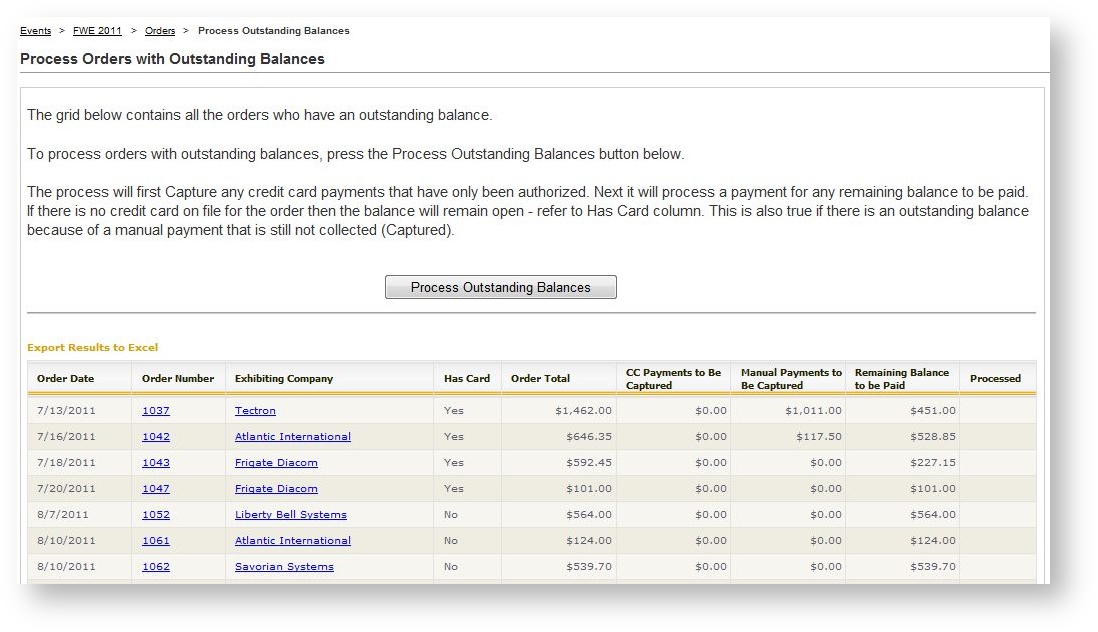
Once the Process Outstanding Balances button is clicked, Boomer will attempt to charge the card on file.
If an order does not have a card on file, it will not be able to be processed with this method.