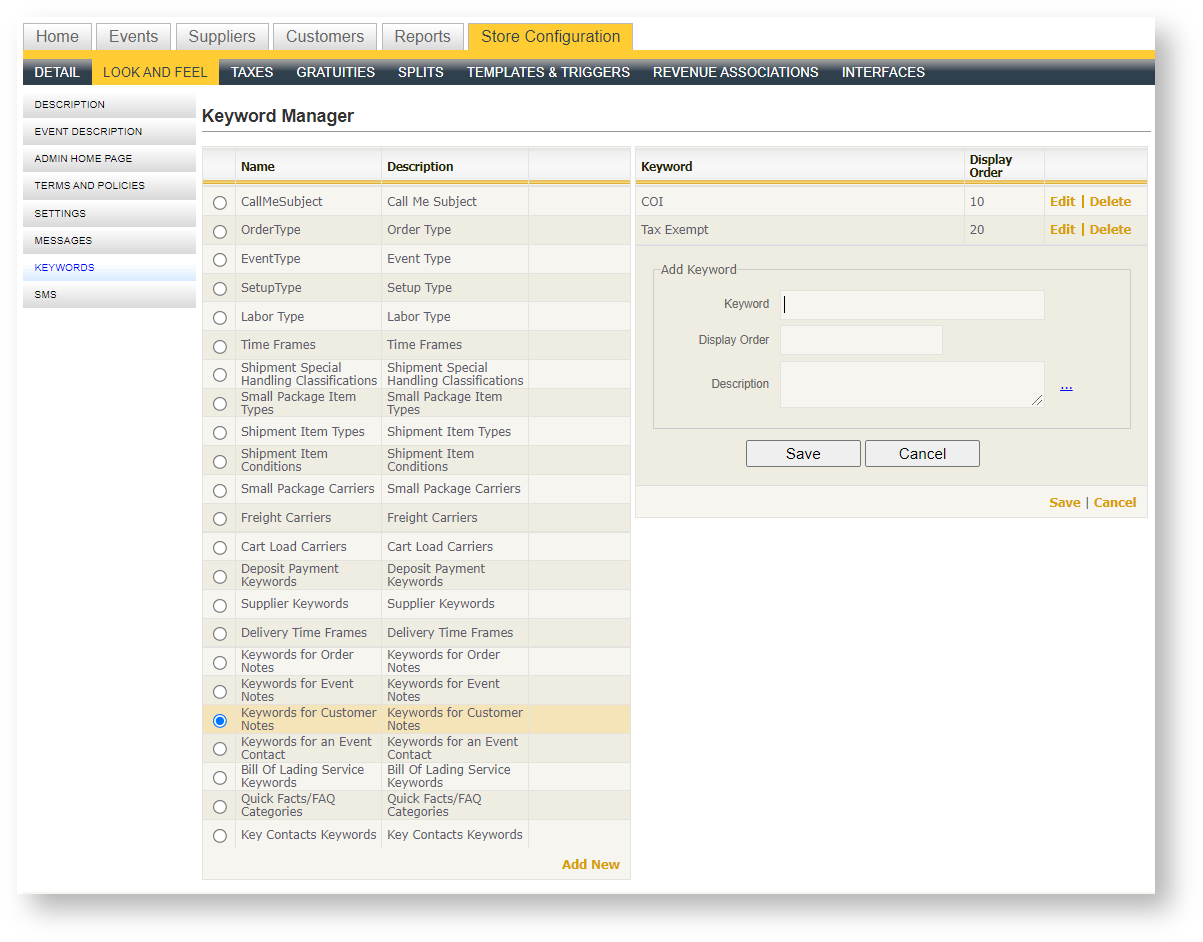
Many fields have drop down lists which contain customizable values. With the appropriate security access, an Admin user can maintain the available list of keywords, accessed through Store Configuration\Look and Feel\Keywords:
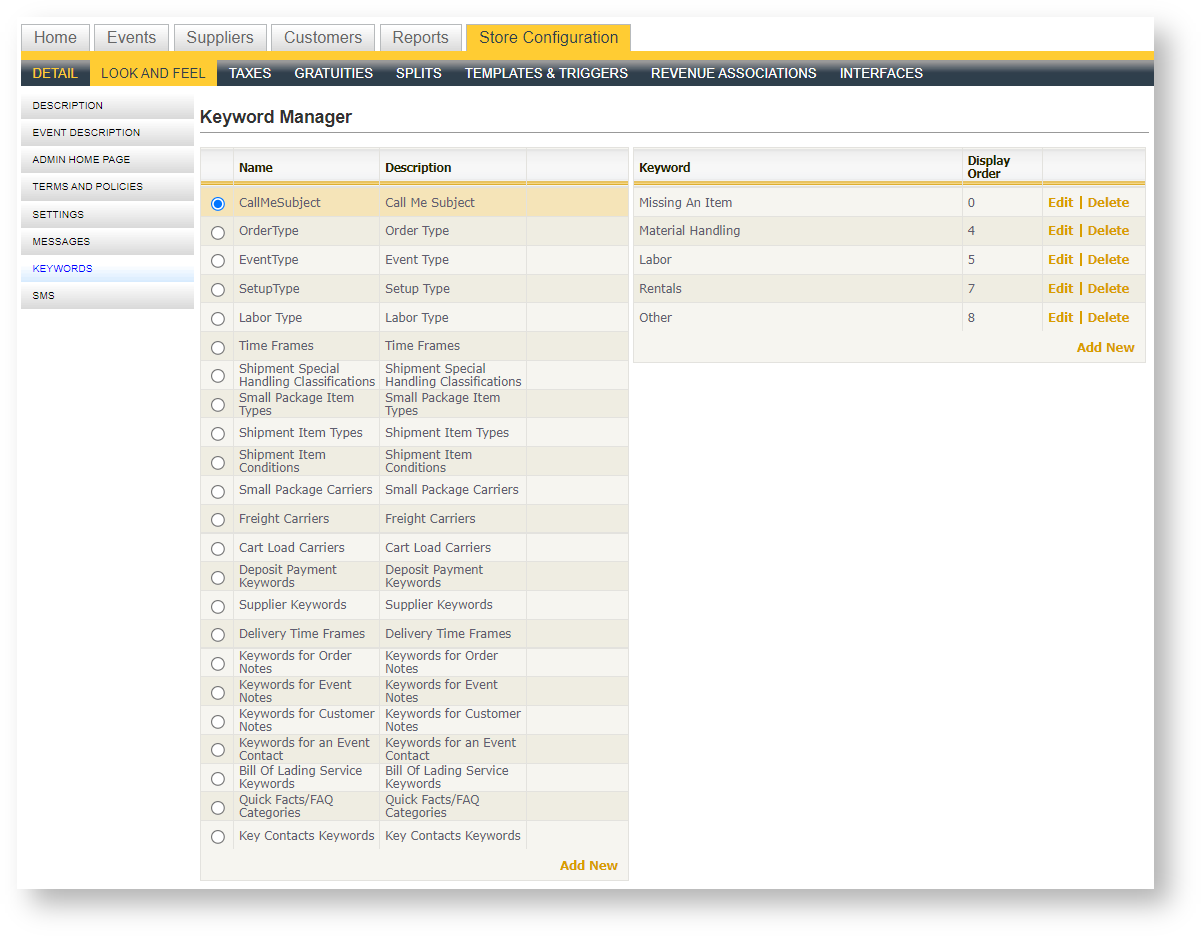
The definition of keyword is defined below:
| Field Name | Description |
|---|---|
| CallMeSubject | The values from which a customer can choose after clicking the Call Me/Help button on the storefront. |
| OrderType |
Used when Boomer is used for Meetings only. |
| EventType | Used when Boomer is used for Meetings only. |
| SetupType | Used when Boomer is used for Meetings only. |
| Labor Type | Values that appear when defining a labor schedule. |
| Time Frames | When order-level timeframes are used, these are the available values for time frame selection in both the Delivery and Pickup Time Frame fields. |
| Shipment Special Handling Classifications | See Shipment Keywords |
| Small Package Item Types | See Shipment Keywords |
| Shipment Item Types | See Shipment Keywords |
| Shipment Item Conditions | See Shipment Keywords |
| Small Package Carriers | See Shipment Keywords |
| Freight Carriers | See Shipment Keywords |
| Cart Load Carriers | See Shipment Keywords |
| Supplier Keywords |
Allows suppliers to be flagged with a tag. |
| Deposit Payment Keywords | Used in the Deposit area when creating or editing a deposit received. |
| Keywords for Order Notes | Controls the list of keyword values in an order note. |
| Keywords for Event Notes |
Controls the list of keyword values in an event note. |
| Keywords for Customer Notes | Controls the list of keyword values in a customer/exhibitor note. |
| Keywords for an Event Contact | Controls the list of keyword values in the contact within an event. Typically used to indicate the "Freight Contact". |
| Bill of Lading Service Keywords | Controls the list of keyword values in the bill of lading. |
| Quick Facts/FAQ Categories | Controls the list of Quick Facts/FAQ Categories keyword values for Store 2.0. |
| Key Contacts Keywords | Controls the list of Key Contact keyword values for Store 2.0. |
Add a Keyword Value
To add a keyword value to the desired keyword list:
- Click to highlight the keyword type to which you want to add a keyword. The radio button becomes active and a list of values appears on the right hand side.
- Click "Add New" in the grid on the right hand side.
- Provide a numerical value as the display order to order the value within the list of other values for the keyword type.
- Optionally provide a Description (not required).
- Click "Save".
Continue to add additional values until the list contains your complete desired keyword list.