You can add or replace a product's image at any time. It is important to following the image guidelines for maximum impact and performance. If you upload an image too large, the page will low too slowly for your customer. Uploading an image too small will distort the image, making it fuzzy. See Image Guidelines for useful information.
To add or replace a product's image:
- Click on the main Suppliers tab (note: if you don't see the main Suppliers tab, you don't have sufficient security rights to configure your products).
- Locate the supplier that contains the product for which you have the image. Click on the supplier's row to open it.
- In the blue navigation menu for the supplier, choose "Products".
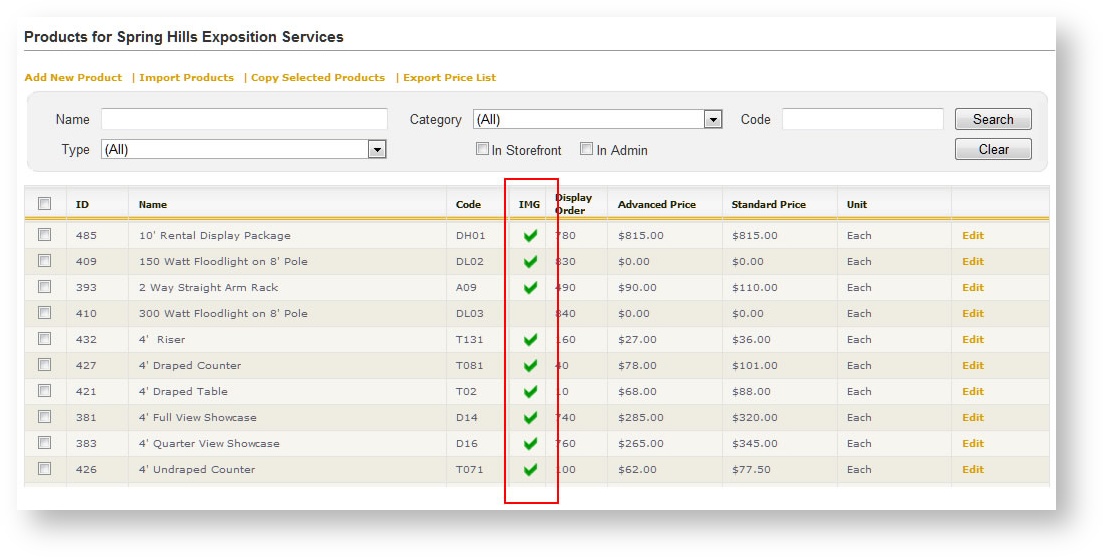
- Find the product for which you have the image in the grid. Use the filters at the top of the Products grid if necessary to locate it easily. Note that if the product already has an image, a green check mark appears in the "IMG" column:
- Click on the product to open it up in detail.
- Down the left hand navigation menu, choose "Images".
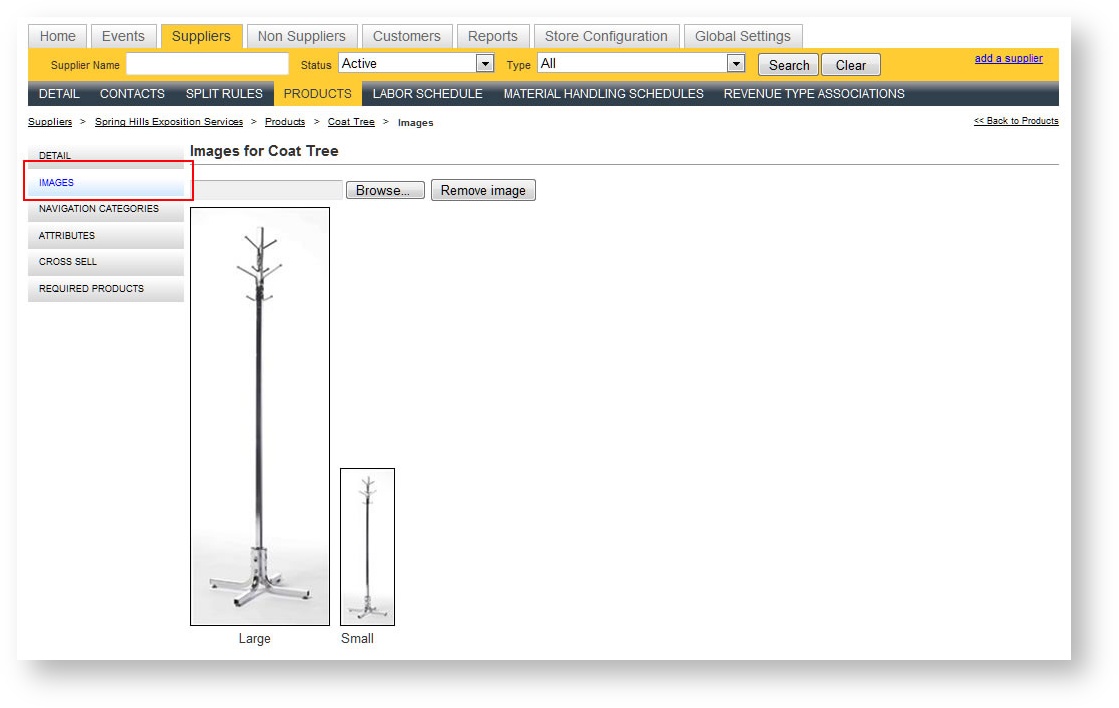
- Click the Browse button above the current image (or the "No Image" icon if there isn't one) and search for the image you want to associate with the product.
- Click Save to save the new image. It now appears in both large and small size so you can see the associated image.