General
- The default settings of "Show Advance Price Discounts on storefront" and "Use Order Level Delivery Date and Timeframe" can be controlled by setting them under Store Configuration\Look and Feel\Settings (in the Event Default Settings section):
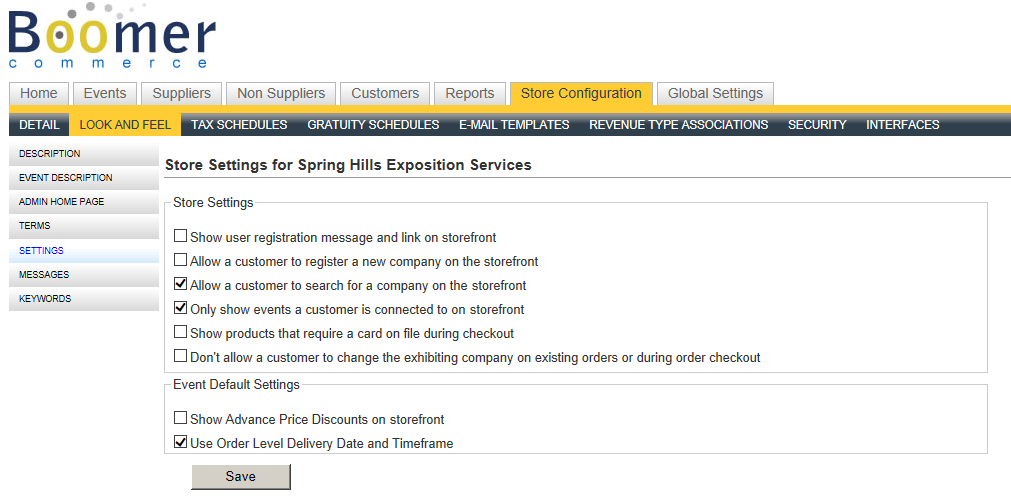
Once the default is set, any new event's setting will automatically default to that value. - To better support the Picklist on a tablet device, the behavior of the Picklist on a standard PC has changed. You can no longer click, hold and drag, but the standard Microsoft Windows keys of using CTRL and Shift work in the dialog. In addition, you can select "All" and deselect "All".
Storefront
- A user's booth number and booth dimensions appear in the upper right hand corner of the screen (see screenshot below).
- If the storefront's order lock down date has past, the user can still access the event on the storefront but he/she will see a large red message indicating ordering is no longer available (see screenshot below).
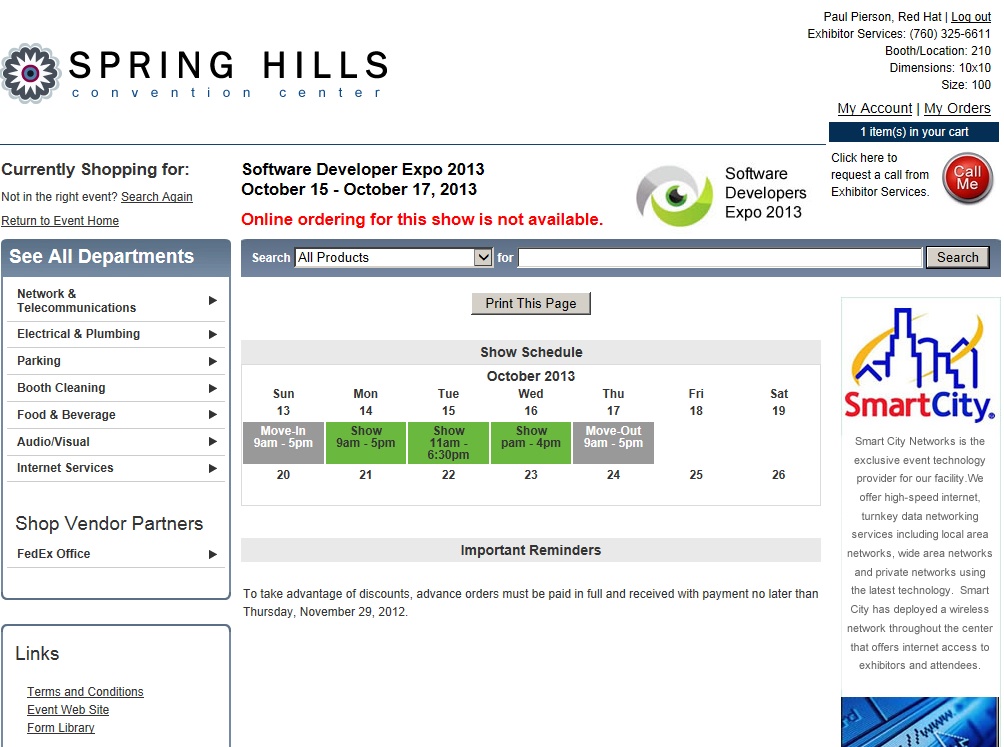
The user will not be able to complete the checkout process.
Events
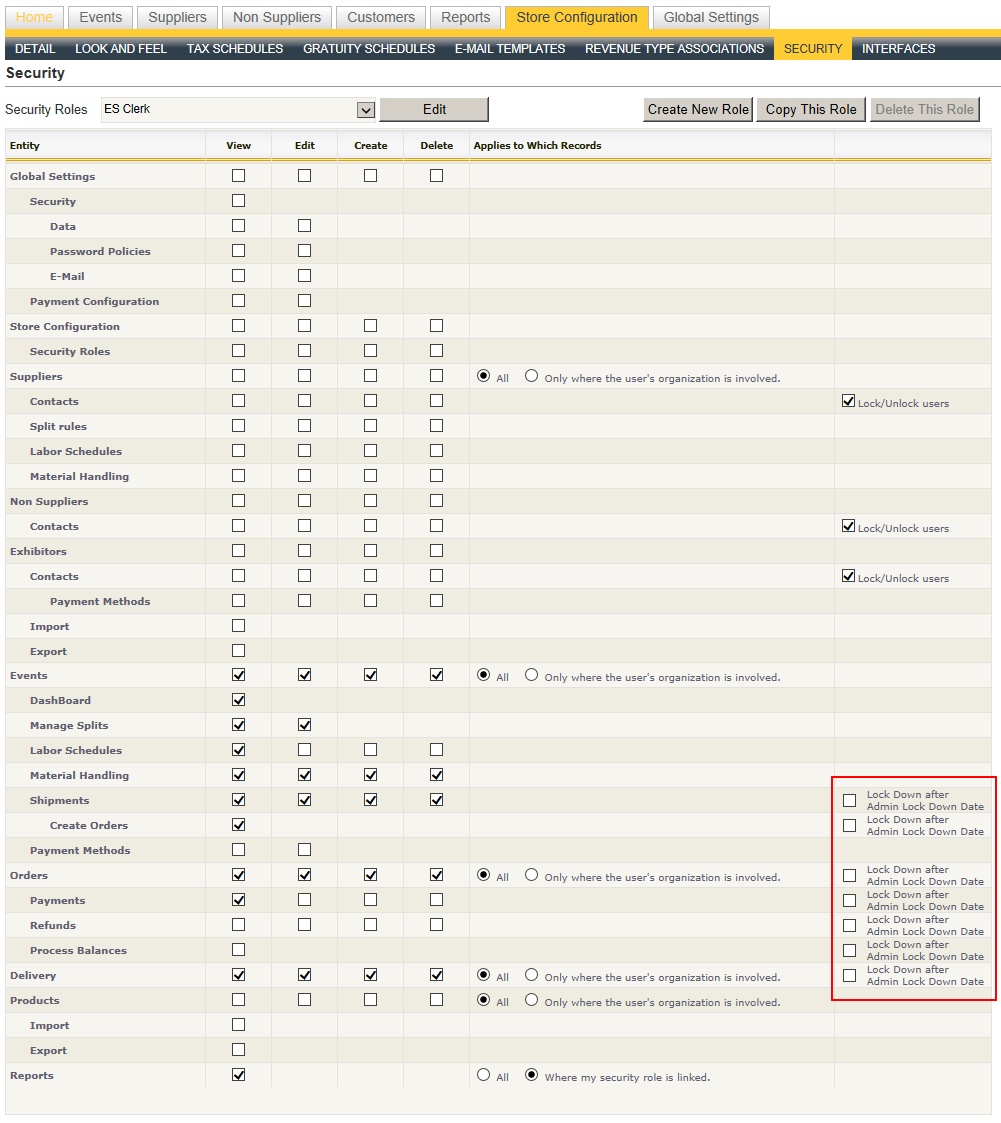
- There are now separate dates for Storefront "Order Lock down" and Admin "Order Lock down" on the Event Detail Form. This allows you to control when ordering is no longer available on the storefront separately from when an Admin user is no longer able to perform certain functions based on settings in that user's security role. The ability to control whether an Admin user can edit an event after the date is new.
- Event Dashboard:
- Small package shipment statistics are detailed for both advance and direct types.
- External Show Code 1/Job Number added to the event header information.
- Created Date/By and Modified Date/By added at the bottom (Note: There was a bug where the Created By was not properly being recorded so in some cases it may be blank in your system for some events. This has also been corrected in this release so future events created will have the proper Created By)
- Tax totals no longer include cancelled orders.
- Delivery Grid:
- Sorting on booth numbers uses the same special algorithm used in reports (i.e., taking special consideration of booths with commas or slashes).
- You can now edit a package without issue from within the Delivery grid.
- Apply your exception decisions to multiple or all exhibitors during the Exhibitor Import. For more information, see this help topic: Importing an Exhibitor List#AcceptingExceptionsonaBulkBasis.
-
New field on the Event Detail Form called Exhibitor Kit Link. If this has a value in it, it will be displayed in Boomer's standard "ordering open" e-mail template.
This is to reference a PDF you might have loaded outside Boomer, not a kit you have manually uploaded into the Forms area. The goal of this is to reduce the number of large manual PDFs being inserted into Boomer when they are most likely already somewhere else on your main web site. Note you can still reference the external path from with an entry in the "Forms" area without uploading the entire attachment. - Login issues created by the exhibitor import that caused issues for some customers on the storefront have been resolved.
Orders
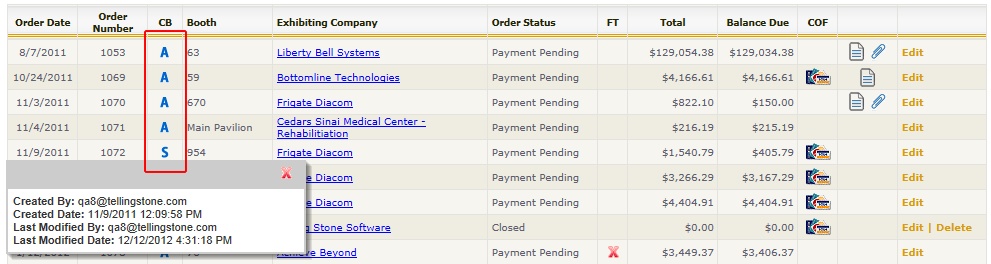
- In the Orders grid, a new column labeled CB (for "Created By") displays an "A" if an Admin user created the order and an "S" if a Storefront user created the order. Click on the letter of an order to view details:
-
The date/time stamp in Order History will reflect the time zone defined at the store level. To be sure your time zone is set how you want, see Store Configuration\Store Details.
- The number of Orders displaying per page in the Orders Grid under an Exhibitor has been increased to 50.
-
When refunding a payment, a new check box called "Refund Using Manual Payment Gateway" allows you to settle a balance in Boomer but not send the refund on to your payment gateway.
It should be a rare occasion that you use this check box. Whenever possible, you should process the refund through Boomer and let the transaction flow to the gateway. You might use this option if, for instance, you refunded the customer with a check but need the balance of the order to reflect that refund.
Reports
Changes to Existing Reports
- Customer Production: Choose the level of details to show. Options include event, order or none (event was previously not an option).
- Revenue Summary by Department: Date filters ignore any contractor and exhibitor move-in/out dates and look directly to the show dates (or event dates if show dates are blank).
- Payments by Event and Day:
- Show Taxable/Non Taxable Subtotals (Yes/No).
- Group payments by origin (Storefront vs. Admin) and if the origin was Admin, group by individual user who processed the payment.
- Show Total by Day Section Only... do not display payments by event.
- Invoice - Show Management allows you to control whether the labor and shipment details print or not.
- Exhibitor Contact Export - Single Event - new column to indicate if an order originated on the storefront or admin (note: If an exhibitor has multiple orders, it will only display the origin of the first order).
New Reports
- 'Exhibitor Signs - 2 Per 11 x 17" Paper.
Prints exhibitors signs on 11" x 17" paper (2 exhibitors per page).
Security
Lock down the ability to perform certain Admin functions based on their security role: