The products that appear in the Products grid under an event are dependent on the suppliers that have been associated to the event. When a supplier is added from the Suppliers tab, all of the products for that Supplier are automatically associated. Likewise, if a supplier is removed, all products associated to that supplier are removed except those that have already been used in orders.
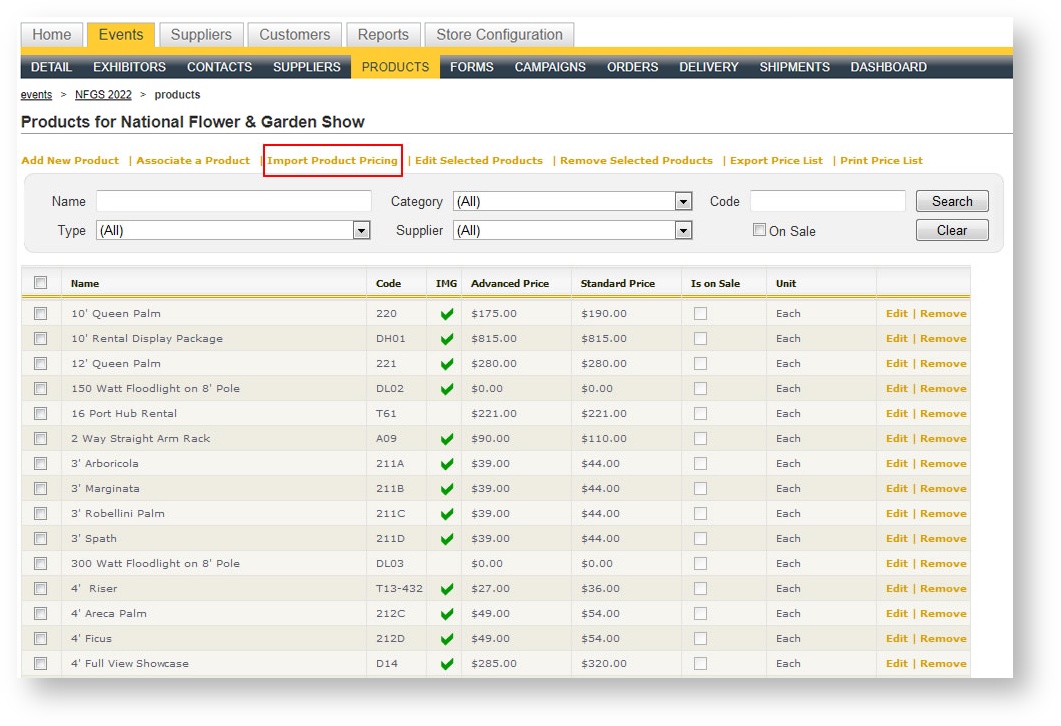
The following is an image of the Products grid within an event:
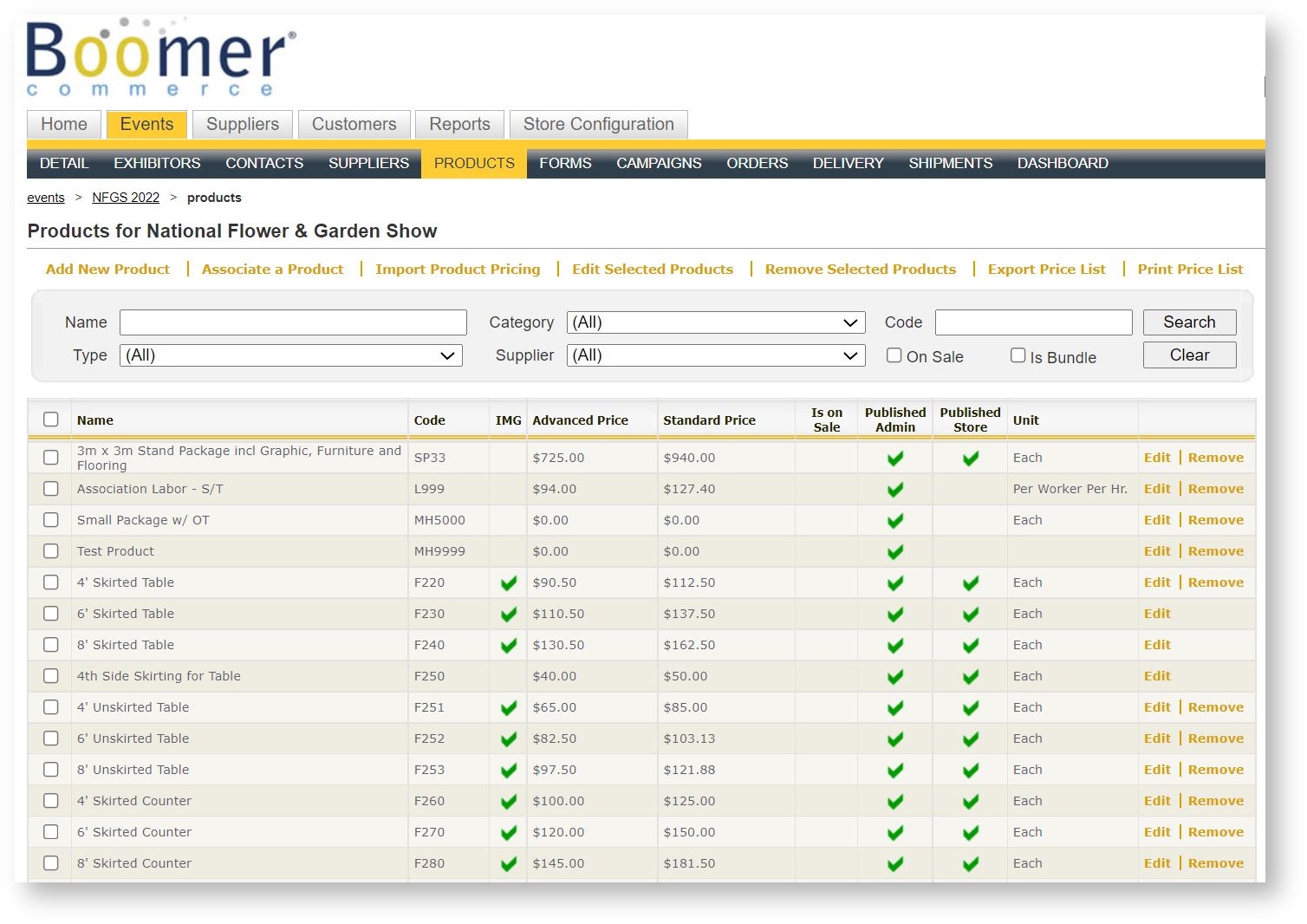 As with all grids, there are filters at the top of the grid to allow you to select a subset of the products:
| Filter Name | Description |
|---|---|
| Name | Name of the product |
| Category | Navigation Category |
| Code | Product Code |
| Type | Revenue Type |
| Supplier | Supplier |
| On Sale | Products which have been flagged as "on sale" within the event |
| Is Bundle | Products which are bundles |
Above the grid are commands that allow you to control the list of products available in the event. They are detailed below.
Add New Product
Use this command to add a brand new product. If you add a product here, you are still adding it permanently to the supplier; this is merely a convenient way to create a new product without having to navigate out of the event. For more information on how to add a products, see Creating Products.
Associate a Product
Use this command to associate an existing product that exists for a supplier but which has not yet been associated to the event. A product might not be associated to an event even if the supplier is for two reasons:
- The product has been flagged as not automatically being published in either the storefront or admin even though it exists at the supplier level; or
- The product was created after the event was created and the supplier associated to the event.
To associate a product:
- Click the "Associate a Product" command above the grid. A Boomer Picklist appears.
-
Use the criteria at the top to find the product(s) you want to associate.
Only the products for Suppliers associated to the event are available for selection. If you do not see the product(s) you want to associate, you first need to associate the Supplier to the event. For instructions on how to do this, click here
- Select the product(s) by either double clicking them in the Picklist or clicking and holding the mouse to select multiple products at once and hit the >> key to move them to the right hand side.
- Hit "Apply Selection". The products are now associated to the event.
Import Product Pricing
If you need to make pricing changes to many products, it is useful to import an Excel spreadsheet to perform this update rather than editing each individual product. The Import Product Pricing command allows you to do this. The spreadsheet must be a valid Boomer format in order to import the product pricing successfully. To ensure the format is correct, use the Export Price List command.
To import:
- Click "Import Product Pricing" above the Products grid.
- Click the Browse button to browse and select the Excel file that contains the pricing you want to import.
- Click the "Import" button to apply the prices contained in the spreadsheet.
Edit Selected Products
The most popular need for editing multiple products is the pricing. When that is the desired task, it is simplest to use the Export Price List and Import Product Pricing commands. However, if you need to edit split/commission values, the "Edit Selected Products" command is useful:
- Use the Search are above the Event\Products grid to filter any desired way to get just the products you want to edit the split/commission appearing in the grid.
- Click the check box in the upper left hand corner to select the products in the grid. A check mark appears in each product's check box.
- Click "Edit Selected Products" command above the Search criteria. A dialog appears:
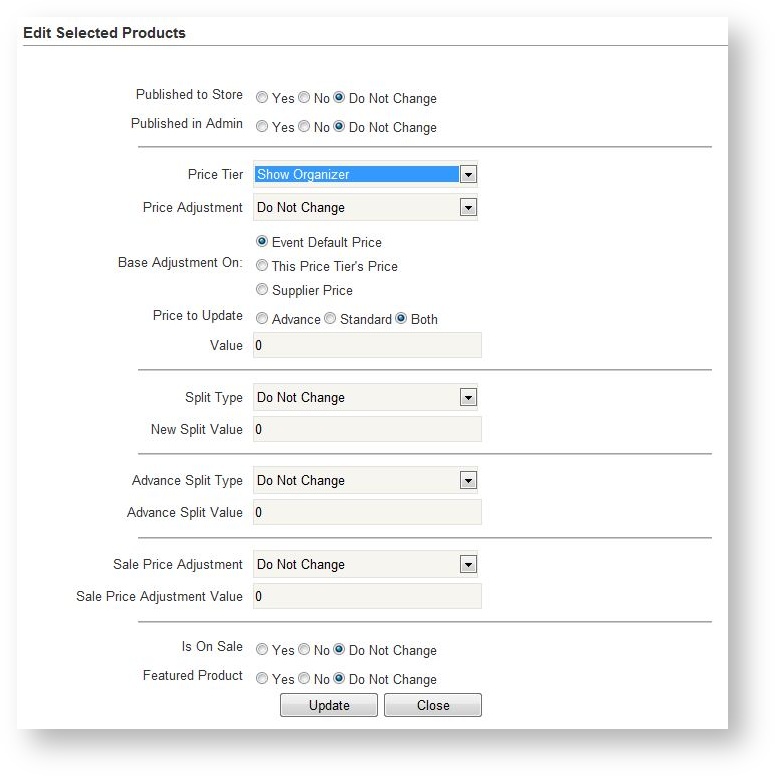
- Choose the Price Tier you want to modify the split for in the Price Tier drop down.
- Change the Split Type to either Amount or Percent, depending on how you want the price adjusted.
- Enter the Amount/Percent in the New Split Value field. Usually commissions are a percent.
- Repeat the last two steps for the Advance Split Type and Advance Split Value fields.
Remove Selected Products
There may be an occasion where you need some, but not all products in an event for a given supplier. Removing multiple products from an event is simple:
- Use the Search are above the Event\Products grid to filter any desired way to get just the products you want removed appearing in the grid.
- Click the check box in the upper left hand corner to select the products in the grid. A check mark appears in each product's check box.
- Click "Remove Selected Products" command above the Search criteria.
If there are more than 50 products to be removed, you will need to either repeat the process or make more than 50 rows show in the grid (in the lower left hand corner).
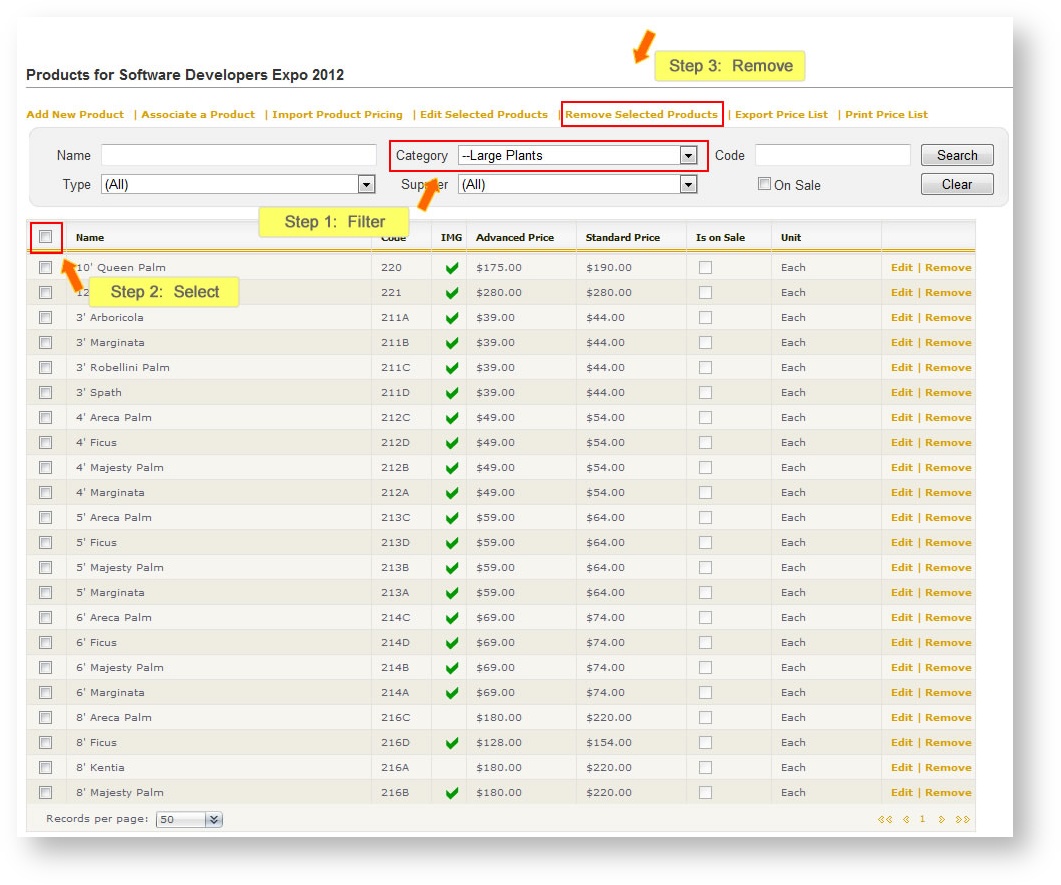
If a product is in an order or shopping cart within the event, the "Remove" option will not be available.
Export Price List
Exporting a price list from an event will generate an Excel spreadsheet with all the products in the event with the pricing currently defined in the event. The pricing in the spreadsheet can then be modified and re-imported into the same event, or even different events, in order to quickly modify pricing for multiple products. A spreadsheet may be re-used time and again anytime you want to apply the pricing contained in the spreadsheet to an event.
To export a price list:
- From within the Products grid of the event, click "Export Price List":
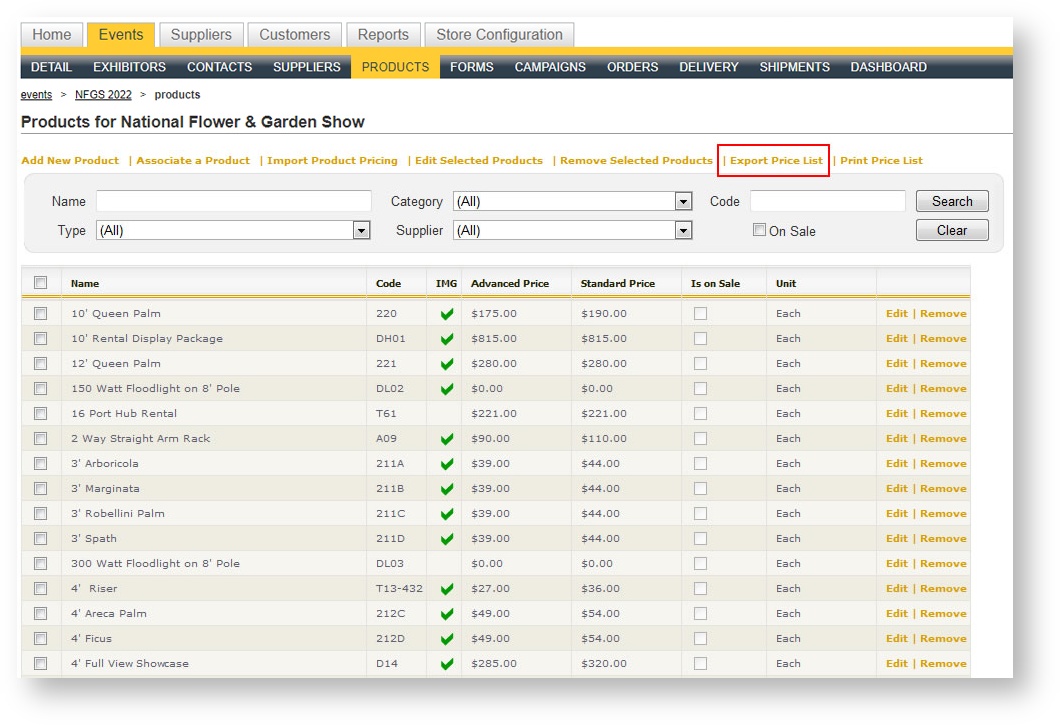
- A report dialog launches with the pricing in a report format. Click the blue disk to export the products to Excel:

- Once in Excel, make any desired adjustments to the pricing as well as the columns that let you control whether the product is available on the Storefront and/or in Admin. Save the spreadsheet to a safe place.
- Back in Boomer, click Import Product Pricing above the search criteria in the Product grid under the event:
- Browse and find the spreadsheet you just saved in Step # 3 above. Your prices are now updated.
Print Price List
To generate a standard Boomer report that provides a full list of all the products in the event as well as its pricing, use this command. A report is generated in a printable, user friendly format.