You must be signed in with Multi-Factor Authentication to make any adjustments to Admin users.
For each supplier, an unlimited number of contacts may be created. These contact records might be simply references of employee relationships for the supplier, but these contacts may also be granted access to Boomer to manage products, orders in which the supplier is involved, and any other access they have been granted in security. Learn more about the default (but customizable) security role for Suppliers in Store Security Roles.
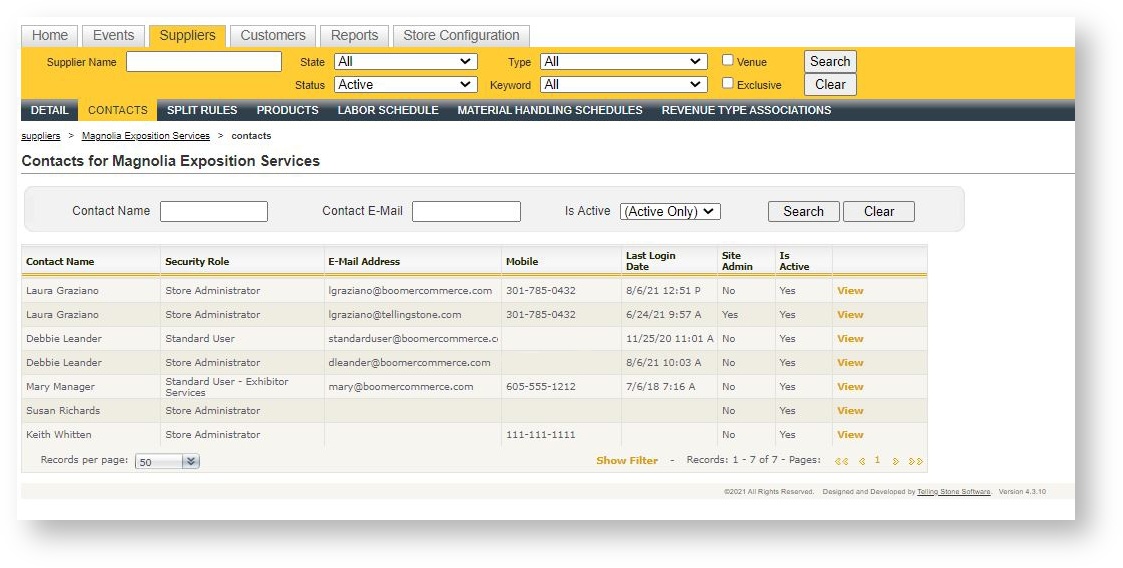
Access contacts for a Supplier by selecting the individual supplier and navigating to the Contacts sub menu. A Contacts grid appears:
| Field Name | Description |
|---|---|
|
First Name |
Contact First Name |
|
Last Name |
Contact Last Name |
|
Title |
Contact Title |
|
E-Mail Address |
Contact's e-mail address. This must be unique since this becomes the contact's user name if the contact is granted a login. |
| Mobile | Contact Mobile Number. If the user is an Admin, a cell phone number can be used for Multi-Factor Authentication. A login code will be provided via text if the cell phone field is filled out. Please reach out to an admin if you do not have a cell phone added to your contact information. |
| Security Role | This is enabled only if the logged in user has the authority (via his/her assigned security role) to assign other users a security role. If a contact has no security role, he/she will be unable to log in to Boomer Admin even if a login has been created. |
| User Locked | If a user has attempted to log in more times than is allowed via Global Security (see Password Policies) his/her contact record will be flagged as "User Locked". Unchecking this (which requires authority via the logged in user's security role) will unlock the contact and allow him/her to attempt to login again. If the logged in user does not have the rights to unlock a contact, the field will be disabled. |
| Is Site Admin | Determines whether the contact transcends all security and has access to all configuration and information in all stores. Use this carefully! Only a site administrator can make another contact a site administrator. If the logged in user does not have the rights to designate a contact as Site Admin, the field will be disabled. |
| Receives Notification E-Mails | Determines whether a contact will receive an e-mail when an order is placed or modified that contains products for the supplier. In addition to this setting, an e-mail trigger must be set up that defines the specific e-mail template to use. See "E-Mail Templates" for more information. |
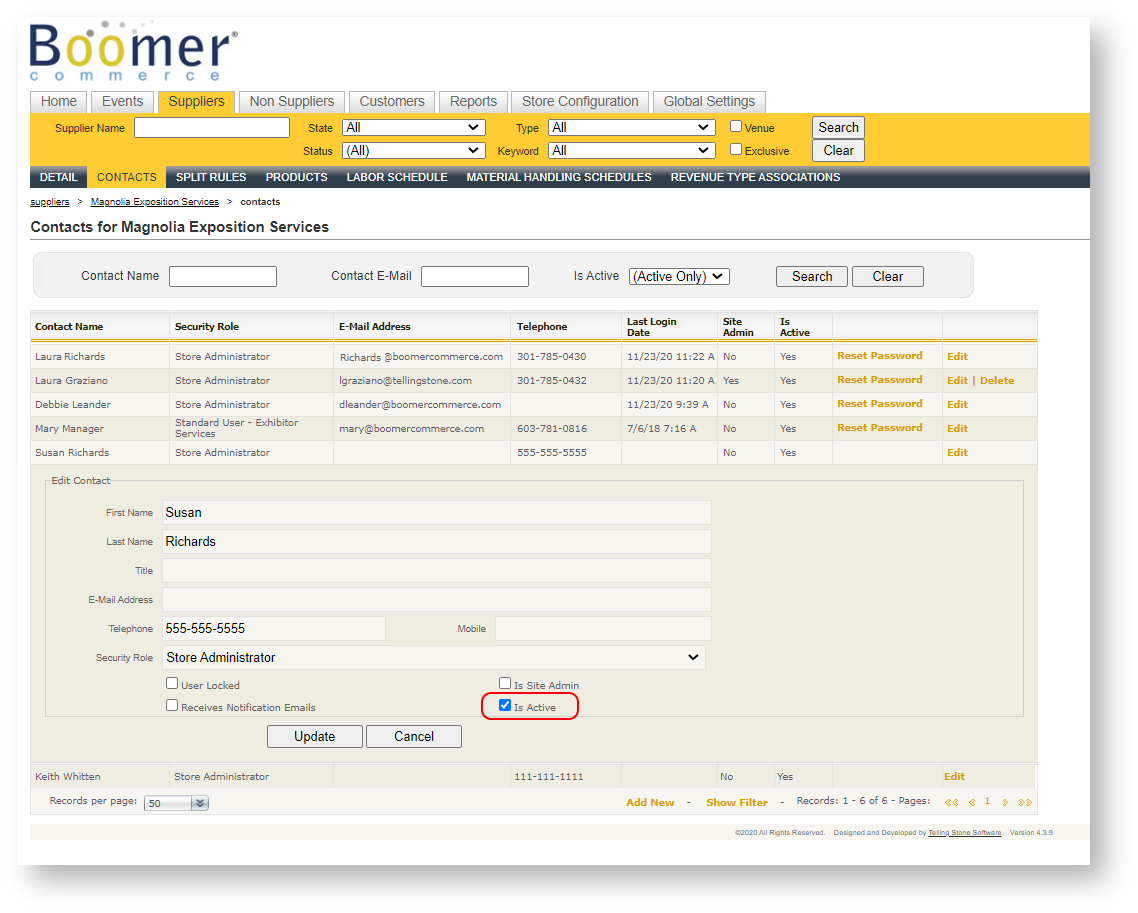
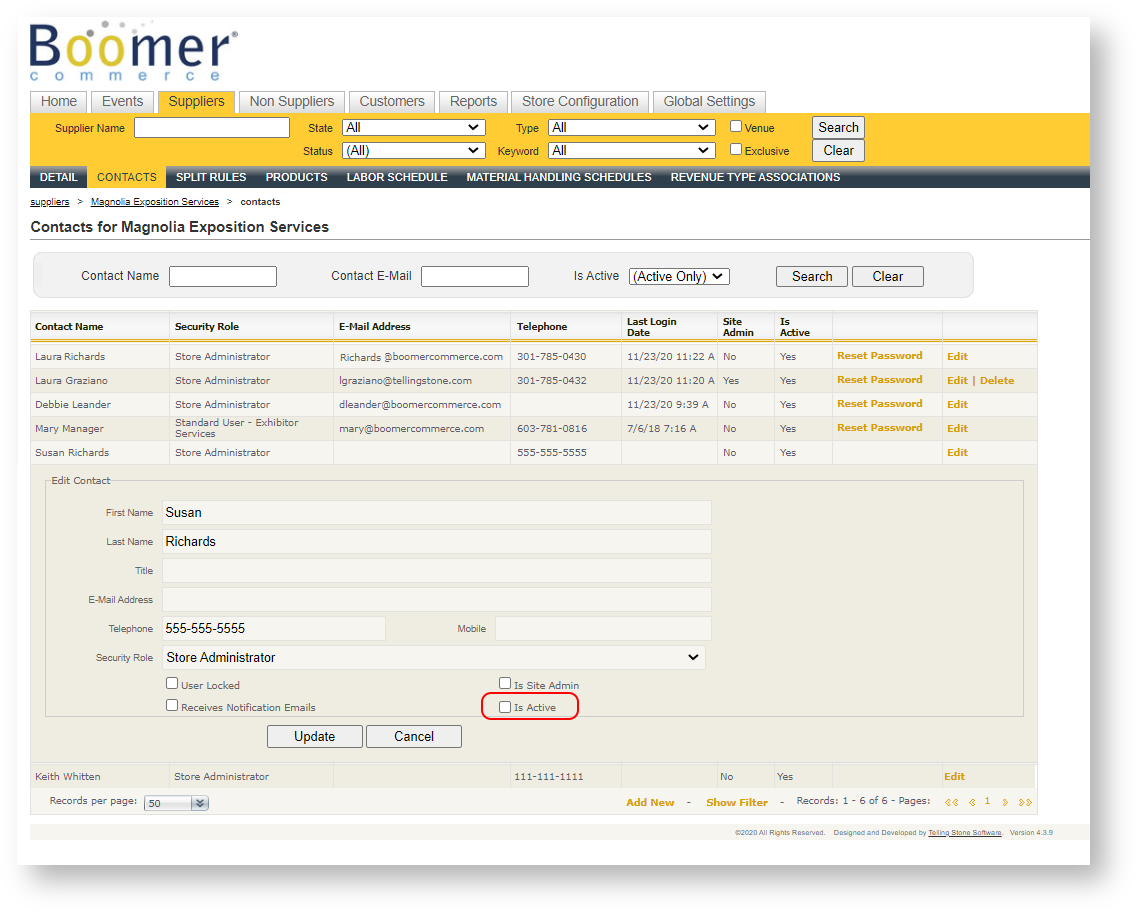
| Is Active | Determines whether a contact is active as an admin or not. |
Contact Details
Each supplier contact has the following fields:
Add a New Contact
To add a new contact, click "Add New" in the lower right hand corner of the grid. The contact form appears. Fill in the details using the field explanations in the Contact Details section above. Make sure to click "Is Active" if you want the new contact to have access to Admin and the Storefront.
Edit a Contact
To edit an existing contact, click "Edit" in the contact's row.
Delete a Contact
Supplier contacts may be deleted as long as it has not been designated as a manager (sales, catering or service) in an event. If this is the case but the contact is no longer with the supplier, consider making the contact Inactive. Otherwise, there is no harm in deleting a contact. To delete a contact, click "Delete" in the contact's row.
Grant a Contact Login Access
Creating a contact for a supplier does not automatically grant that contact access to Boomer Admin; an additional step is required if the goal is to have that supplier contact have certain access to perform certain functions within the system. To activate a login for a contact, click "Create Login" in that contact's row. A dialog appears saying "The login has been created and the user has been notified". If an e-mail trigger exists to notify the contact of the new login (see E-Mail Templates), the user will be notified that a login has been created. A temporary password will be generated allowing the contact to log in and assign themselves a permanent password. The password must follow the password policies established for the system. See Password Policies for more information.
Note: If Reset Password nor Create Login exists in the contact's row, that contact does not have a security role.
Reset a Contact's Password
If a contact has forgotten his/her password, a Boomer Admin user with appropriate security access can reset the contact's password. To do this, click "Reset Password" in that contact's row. If an e-mail trigger exists to notify the contact that the password has been reset (see E-Mail Templates), the user will be notified that the password has been reset. A temporary password will be generated allowing the contact to log in and reassign themselves a permanent password. The password must follow the password policies established for the system. See Password Policies for more information.
Note: If Reset Password nor Create Login exists in the contact's row, that contact does not have a security role with the rights to do so. The security role that controls this is the "Unlock Users" setting.
Make a Contact Inactive (Is Active Button)
If a contact has been designated as a manager in an event (sales, catering or service) then the record may not be deleted. In that case, uncheck the "Is Active" flag to remove access to the user.
- Go to desired contact and hit Edit.
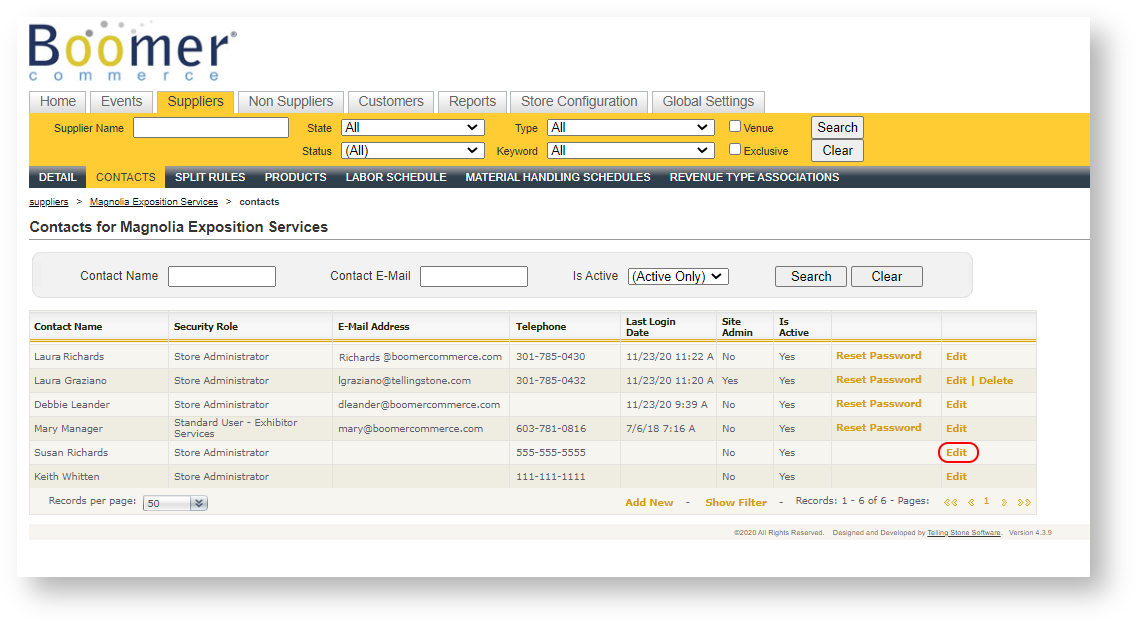
- If the contact is active, the "Is Active" box will be checked to allow access. If the contact is inactive, the "Is Active" box will be unchecked which will prevent the user from logging in to Admin or the Storefront.