General
- Use text messaging to communicate with your customers based on status changes in orders and/or shipments. See SMS (Text Message) Triggers for more information.
Events and Orders
- Custom item products may be edited after the custom item has been added to the order. Click "Edit Custom Item" to edit the item's revenue type, price, etc.
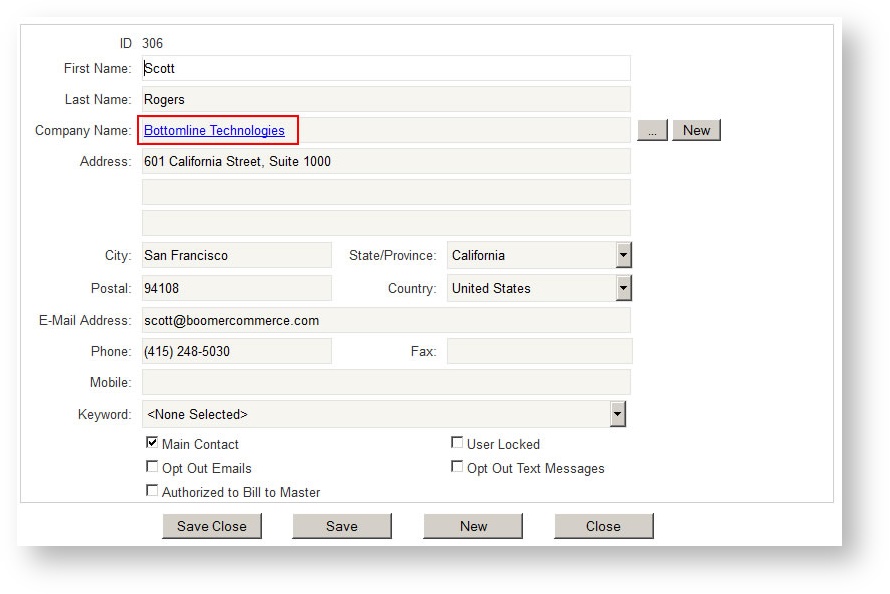
- A contact's company is a hyperlink within the contact detail form. Clicking on it is a short cut to access the contact's company under the Exhibitors grid:
- The Delivery grid filters have been enhanced to provide better control of the items displayed. View the updated help topic here for details Delivery.
- Special characters such as commas, ampersands and apostrophes were confusing the Work Order - Show Organizer report as well as any other report that allowed filtering by location and/or pavilion. This has been corrected.
Shipments
- Use either text messaging (see "General" above) or email triggers, communicate with exhibitors based on a status changes in a shipment.
- New email template to send to exhibitors with shipments products in their orders with instructions on how to enter their mobile number on the store. The new template is called "Instructions to Add Mobile Number on Store".Send via an email campaign or individually through the email button in an order. Sample may be found here.
- Material handling schedules may be set to charge based on total pounds.
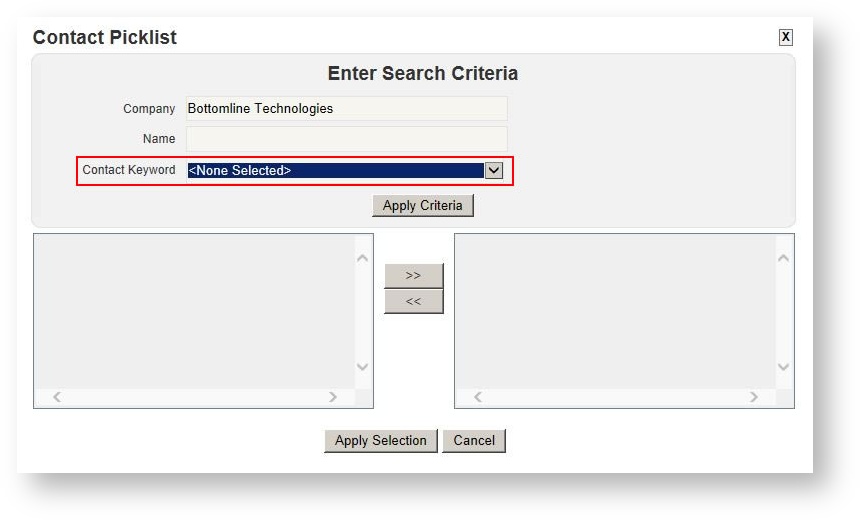
- Choose a shipment contact by using a new keyword filter which allows the user to designate a contact within an event as a "Freight Contact". To add a keyword for an event contact, see Keywords. The keyword filter appears in the picklist as shown below:
Reports
Changes to Existing Reports
- Invoice - Show Management
- has a new "Format" option which optionally labels the report as an Agenda rather than an Invoice and can suppress the pricing from printing.
- Optionally print the Discount %, Discount column and Total Services Discounted sections.
- If there is a value in a product's short description, it prints on the invoice.
- Invoice
- New parameter to either include or exclude orders with no revenue.
- New parameter to either include or exclude orders with no revenue.
- Event Dashboard
- Total Processed Payments has been added to the upper right corner.
- Total Processed Payments has been added to the upper right corner.
- Booth Check List
Combined the three separate print options for optionally printing Product Code, Onsite Contact and Instructions. - Delivery by Product
New parameter called "Include Bundle Parents" that determines whether bundle parents (i.e., the packages themselves) print on the report. - Payments by Event and Revenue Type
Event Start Date added to the report. - Show Summary and Product Use Reports
Both these reports break down quantities of products based on Advance, Standard, Show and No Charge ordering.