Events
- Track deposits due from and received by your customers in an event. For details and a 5 minute introductory video on this new feature, see the help topic: Deposits.
- When an existing customer is associated to an event, its customer type and price tier comes in as it was previously set. Also, the "Type" column in the Exhibitors grid has been renamed to "Price Tier" to more accurately reflect what it represents.
- An apostrophe in a contact's email address no longer confuses the Orders grid S/A column data tip that the user can pop up to see the Created and Modified information.
- The manager fields in the event detail form will display only names of users with security roles in Admin. Contacts without security roles will not appear as an option in the drop down lists.
- Event Logos may not be uploaded if they are greater than 200 pixels wide by 100 pixels high. This is to prevent logos that are too large from distorting how the event is displayed on the storefront and to prevent the logo from getting cut off in the event header on the storefront.
Orders
-
When a credit card is saved on file, it is available for future use within that event only. It is not available to use in other events and/or stores.
This applies to new credit cards entered going forward from this release; previously existing credit cards will still be available across events.
- When in the product detail in the process of adding an item to the shopping cart, the user can add instructions for all products, not just labor products. This should save the user time of first adding the product to the shopping cart and then finding it in the shopping cart and clicking "Add Instructions".
- Custom Item names may no longer be more than 255 characters (the description is still unlimited).
- Change the default "From" field in an email template prior to sending an email via the E-Mail Button in the Order Summary dialog.
- The Orders grid filter for estimated items uses the parent product's Estimated flag, not the child product's flag to determine whether it is estimated.
Shipments
- When a material handling schedule is defined "By CWT by Weight Range", a shipment will be charged entirely at the rate defined for that weight range.
- Material handling surcharge fees can be defined as an amount per CWT.
Security
- Control field visibility and editability for a security role. The two currently supported areas include the event detail form and the order customer info form. For more information, see Store Security Roles.
Suppliers and Products
- Create a list of keywords to help organize your different types of suppliers and use those keywords to filter the supplier grid.
- Additional columns have been added to the Suppliers grid to indicate whether the supplier is Active, is a Venue, and is marked as an Exclusive Supplier. These are all available filters in the enhanced Suppliers search area as well. For details on the enhanced grid, see Suppliers Grid.
- Optionally define a label to be displayed when a product's price is zero. In the Admin area, the field is called Zero Price Label:
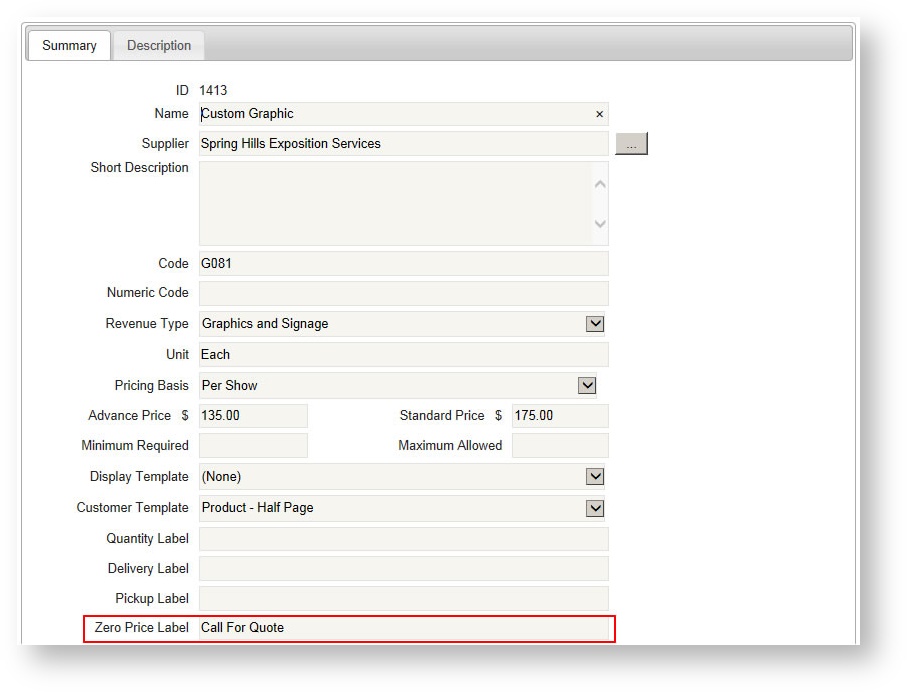
On the storefront, the product appears as follows: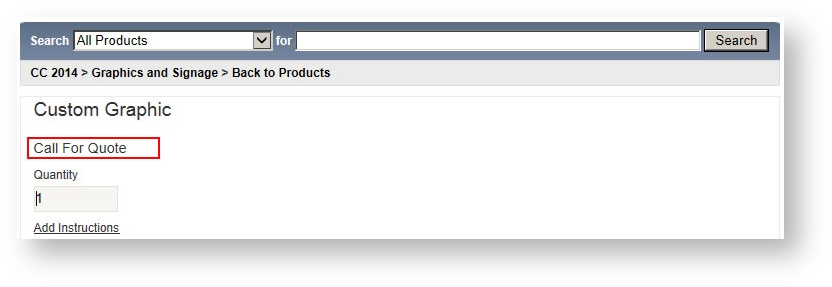
- The available Customer Templates for a product have been greatly simplified. Instead of making the Admin user configure a product as a labor item, freight item, one with an image, etc., Boomer will automatically determine which template to use based on the Is Labor and Is Freight flag. The two available options are as follows:
- Product - Half Page. Brings the user to the product detail but leaves the left half of the storefront visible (i.e., the department menu):
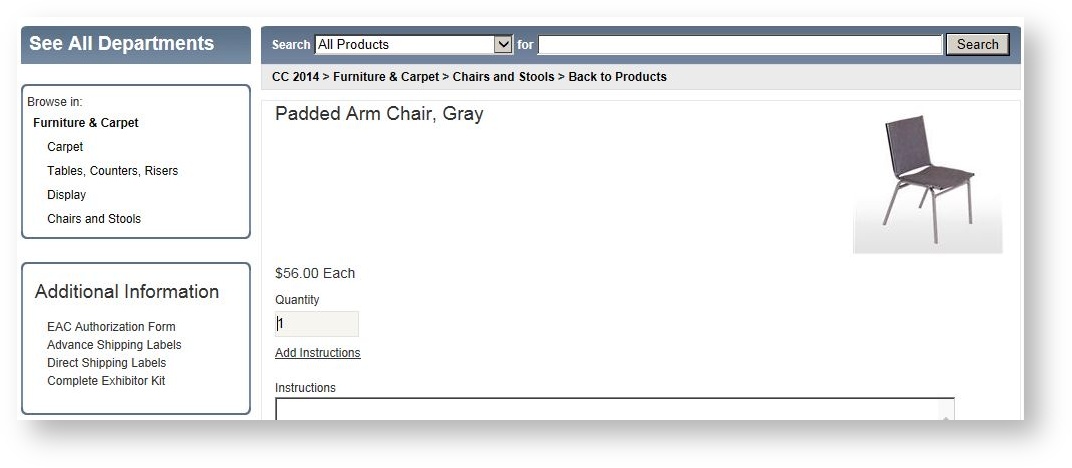
- Product - Full Page. Brings the user to the product detail page and takes up the full page:
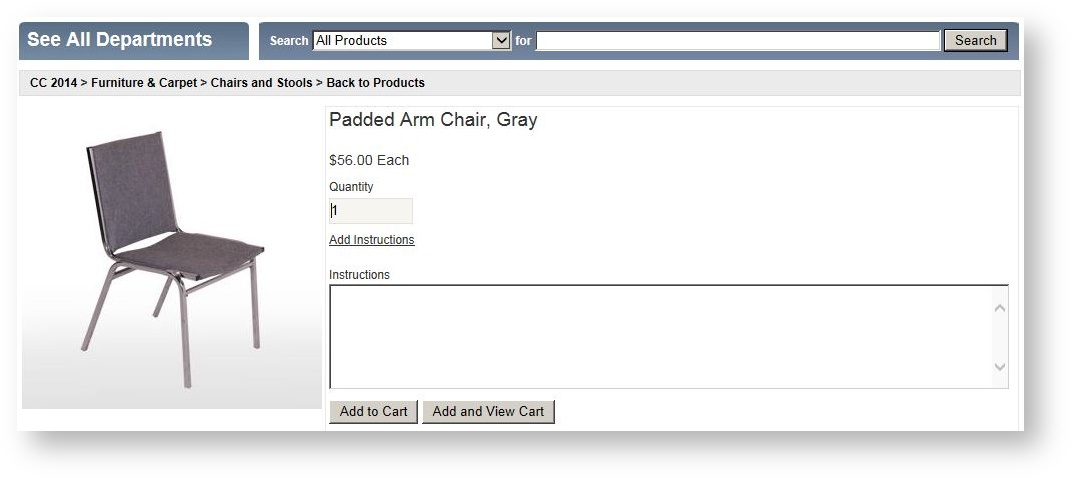
- Product - Half Page. Brings the user to the product detail but leaves the left half of the storefront visible (i.e., the department menu):
Storefront
- If a customer opens an order for an event that has passed which puts them into that event, they will no longer be able to place a new order for the event as long as the event is unpublished.
-
Button behavior has changed in the product detail on the storefront:
Old Button NameNew Button NameBehavior and ExplanationAdd to Cart Add and View Cart The old Add to Cart button added the product to the shopper's cart and brought them to their shopping cart, which was frequently thought of as an extra step which made them have to navigate through the shopping menu again. Add and Pick More Add to Cart This button now takes the place of the old Add to Cart button above and is named the same, but its behavior is different in that it adds the product to the customer's cart but does not take them to the shopping cart. The button names have not changed in the Admin area.
General
- A new "View Note" column is in all notes grid, allowing the user to simply hover over it to read the note's detailed content rather than having to Click Edit.
Reports
Changes to Existing Reports
- The "Work Order - Show Organizer" report displays the start/end times defined in an order if the "Has Times" check box is checked.
-
The "Event Exhibitor Contacts - Single Event" report provides contact login information including when the login was created and the last time the customer logged in to the storefront.
- Product Use report can be run based on an event start date range or event end date range. A new parameter called "Event Date to Use" controls what the dates mean in the parameter selection.
- New view available in the Accounts Receivable/Accounts Payable report that displays aging in columns similar to a Quick Books format.
- The Invoice - Show Management (Deposit) report lists all deposits due and received using the new Deposit feature in this release (see under Events above).
- The Order Notes report has been renamed to Notes (In Orders) so it appears next to the new Notes (Events and/or Customers) report (see below in New Reports).
- Event dates now appear on the Invoice. Note if you have a custom Invoice email template you will not see this change in the template.
- New view available in the Accounts Receivable/Accounts Payable report. Drop down the "View By" and select "Aging".
- Sort the Labor Orders (accessed from the main Reports tab) by date/time.
- The Delivery by Product report no longer includes bundle parent items (for example "Booth Package Special").
New Reports
- Work Order Export. Generates a spreadsheet-like summary of all show management work orders for export into Excel.
- Notes (Events and/or Customer).